
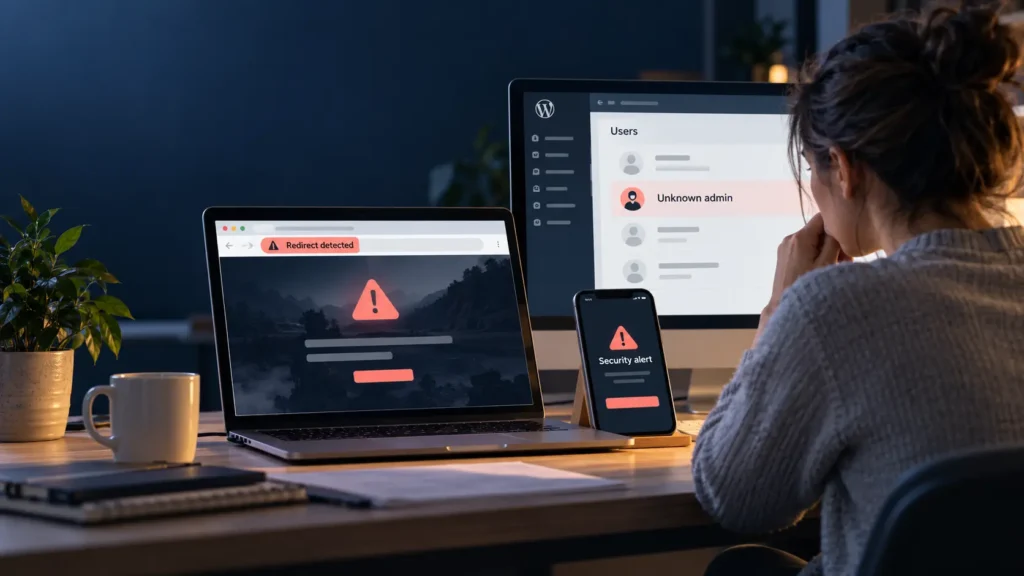
Your website was fine yesterday. Today, it sends visitors to a strange page. Maybe you cannot log in. Maybe your hosting company has sent a warning about malware.
It is stressful, especially when customers use your site to contact you or place orders. You do not have to fix everything at once. Start by keeping people safe, then work through the problem in order.
This guide explains what to do first, what a proper cleanup involves, and when it makes sense to ask for help.
Signs your WordPress site may have been hacked
One odd-looking page does not always mean a hack. A failed update or broken plugin can also cause errors. Look for these stronger signs:
- Your site redirects visitors to a page you do not know.
- New admin users appear in WordPress without your permission.
- Search results show spam pages that you did not create.
- Your host says the site contains malware or sends spam.
- Visitors see a security warning in their browser.
- Your pages show strange links, ads, or pop-ups.
- Your login stops working, and you did not change the password.
Write down what you see and when you first noticed it. Take screenshots of warnings and unexpected pages. Save any emails from your host. This record helps you or a specialist work out what happened. WordPress recommends documenting the signs before you begin changing the site. WordPress hacked-site guide.
What to do in the first hour
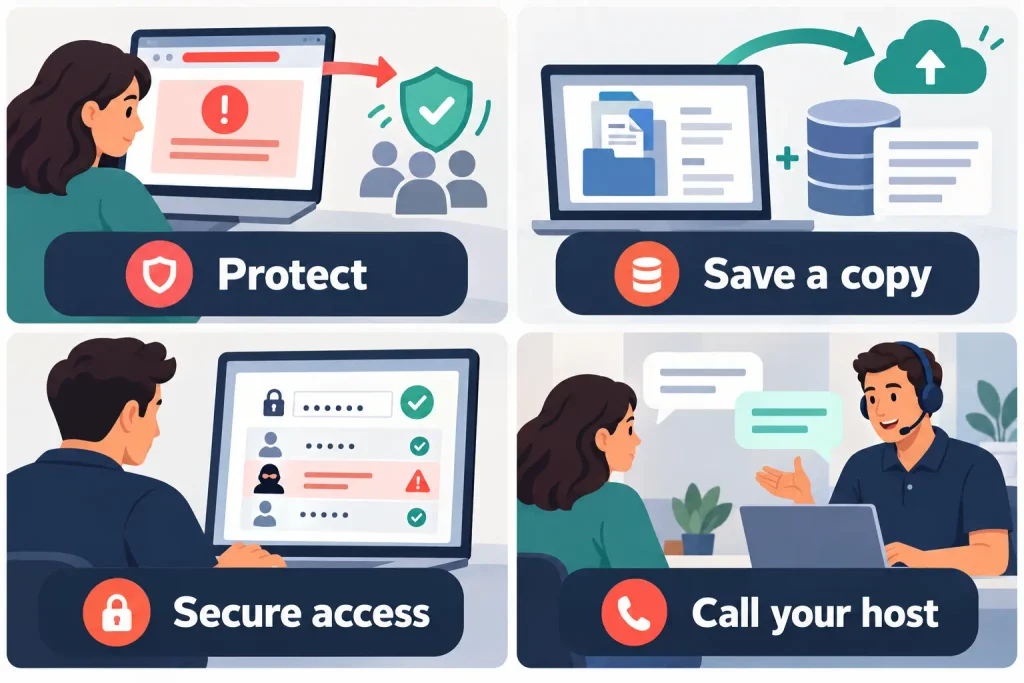
1. Protect visitors and orders
If your site is sending people to a dangerous page, showing fake payment forms, or collecting information in a way you do not recognize, contact your hosting company right away. Ask them to help block the harmful pages or temporarily restrict access while you investigate.
For a WooCommerce shop, pause orders if you cannot trust the checkout. Keep a record of recent orders and ask your payment provider what steps to take if payment or customer information might be involved. If personal data may have been exposed, get appropriate legal or privacy advice for your location and your customers. Do not assume that every hack involves a data leak, but do not dismiss the possibility without checking.
2. Save a copy before cleaning
Ask your host for a full backup of the site as it is now, including files and database. Label it as an affected copy. Do not use it as a clean restore point. It can help a specialist see what changed, and it gives you a way back if a repair goes wrong.
Also find your older backups. Check the dates carefully. A backup from last week may still contain the problem if the attacker entered earlier. A clean backup is useful only when you know it predates the hack and you close the way the attacker got in.
3. Secure your accounts
From a device you trust, change the passwords for WordPress admin accounts, your hosting account, email account, domain registrar, and any account that can change the website. Use a different, strong password for each one. Turn on two-factor authentication where available.
If you can access WordPress, review Users and remove any admin account you cannot identify. Do not delete a real staff account just because its name looks unfamiliar; check first. Ask your host or developer to rotate WordPress security keys so old login sessions are signed out. If you suspect your computer is infected, scan it before you enter fresh passwords.
Changing passwords is urgent, but it does not remove malicious files. It is one part of the recovery.
4. Tell your hosting company
Share your screenshots, the time the issue started, and any warning messages. Ask whether they can provide recent backups, scan results, access logs, and help isolating the site. If you cannot log in to WordPress, hosting support may still be able to help you regain access.
How a hacked WordPress site is cleaned
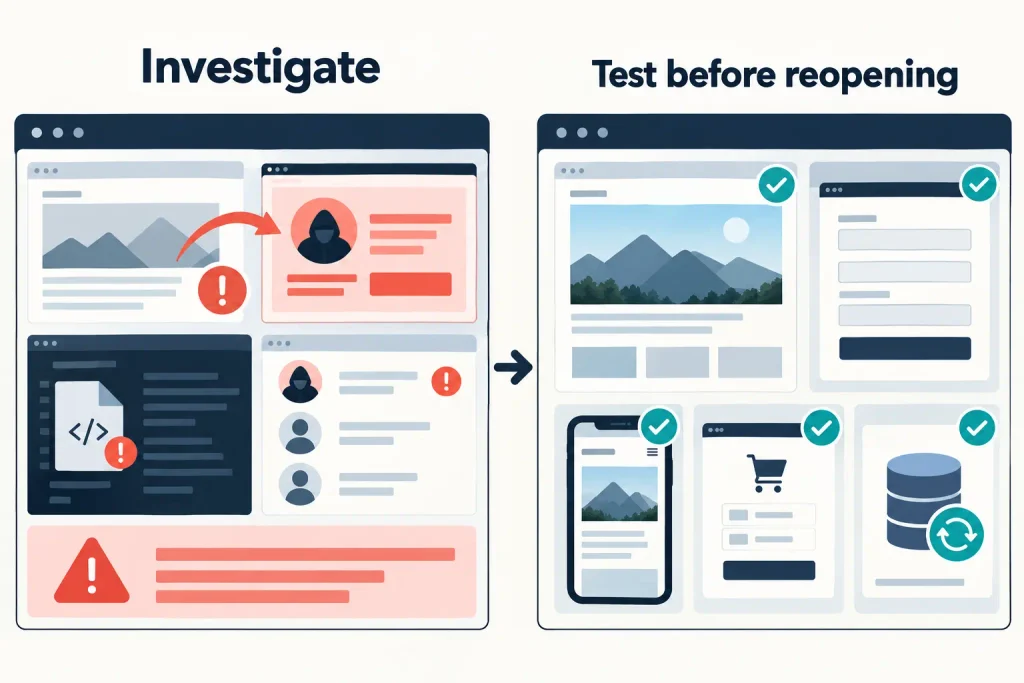
This is the part where many site owners need a professional. A security scan can point to suspicious files, but it may miss hidden changes. Deleting one file can make the visible problem disappear while another way back remains.
A careful cleanup usually includes these checks:
- Find what changed. Check WordPress files, plugins, themes, uploads, the database, and server settings. Look for unknown users, spam pages, redirects, and scheduled tasks.
- Remove or replace infected parts. Replace WordPress core files and affected plugins or themes with fresh copies from trusted sources. Remove malicious code and content. Keep custom work and site data safe during this step.
- Fix the entry point. Work out whether the attacker used a stolen login, a vulnerable plugin, an old theme, or another access route. A restore alone will not stop a repeat hack if that route stays open.
- Update and secure the site. Update WordPress, plugins, and themes after a reliable backup. Remove software you no longer use. Reset passwords again once the site is clean and rotate security keys.
- Test the public site. Check the homepage, key pages, forms, mobile layout, and search results. For a shop, test product pages, cart, checkout, and order emails with a safe test order.
- Watch for a return. Monitor the site and server logs after reopening it. Confirm that suspicious redirects, users, and pages do not reappear.
WordPress’s own guide says the exact cleanup depends on the symptoms and your access to the site. Its hardening guide also explains why trusted software, updates, and secure access matter after recovery.
Can you simply restore a backup?
Sometimes a known-clean backup is the fastest route. You still need to change passwords, remove the cause, update vulnerable software, and check that the restored site is clean. Restoring the same weakness can bring the problem back.
Be careful with newer content, orders, and customer messages. Restoring an old database can erase work added after the backup. Before a restore, make a plan for any data you need to keep.
What if Google shows a warning?
Clean and verify the site first. Then use your search or security console account to review the warning and request a review when the relevant service offers one. A review request is not a substitute for cleanup. Warnings can remain while the service checks the site again.
When to get professional help
Ask for help promptly if any of these apply:
- You cannot access WordPress or your hosting account.
- The site redirects visitors, shows a malware warning, or was suspended by your host.
- The problem returns after you remove a suspicious plugin or file.
- Your website handles orders, payments, bookings, or customer details.
- You do not have a backup you trust.
- You are unsure which files or users belong on the site.
- You need the site back quickly and cannot afford more trial and error.
Tell the specialist what you noticed, when it began, what you have already changed, and which backups are available. Ask for a clear scope: investigation, cleanup, the likely cause, checks before reopening, and follow-up monitoring. Give access through a secure method and remove temporary access after the work is done.
A simple checklist before you reopen the site
- The harmful redirects, warnings, and spam pages are gone.
- Unknown admin users and access routes have been removed.
- WordPress, plugins, and themes come from trusted sources and are updated.
- Site, hosting, email, and domain passwords have been changed.
- Forms, links, login, and mobile pages work.
- If you sell online, checkout and order emails work in a controlled test.
- You have a fresh, clean backup and a plan for future backups.
- You know what likely caused the problem and have addressed it.
No checklist can guarantee that every hidden issue is gone. If the attack involved customer information or keeps coming back, keep the site restricted and get specialist help.
How to lower the chance of another hack
Keep WordPress, plugins, and themes updated. Remove plugins you do not need. Use strong, unique passwords and two-factor authentication. Give each person only the access they need. Keep automatic, off-site backups and occasionally test that you can restore them. Review your admin users and site health regularly.
These habits take less time than dealing with another emergency.
Frequently asked questions
Is a hacked WordPress website recoverable?
Often, yes. The work depends on the damage, the backups available, and how the attacker got in. A good recovery cleans the site and closes the route used to access it.
Will changing my WordPress password remove malware?
No. It helps protect the account, but malicious code, unknown users, and changed pages may still be on the site. You need to check and clean those too.
Can a security plugin fix a hacked site by itself?
It can help find suspicious activity and files. It cannot always tell whether every change is safe or find every hidden entry point. Treat scan results as clues, then verify the whole site.
How long does recovery take?
It depends on the site and the hack. A small site with a known-clean backup may be quicker to restore than a busy store with missing backups and repeated infections. Ask for an estimate after an initial review, not a promise before anyone has inspected it.
Should I take my site offline?
If visitors are being sent to harmful pages or asked for information through a fake form, restrict access immediately with help from your host. If the issue is unclear, ask your host or security specialist how to protect visitors while they investigate.
Need help with a hacked WordPress site?
You do not need to guess which file to delete while customers are seeing warnings. Elementor Team can help review the problem, recover the site, and check the pages and forms your business relies on. Contact Elementor Team with your website URL, a short description of what happened, and any message from your host. Please do not send passwords in a contact form.