
You update Elementor, open your website, and something looks wrong. Maybe the text has lost its styling. Maybe a button has moved. Maybe the Elementor editor keeps loading and never opens.
That is stressful, especially if customers use the site to contact you or place orders. Take a moment to find out what broke before changing more settings. A messy page, a stuck editor, and a completely down site need different first steps.
First, check what visitors can see
Open your website in a private browser window on your phone or another computer. Look at the homepage, a service page, and your contact or checkout page.
Then ask yourself:
- Does the public website look normal, but Elementor will not open? The problem may be limited to the editor.
- Can you edit the page, but the live page looks messy? Old cached files or styles may be showing.
- Does the whole site show a critical error or a blank page? Treat this as a site outage and look for a recovery option.
- Is only one feature broken? A form, slider, popup, or payment tool may have a separate conflict.
Take a screenshot of the problem. Write down when it began and which plugin you updated. Those details will help if you need support.
Before you try a fix, make a backup
If you can still log in, create a fresh backup of the site and its database. If your host makes backups, check when the latest one was created. A backup gives you a way back if a repair makes things worse.
If your website takes orders or bookings, be especially careful with an older backup. Restoring it could remove orders or messages received after the backup was made. Ask your host or developer how they will keep that new data before restoring anything.
Also pause other updates for now. Make one change, check the result, and then decide what to do next.
If the live page looks messy, clear the cache
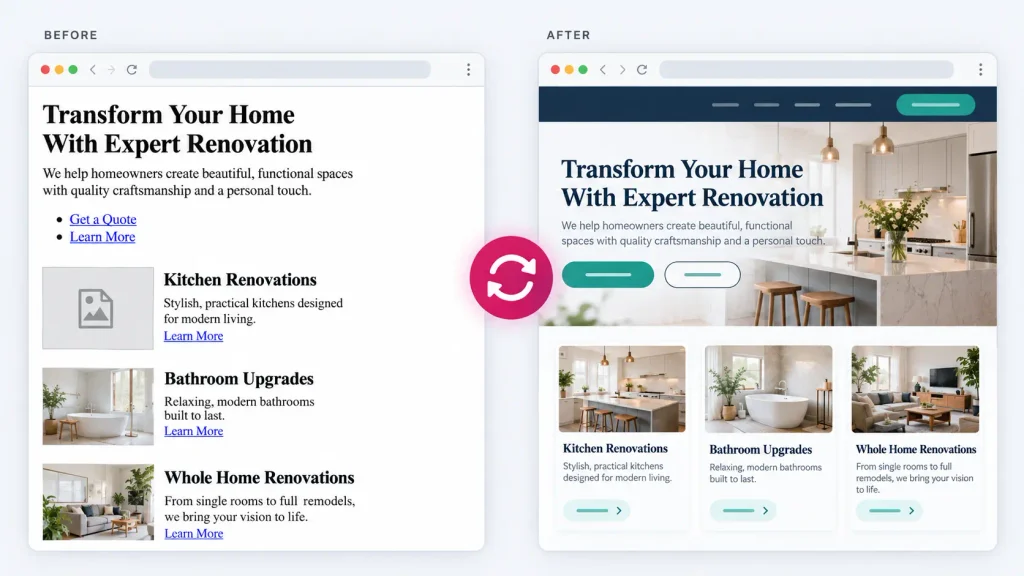
A cache is a saved copy of your site. Sometimes the page loads new Elementor code with an older saved design file, so spacing, fonts, or colors look wrong.
Try this order:
- Open the page in a private browser window. If it looks fine there, clear your normal browser’s cache.
- Clear the cache in your WordPress caching plugin, if you use one.
- Clear your hosting or CDN cache, if you have one. Your host can help if you cannot find it.
- Check the public page again on desktop and mobile.
If the design is still wrong and you can access WordPress, go to Elementor → Editor → Tools and use Clear Files & Data. In some dashboards, you reach it through Elementor → Editor → Home → Tools. Click Save Changes, then check the page again. Elementor lists this as a step for display problems after updates. Back up the site before clearing files and data. See Elementor’s instructions.
If only one page is affected, note its URL. That will help you avoid changing the whole site for a page-specific problem.
If the Elementor editor will not open, try Safe Mode
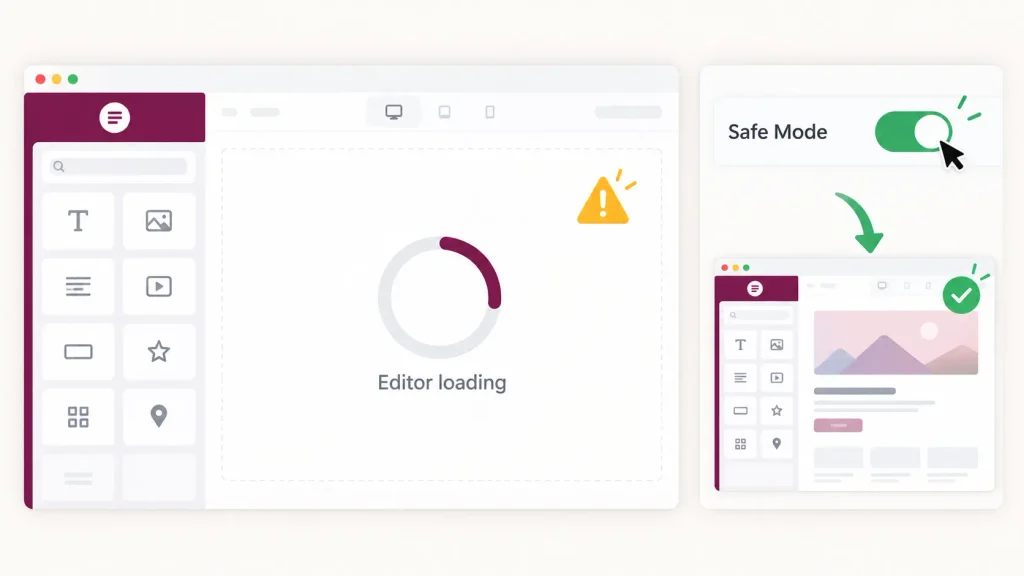
Maybe customers can still see your website, but clicking Edit with Elementor leads to a blank screen or a loading circle. Elementor’s Safe Mode can help find out whether another plugin or your theme is interfering with the editor.
In your WordPress dashboard, open Elementor → Editor → Tools and enable Safe Mode. Then try opening the editor again. If it opens in Safe Mode, a theme or plugin conflict is likely. A developer can test the other plugins one at a time on a staging copy of your site to find which one causes the problem.
Safe Mode is for the editor. It does not repair a messy page that public visitors see. It also does not change the live website for visitors. Elementor explains what Safe Mode does.
Turn Safe Mode off after you finish the test.
If the whole website is down, check for a recovery email
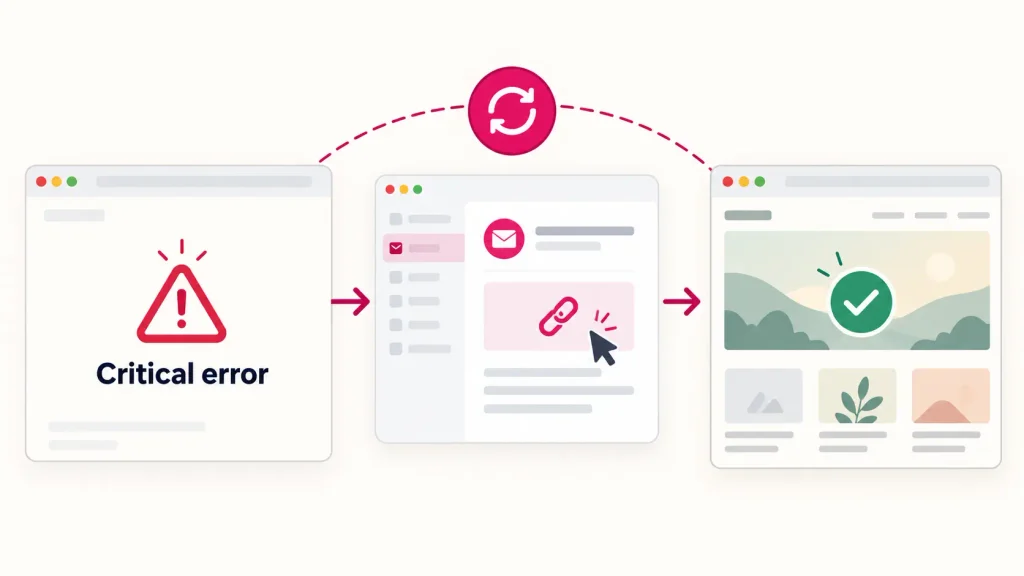
If the site says “There has been a critical error on this website”, check the email inbox for your WordPress administrator address. Check spam too. WordPress may send a message with a special Recovery Mode link and information about the plugin or theme that failed.
If the email arrives, use the link to enter the dashboard and read the error notice. If you cannot log in or no email arrives, contact your hosting company. Tell them the site went down immediately after the update and ask for the error log and available backup options. WordPress documents how Recovery Mode works.
If this is a live store or booking site, tell your host that customers may be trying to place orders. Avoid deleting plugin files or restoring an old database unless you know what will happen to recent orders.
Check Elementor and Elementor Pro together
If you use Elementor Pro, check which versions of Elementor and Elementor Pro are installed under Plugins → Installed Plugins. An update to one while the other stays much older can cause problems. Elementor documents a fatal error that can happen when its free plugin is updated but Pro is not. See the official fatal-error guide.
Do not update everything at once to see if that fixes it. Record the current versions, make sure you have a backup, and check the update notes. If you are unsure, ask someone who manages WordPress sites to handle it on a staging copy first.
Should you roll back Elementor?
A rollback installs an earlier Elementor version. It can help when the problem began with a specific update, but it is a step to take carefully. Elementor recommends making a backup first and provides a Version Control option under its tools. Read Elementor’s rollback instructions.
If you have Elementor Pro or other add-ons, the versions need to work together. If the website also takes payments or bookings, ask a developer to check the rollback plan and test the important customer steps afterward.
When to ask for help
You do not have to diagnose every technical error yourself. Ask your host or a WordPress developer for help when:
- The public site is down or shows a critical error.
- Customers cannot use the contact form, booking form, or checkout.
- Clearing the cache did not fix the design.
- Safe Mode did not let you open the editor.
- You need to restore a backup on a site with recent orders or leads.
Send them the affected URL, a screenshot, the time the issue started, and the names of the plugins updated just before it happened. If you have an error message, copy it exactly. That gives them a useful starting point.
After the website looks normal again
Test the parts customers actually use. Open the menu, submit the contact form, click the main buttons, and check the mobile layout. If you sell online, complete a safe checkout test and confirm the order appears correctly.
For future updates, make a backup first and try the update on a staging site when possible. A staging site is a private copy where you can spot problems before customers see them. Elementor recommends both backups and staging tests before major updates. Read its update checklist.
Frequently asked questions
Why did my Elementor layout break after an update?
The page may be showing old cached files, or a plugin, theme, or custom code may be clashing with the update. Start by checking the page in a private window, then clear the site cache and Elementor files and data. If the issue stays, investigate recent changes on a staging site.
Will Elementor Safe Mode fix the live page?
Safe Mode helps you test a problem inside the Elementor editor. It does not fix a broken layout that public visitors see. For a live page, start with the cache and display checks above.
Can I return to the previous Elementor version?
Elementor offers a rollback option, but make a backup first. Check Elementor Pro and any add-ons as part of the plan, then test the site after the rollback.
What if I cannot access WordPress at all?
Look for the WordPress Recovery Mode email. If you cannot use it, contact your host and ask for the error log and backup options. Tell them if your site has received recent orders or bookings.
Need someone to fix your Elementor site?
If your website broke after an update, tell Elementor Team what happened. Share the page URL and a screenshot, and we can help find the cause and test the site once it is working again. You can also see our WordPress support and fixes service.