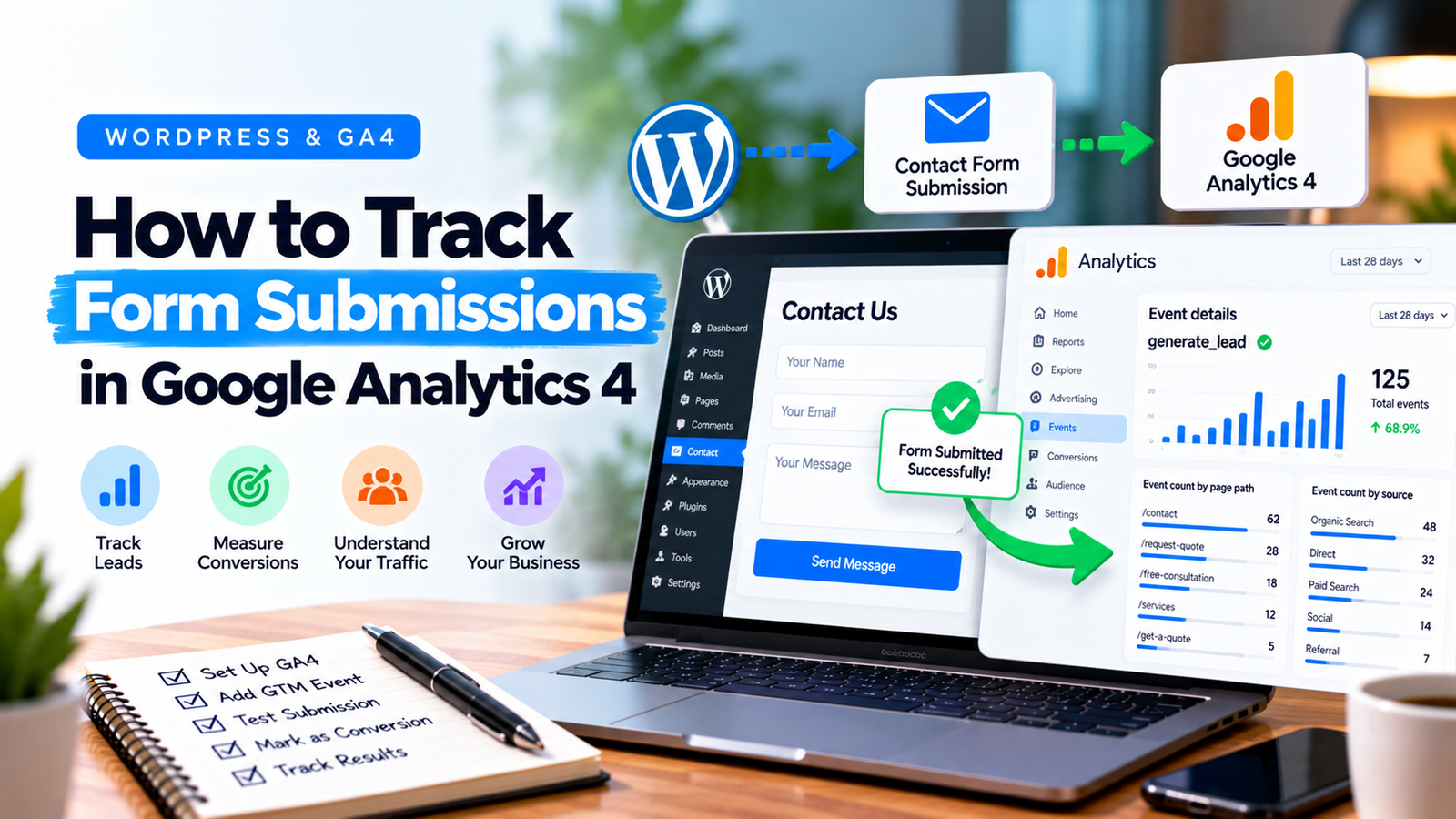
Your WordPress website may receive hundreds of visitors, but how many actually contact your business?
Without proper form tracking, it can be difficult to understand which pages, campaigns, and traffic sources generate enquiries.
Google Analytics 4 (GA4) can help you measure successful form submissions when tracking is configured correctly.
In this guide, we explain how WordPress form tracking works, common implementation methods, and how to test your results.
Why Should You Track Contact Form Submissions?
Contact forms often represent an important business action.
For a service-based website, a completed contact form may indicate that someone wants a quote, consultation, or appointment.
Tracking these submissions can help answer questions such as:
Which pages generate enquiries?
Which traffic sources bring potential customers?
Are visitors completing the forms?
Which marketing campaigns lead to contact requests?
Are recent website changes affecting lead generation?
These insights can help businesses make more informed decisions.
Step 1: Set Up Google Analytics 4
Before tracking submissions, ensure GA4 is properly installed on your website.
You need a Google Analytics property and a web data stream.
You can implement GA4 directly or through Google Tag Manager (GTM).
GTM is particularly useful when you need to manage multiple tracking events without repeatedly modifying website code.
Verify that your website sends page_view events to the correct GA4 property.
Avoid installing the same GA4 tracking configuration multiple times, which can produce duplicate data.
Step 2: Identify Your WordPress Form Plugin
Different WordPress form plugins behave differently after successful submissions.
Common plugins include:
Elementor Pro Forms
Contact Form 7
Gravity Forms
WPForms
Fluent Forms
Some forms display a success message without reloading the page.
Others redirect visitors to a confirmation page.
This behavior determines which tracking method may be appropriate.
Step 3: Choose a Reliable Tracking Method
There are several ways to track form submissions.
Method 1: Thank-You Page Tracking
If a form redirects visitors to a dedicated confirmation page, you can track visits to that page.
For example:
example.com/thank-you/
This method is relatively straightforward.
However, it may overcount submissions if users revisit or reload the thank-you page.
Use a dedicated confirmation destination and test your tracking logic carefully.
Method 2: Plugin-Specific Submission Events
Some WordPress form plugins expose JavaScript events or hooks after a successful submission.
These events may be used to send information to Google Tag Manager.
The exact implementation depends on the plugin and its version.
For example, Contact Form 7 provides a wpcf7mailsent event for successful mail submission.
In other form plugins, developers may need to use the plugin’s documented hooks or APIs.
Always confirm that the event represents a successful submission rather than an attempted submission.
Method 3: Google Tag Manager Form Triggers
Google Tag Manager includes form submission triggers.
However, these do not reliably detect every JavaScript-based or AJAX form.
If the form submits asynchronously, you may need a custom event or another integration method.
Do not assume that a generic GTM form trigger will work with every WordPress plugin.
Step 4: Create a GA4 Event
Once you have identified a reliable success signal, configure the event in Google Tag Manager or your chosen integration.
A suitable event name is:
generate_lead
GA4 recommends this event for lead-generation actions.
You can also provide additional event parameters when they are appropriate and supported by your implementation.
For example, a parameter might identify the form or its location on the website.
Do not send names, email addresses, phone numbers, or other personally identifiable information to Google Analytics.
Step 5: Test the Form Submission
Before publishing tracking changes, verify that the event fires correctly.
Use Google Tag Manager Preview mode if GTM is involved.
Then:
Open the website’s contact form.
Submit a valid test enquiry.
Confirm the form reports success.
Check whether the expected tracking event fires.
Confirm that one successful submission produces the intended event count.
Test validation errors and unsuccessful submissions.
Check GA4 DebugView where appropriate.
Also verify whether consent settings and browser restrictions affect the event.
Step 6: Mark the Event as a Key Event
In GA4, important business actions can be marked as key events.
Once your event is being collected and verified, configure generate_lead as a key event if it represents an important business outcome.
This allows you to focus reporting on the actions that matter to your business.
Keep in mind that a form submission is not necessarily a qualified lead or a confirmed sale.
Step 7: Review Your Lead Generation Reports
After tracking is in place, review how visitors reach and interact with your website.
Compare completed form submissions across relevant pages and acquisition channels.
Look for patterns such as:
High traffic but few enquiries
Service pages that generate more submissions
Campaigns that attract enquiries
Mobile pages with unexpectedly low completion activity
GA4 information can guide further investigation, but it does not always explain why a visitor did or did not submit a form.
Common WordPress Form Tracking Problems
Duplicate Events
A submission may be counted twice when multiple plugins, tags, or scripts track the same action.
Review your GA4 and GTM configurations.
Events Triggering Before Success
A click on the Submit button does not guarantee that the form was successfully submitted.
Track the confirmed success state whenever possible.
AJAX Forms Not Being Detected
JavaScript-based forms may not trigger conventional form submission listeners.
Use documented plugin events or a tested custom integration.
Missing Events in GA4
Check consent settings, measurement IDs, browser restrictions, tag configuration, and the form’s actual submission behavior.
Standard reports may also take time to populate.
Why Proper Tracking Matters
Without reliable conversion tracking, businesses may make marketing decisions based only on traffic.
A service page receiving fewer visits may still generate more valuable enquiries than a high-traffic blog article.
Measuring meaningful customer actions helps provide a clearer view of website performance.
At Elementor Team, we design and improve WordPress websites around important customer journeys, including enquiries and bookings.
Explore our WordPress Website Design Services if your website needs clearer lead-generation paths.
Frequently Asked Questions
Can Google Analytics 4 track WordPress contact forms?
Yes. GA4 can record successful form submissions through appropriate tracking events and integrations.
Do I need Google Tag Manager?
Not necessarily. Some integrations can send GA4 events directly. GTM provides additional flexibility when managing tracking configurations.
Does GA4 automatically track all Elementor form submissions?
No. Automatic form interactions and tracking behavior vary. Verify whether successful Elementor form submissions are actually recorded.
What event should I use for contact form leads?
generate_lead is a suitable recommended GA4 event when the form submission represents a lead-generation action.
Why are my GA4 form submission numbers incorrect?
Possible causes include duplicate events, tracking failed submissions, consent restrictions, or incorrect event triggers.