Your developer has moved on, and someone new needs to look after the site. You can still sign in to WordPress, but nobody is sure who renews the hosting or whose Elementor Pro license is connected. That’s where we start when a client asks us to take over an Elementor website.
Before changing design or content, confirm who owns each account, take a backup the business controls, retire old access after confirming your own, and map how the site is built.
Here are the nine checks we use for an Elementor handover, in order. A business owner can use them to prepare, and a new developer can use them to plan the work. For help with ongoing updates, see our WordPress maintenance and support service.
Before you take over an Elementor website: a backup you control
Make a full backup of the site files and database and store a copy in a business-controlled account. The files include uploaded images, themes and plugins. The database holds page content, settings and other site records. If access changes during the handover, you’ll still have a copy to restore. WordPress Developer Resources: Hardening WordPress
We record the backup date and check that it includes both parts. Where we can, we restore it onto a private staging site to verify that it opens. Keep older snapshots too, so there’s a choice of restore points if an issue already existed when you took the latest backup. WordPress Developer Resources: Hardening WordPress
1. Who owns the domain, hosting and DNS?
When taking over a WordPress website from another developer, we confirm the business can sign in, recover access and renew each service. An owner account should use a business-controlled email address. Give the developer a named account with the permissions their work requires. DNS is the set of records that directs your domain to the website and email services, so record where it’s managed before making changes.
| Account | Who should own it | What to ask for | Why it matters |
|---|---|---|---|
| Domain registrar | The business | Owner access, registrant details and renewal date | Controls the domain registration and renewal. |
| DNS or CDN account | The business | Provider, account access and a copy of DNS records | Directs website traffic and business email. |
| Hosting | The business | Owner access, billing and support details | Controls site files, databases and host backups. |
| Business email | The business | Administrator access and recovery settings | Receives account recovery and renewal messages. |
| Google Search Console, Analytics and Business Profile | The business | Verify Search Console ownership, Analytics administrator access and Business Profile primary ownership | Preserves search and measurement data and access to the business listing. |
| Elementor account and Pro license | The business | Subscription owner, connected account and renewal details | Keeps Pro updates under business control. |
| Other premium plugin licenses | The business | Vendor, subscription holder and renewal details | Shows which extensions can still receive updates. |
| Backup service | The business | Account access, backup location and restore steps | Lets the business recover the site independently. |
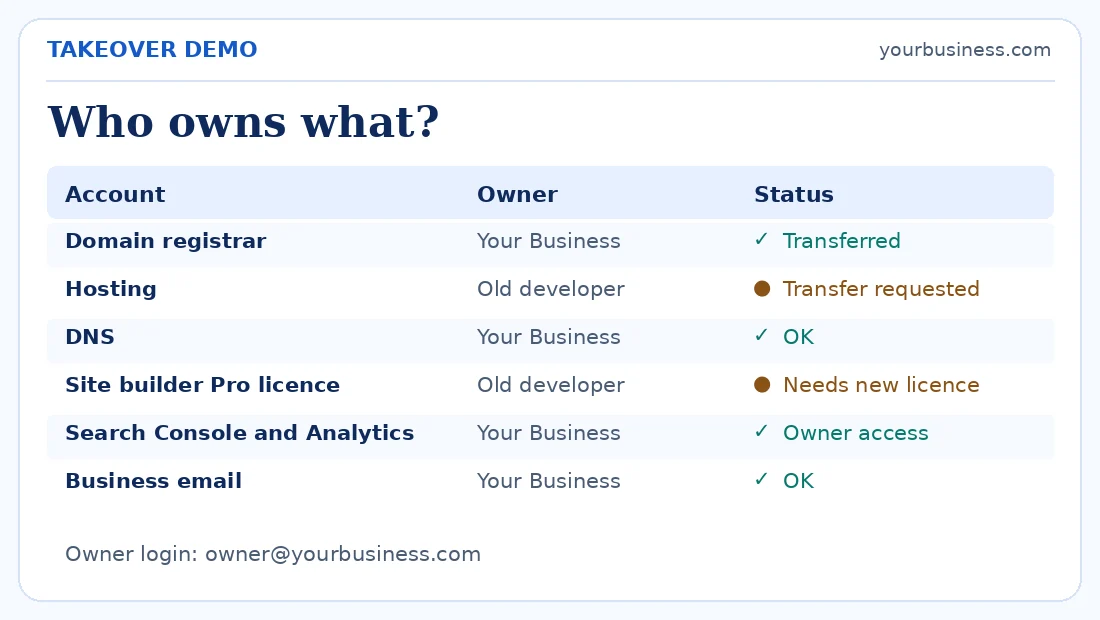
What to ask for. Ask for owner access to the registrar and hosting accounts, or the providers’ steps for moving the domain and site into accounts in the business’s name. Test that the business can recover those accounts before closing the handover.
2. Whose Elementor Pro license is it?
An Elementor Pro license is activated for the site through an Elementor account. Your previous developer may have used an activation included in their subscription. They can deactivate that activation. Elementor says the live site keeps working after a license is deactivated, but Pro features stop receiving updates until an active license is connected. Elementor Help: Deactivate an Elementor Pro license
To move the site onto the business’s subscription, open Elementor → License in WordPress. Current documentation also shows Elementor → Editor → System → License. Use Disconnect, then Connect & Activate while signed in to the account that holds the business’s subscription. Check the connected account and activation status. Elementor Help: Change license settings · Elementor Help: Connect and activate your Elementor Pro license
If the site uses free Elementor and you lost access to the connected account, Elementor documents disconnecting the library connection and linking a new account. Pro users with account or license issues can contact Elementor support. Elementor Help: Disconnect and reconnect your Elementor account
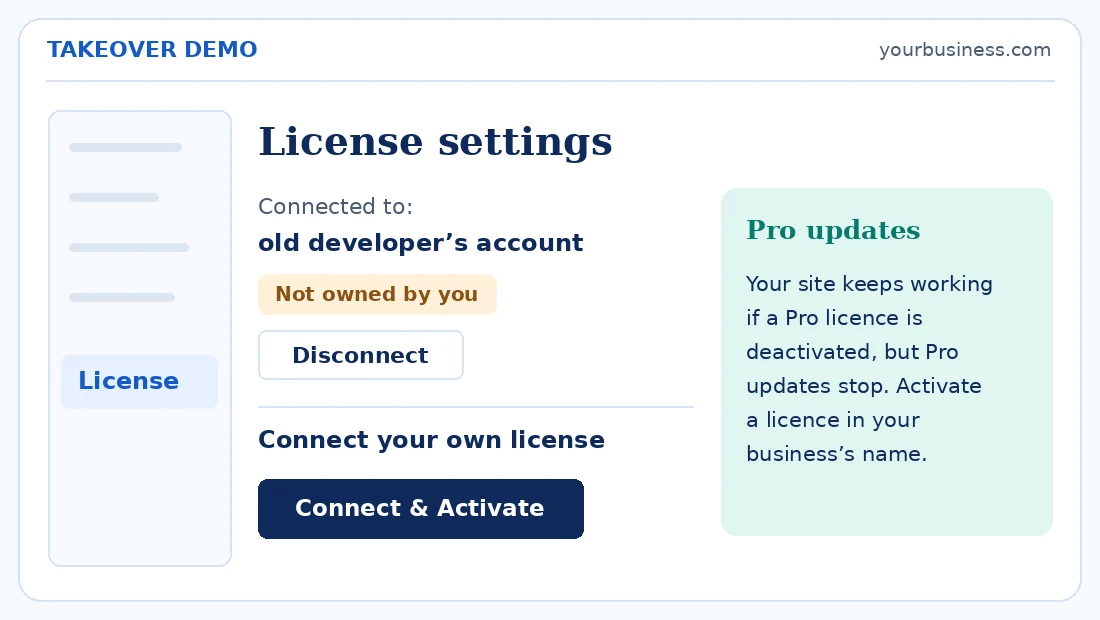
What to ask for. Ask whose subscription is connected and whether the site can switch to the business’s account during handover. If the license belongs to the developer, agree when they’ll disconnect it so you can activate your own.
3. Lock down users and logins
Verify the business has working administrator access and recovery methods before removing the previous developer’s access. Review the WordPress user list for unfamiliar administrators, old test accounts and support users. Once ownership is confirmed and any agreed support window ends, remove or downgrade access that’s no longer needed and preserve content authorship when removing users.
Replace shared passwords with long, generated ones, turn on two-step authentication and avoid obvious admin usernames. Review WordPress application passwords and API keys used by integrations. Identify which service uses each credential before revoking or rotating it, then test that service. WordPress Developer Resources: Hardening WordPress
After taking a backup, you can use the following setting in wp-config.php to disable the dashboard editors for theme and plugin files. It limits editing through those panels, while uploaded files remain a separate security concern. WordPress Developer Resources: Hardening WordPress
define( 'DISALLOW_FILE_EDIT', true );What to ask for. Ask for a list of every user the developer created, including service and support users, plus a list of application passwords or API keys and what each one connects. Share any necessary secrets through an approved secure channel.
4. Check WordPress, PHP and Elementor versions
Open Tools → Site Health → Info and record the WordPress version, PHP version and memory limit. Check Plugins for the installed Elementor and Pro versions. Elementor’s current requirements list WordPress 6.8 or later, PHP 7.4 or later with PHP 8.3+ recommended, and MySQL 5.6+ or MariaDB 10.5+. It lists 256 MB of WordPress memory for Elementor and Pro alone and recommends 512 MB. Elementor Help: System requirements
Set up staging and take a backup before applying updates. Test against the installed theme and add-ons, then update free Elementor before Pro. Check the public site and editor after each change. If an update leaves layout issues, see our guide to fixing an Elementor site after an update. Elementor Help: Elementor Pro update errors
What to ask for. Ask when the site was last updated, which plugins were deliberately held on an older version and why.
5. Audit plugins and Elementor add-ons
Make a list of active and inactive plugins, including which are premium and who holds each subscription. Check which widgets and integrations the site uses before removing anything. WordPress recommends keeping plugins up to date and deleting ones you no longer use. WordPress Developer Resources: Hardening WordPress
Keep
- Maintained plugins with a clear job.
- Add-ons that supply widgets used in pages or templates.
- Licensed extensions with a working renewal route.
Replace or remove
- Unused or overlapping add-on packs after testing dependencies.
- Abandoned tools when there is a supported replacement.
- Nulled premium plugins. Use a legitimate package from the vendor.
When I find two add-on packs that offer similar widgets, I check which pack each live template actually uses. A plugin can look redundant from its name and still supply a form or gallery the business needs.
What to ask for. Ask for every premium plugin and theme, where it was purchased and whose account holds the license.
6. Find the theme and custom code
Record the active theme and check whether it uses a child theme. Look in the child theme’s functions.php, snippets plugins, Elementor Custom Code and custom CSS, and plugin settings. A parent theme update can overwrite edits made directly to its files, so document those edits before changing the theme.
For each customization, note where it lives, which pages use it and what it does. If you can’t explain a snippet yet, keep a copy and trace it on staging before making a change. Include scheduled jobs or integrations that were set up outside the WordPress dashboard.
What to ask for. Ask for the custom code, child theme files and notes on anything changed outside the dashboard.
7. Map how the Elementor site is built
Check the global colors and fonts in Site Settings. In Theme Builder, record the header, footer, single post, archive and WooCommerce templates and their display conditions. Those conditions tell you which pages a template controls. A change to one header can affect every page that uses it.
List saved templates, popups and their triggers, and any dynamic content pulled from custom fields. Then trace every Elementor form to its destination: email, CRM, marketing list or webhook, which is a connection that sends data to another service. Submit an agreed test and confirm it reaches its destination. Elementor Team: Fix WordPress form emails
What to ask for. Ask for a list of templates, popups and form integrations, including who controls the connected CRM and email marketing accounts.
8. Record a baseline before changing anything
Run PageSpeed Insights on key pages and note any available Core Web Vitals data. Google’s good thresholds are LCP of 2.5 seconds or less, INP of 200 milliseconds or less and CLS of 0.1 or less. These track loading, responsiveness and layout stability. Save the test date and results so you can compare the same pages later. Google Search Central: Core Web Vitals
Check Search Console for indexing issues and top pages. Export SEO plugin settings and redirects where possible, and capture mobile and desktop screenshots of the main pages. A baseline records what was already there when the new developer took over. Elementor Team: Fix Elementor Core Web Vitals issues
What to ask for. Ask for Search Console and Analytics access, the current redirect list and notes from earlier SEO changes.
9. Agree a handover note and a maintenance routine
Write a one-page record of account owners, backup locations, plugins, licenses, custom code and emergency contacts. Say who approves updates, who will check the site afterwards and who can restore a backup if needed. Keep the record in a shared business location with appropriate access.
Agree on a routine for backups, staging tests before major updates and a monthly check of key pages, forms and upcoming renewals. Name the person who will follow up on any open handover item. That gives the next person a record they can work from.
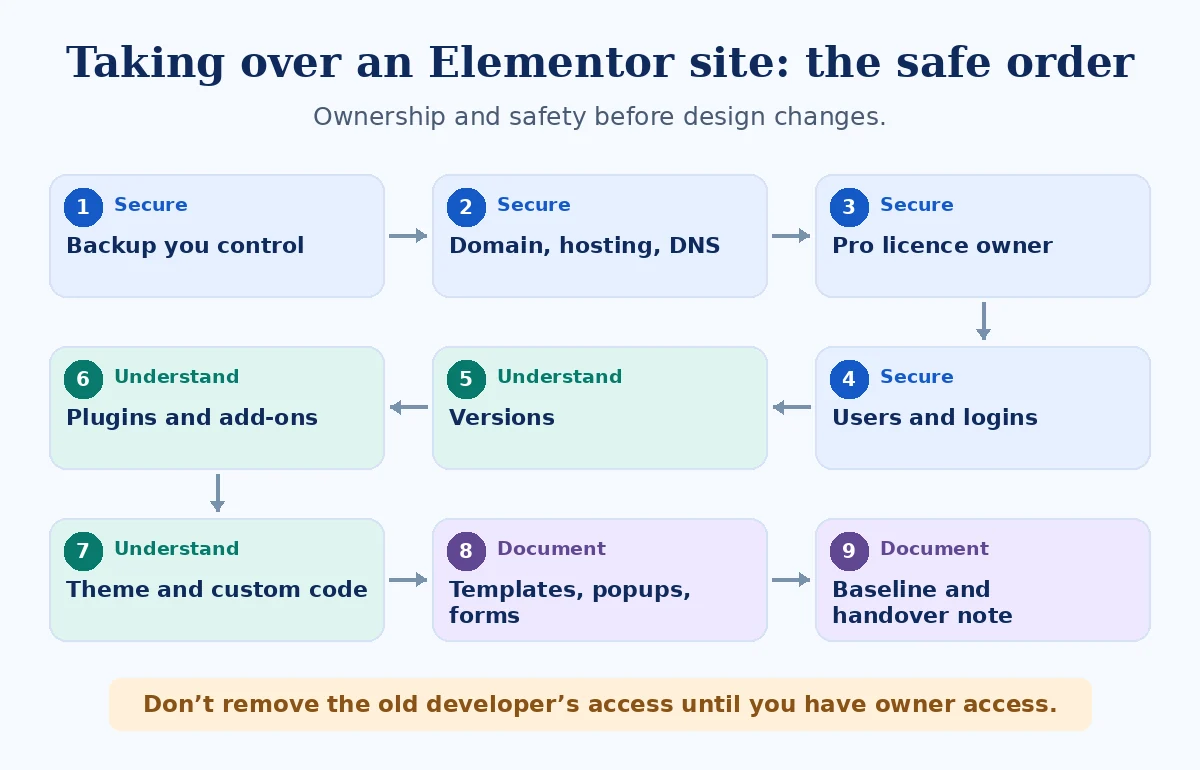
What to ask for. Ask the previous developer for a short written handover and any known issues. If that isn’t available, use the account recovery steps below to rebuild the record.
If the old developer won’t cooperate
If your business paid for the domain or hosting, contact the provider using its official support channel. Have the invoices, business registration or domain records available and ask what evidence it accepts for account recovery or a transfer. If there’s a dispute about the contract or ownership, get legal advice.
If you have WordPress administrator access but no hosting access, take a full backup through the dashboard if your permissions allow, then plan a move with the business’s approval. If you can’t move the site onto a business-owned Pro subscription, buy one in the business’s name. If you suspect someone changed access maliciously, see our WordPress hacked-site recovery guide.
Takeover checklist at a glance
| Check | Done? | Notes |
|---|---|---|
| Backup stored by the business | Record the storage location and date. | |
| Domain and hosting ownership | Include DNS and recovery access. | |
| Elementor Pro license ownership | Confirm the connected account. | |
| Other premium licenses | List holders and renewals. | |
| User accounts cleaned up | Check service access too. | |
| Versions recorded | Include WordPress, PHP and Elementor. | |
| Plugin audit | Identify dependencies before removal. | |
| Custom code located | Record its purpose and location. | |
| Templates, popups and forms mapped | Note display rules and destinations. | |
| Baseline recorded | Save screenshots, metrics and redirects. | |
| Handover note written | Assign the maintenance and emergency contacts. |
Frequently asked questions
Can a new developer take over my Elementor website?
Yes, a new developer can usually take over once your business can grant the access needed for the work. Start with WordPress administrator access, hosting and a full backup. Have the new developer confirm ownership, record versions and map templates and integrations before editing the live site.
Who owns the Elementor Pro licence on my site?
The person or business whose Elementor account holds the subscription controls the Pro activation. Check the connection in WordPress and ask the subscription holder to confirm it. If it’s connected to a developer’s plan, arrange to switch the site to a subscription your business controls. Elementor Help: Change license settings
What happens if my old developer deactivates the Elementor Pro licence?
Elementor says the site keeps working, but Pro updates stop. Arrange to activate an eligible license on the business’s Elementor account so you can maintain Pro going forward. Keep the plugin installed, record the date the connection changed, and confirm the new activation in WordPress. Elementor Help: Deactivate an Elementor Pro license
Should I remove my old developer’s admin account?
Remove or downgrade the account once your business has verified its own access and the previous developer no longer needs theirs. Check whether that account owns published content or supplies an integration credential before removing it. Review other accounts they created and rotate shared credentials the business still uses.
Should a new developer update everything straight away?
Record the existing setup and test updates on staging first. Keep a backup, note any dependencies that need to change together and update free Elementor before Pro. After each change, open the editor and public pages and test key actions such as submitting a form. Elementor Help: Elementor Pro update errors
What should I get from my old developer before they leave?
Get a backup you can restore, owner access to core accounts and a written list of licenses, custom code and integrations. Ask when services renew and where form submissions go. Verify the business can receive recovery messages for the domain, hosting and email before the handover ends.
Do I need to rebuild my site when I change developers?
Usually a careful takeover and cleanup are enough. Start by mapping how the existing site works and checking whether it can be maintained safely. A website redesign makes more sense if the structure, speed or code quality makes it impractical to improve the site in place.
Final word
Get the accounts into the business’s control, save a backup you can restore and document how the Elementor site works. Once those pieces are in place, decide what to improve and test changes on staging.
If a later update affects the layout, use our Elementor after-update troubleshooting guide to work through it.