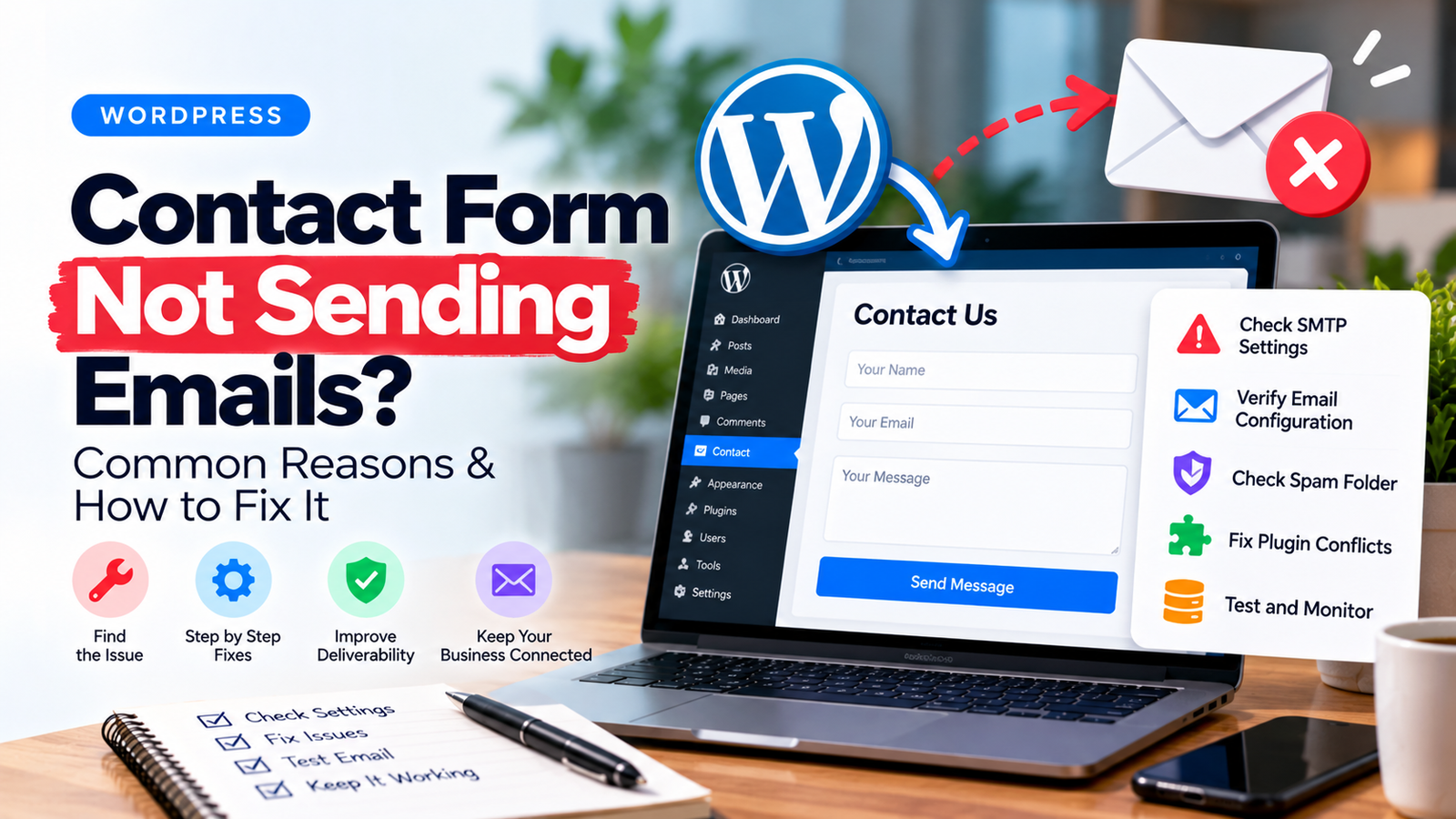
Your WordPress contact form says Message sent successfully, but nothing appears in your inbox. The visitor thinks they have contacted you. Your team never sees the enquiry.
This problem can affect Elementor forms, Contact Form 7, WPForms, Gravity Forms and other WordPress form tools. The form itself may work while email delivery fails, so troubleshooting needs to separate those two steps.
First, check whether the form saves submissions
Send a clearly labeled test message from the public website. Use a test email address and note the exact time. Check whether your form tool stores the submission in WordPress or a connected service.
If it does, the form may be processing correctly while the notification email is failing. If no record exists, inspect form validation, spam protection, JavaScript errors and server logs before focusing solely on email.
Not every form plugin saves entries by default. If there is no entry-storage feature, you may need logging or additional testing to understand what happened.
- Verify the recipient address
Open the form’s email notification settings. Confirm the To address is spelled correctly and belongs to a monitored inbox. Check whether multiple notifications are enabled and whether conditional logic is sending them somewhere unexpected.
When your team changes email providers or staff, old recipient addresses are easy to overlook. Update all contact forms, including footer and popup versions.
2. Check spam, junk and email filtering
Search the inbox for the test subject and the time you submitted it. Check spam or junk folders and any quarantine system your mail provider uses.
If the email is being filtered, do not assume adding the sender to contacts will solve every delivery problem. Sender authentication and message configuration should still be reviewed.
3. Inspect the From and Reply-To settings
A common issue is setting the From address to whatever email the visitor typed into the form. That can make a message appear to come from a domain your website is not authorized to send for.
Instead, configure a sender address for a domain you control, such as forms@yourdomain.com, when supported by your email provider. Put the visitor’s address in the Reply-To field so staff can respond normally.
The exact settings depend on your form and mail service, but the distinction matters: From identifies the authenticated sender; Reply-To identifies where a reply should go.
4. Configure a reliable email sending method
WordPress can use the server’s PHP mail function, but its availability and reliability depend on hosting configuration. For business-critical forms, an authenticated SMTP connection or a reputable transactional email API is often easier to monitor.
Set up the method supported by your provider. Use secure credentials, appropriate permissions and a dedicated sending identity where sensible. Do not place sensitive API keys in public page code.
After configuration, send a test email through the mail tool and then submit the real website form. Both tests are necessary: a successful mail test does not prove the form notification is configured correctly.
5. Check SPF, DKIM and DMARC
These DNS-based email authentication mechanisms help receiving servers assess messages associated with your domain. They serve different purposes:
- SPF identifies which sending systems are authorized for a domain used in the envelope sender.
- DKIM adds a cryptographic signature that recipients can verify.
- DMARC defines a policy for messages that do not align with the domain’s authentication requirements and can provide reporting.
Do not copy random DNS records from another website. Use the exact instructions supplied by your email provider, and avoid creating multiple conflicting SPF records. DNS updates can take time to propagate.
- Review anti-spam and validation settings
CAPTCHA, honeypots, firewalls and security rules can block a form before submission completes. A form that reports a validation error is different from one that says it was sent successfully.
Test with ordinary sample data, on mobile and desktop, and review security logs where available. Avoid disabling all spam protection on a live site just to make a single test pass.
7. Check logs, limits and hosting restrictions
Email services may impose rate limits, reject messages with improper authentication or block certain sending ports. Examine the available mail logs and provider rejection messages.
Look for a specific error rather than repeatedly changing plugins. If your host blocks outbound SMTP connections, ask which supported sending methods are available.
8. Add a backup process for enquiries
Email delivery can fail again. Where appropriate, use a secure submission log or CRM integration so an enquiry is not dependent on a single notification message. Limit access and retention of personal information, and follow applicable privacy requirements.
Assign someone to check new enquiries and alert the team when delivery fails. Do not collect sensitive information through a general-purpose form unless you have suitable protections.
A quick troubleshooting table
What happens What to investigate
Form shows success, but inbox is empty Notifications, spam, mail logs and sender setup
Mail test works, but form email fails Form notification settings and field mapping
Form does not submit Validation, JavaScript, CAPTCHA or firewall rules
Emails are received intermittently Rate limits, authentication, provider rejection and filtering
Only one form fails That form’s configuration and conditional logic
Frequently asked questions
Why does my WordPress form say sent but no email arrives?
The form may process the submission while the notification fails due to incorrect settings, authentication, filtering or sending-service errors.
Will an SMTP plugin fix every contact form issue?
No. It can improve the sending method, but it will not repair an incorrect recipient address, broken validation or a form that never processes submissions.
Should I use my Gmail address in the From field?
Usually it is safer to send using a properly authenticated address from a domain or provider you control and use the visitor’s address as Reply-To.
Can I prevent lost enquiries completely?
No system offers a guarantee. Reliable delivery, logs, monitoring and a secure secondary record can reduce the risk substantially.