

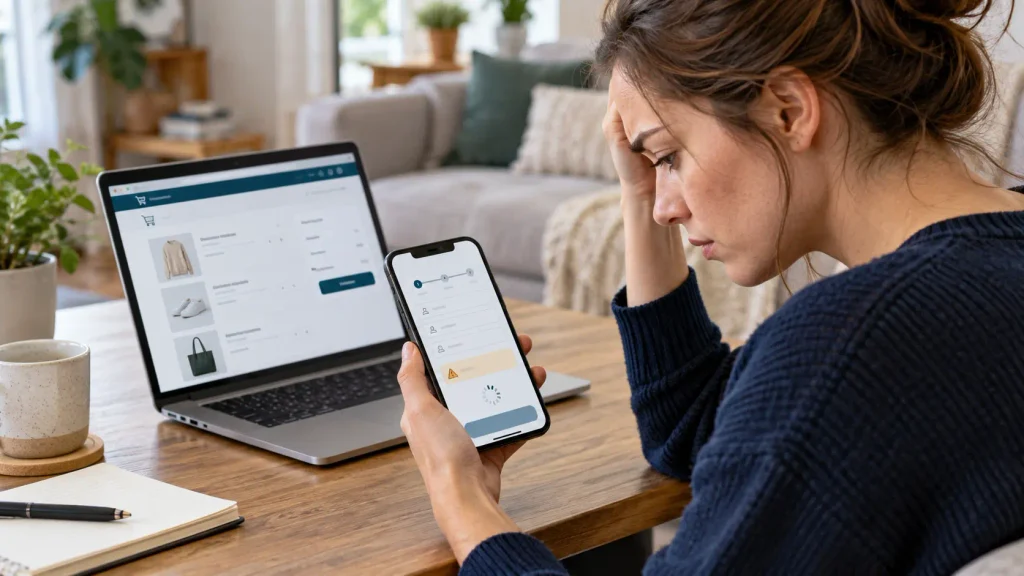
Someone adds a product to your store, reaches checkout, and tries to buy. Then the page freezes. Or the payment button does nothing. Or they see “No payment methods available.”
If your WooCommerce checkout is not working, the first step is to find out where it stops. Different symptoms have different causes. Changing random settings can make the problem harder to find, especially while customers are placing real orders.
This guide starts with simple checks you can do yourself. It also shows you when to hand the problem to a developer or your payment provider.
First, what does “not working” look like?
| What you see | Where to look first |
|---|---|
| Checkout page is blank, missing, or shows a 404 error | Checkout page assignment, page content, or a site error |
| Checkout keeps spinning or totals never update | Cache, script conflict, or a blocked request |
| Payment method does not appear | Payment settings, customer location, or checkout compatibility |
| “Place order” does nothing | Required fields or a script error |
| Card is declined or payment fails | Payment provider message, settings, and order notes |
| Customer paid, but the order is still pending or missing | Payment provider record, order notes, and payment notifications |
Do not ask a customer to try paying again until you have checked whether the first payment went through. A failed-looking checkout can still leave a payment at the provider.
1. Check that WooCommerce has the right checkout page
Go to WooCommerce → Settings → Advanced. Look at the page selected for Checkout. Open that page on your live site. Is it published? Does it show a working checkout?
WooCommerce supports a Checkout block and a classic checkout shortcode. The page needs the right checkout content for the setup you use. If a page was deleted, replaced during a redesign, or left as a draft, customers may land on an empty page. WooCommerce explains how its store pages are assigned.
Simple test: Add one product to your cart and go through the normal cart-to-checkout path in a private browser window. Do not rely only on the direct checkout URL.
2. See whether the problem happens to everyone
Try checkout on a phone and a computer. Test in a private browser window. If possible, ask someone outside your team to try the same steps.
If it works for you while you are logged into WordPress but fails for a visitor, the public page may be receiving a different cached version. If it fails only on one device, a display or script problem may be involved. Write down the exact step where it stops.
This is also a good time to check whether the problem affects every product or only products with certain shipping rules, coupons, or subscriptions.
3. Check caching on the cart and checkout
Caching saves a ready-made copy of a page to make it load faster. That is helpful on many pages, but checkout must show each shopper their own cart, totals, and payment options.
WooCommerce recommends keeping Cart, Checkout, and My Account pages out of page caching. If you recently changed a cache plugin, hosting cache, or CDN settings, review those exclusions and clear the affected cache. Do not turn off every performance feature on a live store without checking what it will affect. WooCommerce has a guide to configuring caching plugins.
A checkout that loads forever or shows the wrong total may need a closer look at scripts or requests, too. Cache is one possible cause, not an automatic answer.
4. Check payment method settings

Go to WooCommerce → Settings → Payments. Is the payment method enabled? Is it set up for the country, currency, and type of order you are testing? Check the payment provider’s own dashboard for account restrictions or setup notices.
If you changed from a classic checkout page to the Checkout block, check whether your payment extension supports that block. A payment method can be enabled in settings and still fail to appear on an incompatible checkout. WooCommerce describes this in its Cart and Checkout customization guide.
Do not switch checkout types on a busy store just to see what happens. Test the change on a staging copy first, including any custom fields and payment methods.
5. Read the message on the failed order
In WooCommerce → Orders, open an affected order and look at its status and order notes. A note from the payment provider can tell you more than a generic message on the checkout page.
Then check WooCommerce → Status → Logs for a log from the payment extension at the time of the failed attempt, if logging is enabled. The payment provider may have a more specific record in its dashboard. WooCommerce’s payment error guide and order troubleshooting guide explain where to look.
If the customer says they were charged: Check the payment provider’s transaction record and the WooCommerce order before attempting another payment, refund, or status change. If the records disagree, contact the provider or a developer with the order number and time of the attempt. Do not share full card details.
6. Think about what changed recently
Did the issue start after a plugin update, a new checkout design, a payment extension change, or a hosting move? That timing is a useful clue.
A plugin or theme can interfere with checkout fields, payment buttons, or the page’s scripts. WooCommerce recommends testing plugin and theme conflicts. For a live store, make a backup and perform the conflict test on a staging copy when possible. Turning off payment, shipping, or checkout plugins one by one on the live site can interrupt real orders.
If the issue started immediately after a change and you have a known working backup, a careful restore may be faster. First consider any orders placed since that backup so you do not overwrite new order data.
7. If the page keeps spinning, collect the error
An endless spinner often means the checkout is waiting for information that never arrives. A browser error, server error, blocked request, or plugin conflict may be behind it.
A developer can inspect the browser’s Console and Network tabs while repeating the problem. WooCommerce also has a specific guide for an endlessly loading checkout. You do not need to solve a technical error yourself; a screenshot of the checkout, the time, and the steps you took can make a support request much faster.
A safe way to test a fix
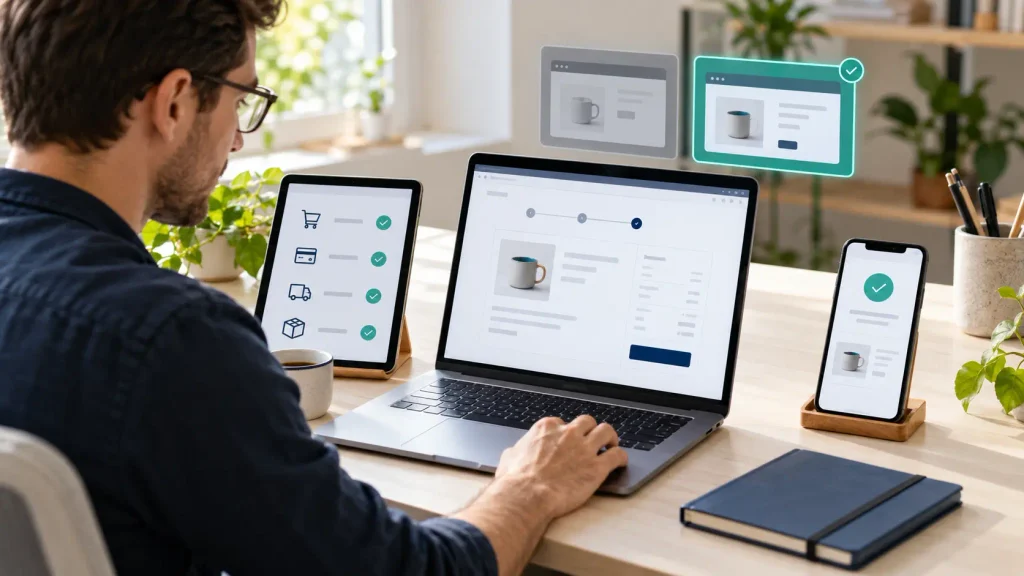
- Write down the symptom. Include the product, device, payment method, and exact error message.
- Check for real payments. Review WooCommerce orders and the payment provider before asking anyone to retry.
- Back up the store. Keep a copy from before you change settings or plugins.
- Use a staging copy for deeper tests. This is a separate version of the store where your tests will not interrupt shoppers.
- Change one thing at a time. Repeat the same checkout test after each change.
- Test the whole journey. Confirm the order, payment result, confirmation page, and store notification—not just the “Place order” button.
WooCommerce advises using a staging site for test payments. Test orders can trigger emails and other store integrations, so make sure your test setup will not ship a product or send a real customer message. See WooCommerce’s testing orders guide.
When should you get help?
Get expert help if payments may have been taken without matching orders, checkout is down for all customers, the problem began after an update and you cannot safely isolate it, or the logs show errors you do not understand.
Send your developer or payment provider:
- The checkout URL and the time the problem happened
- The exact error or a screenshot
- The affected order number, if there is one
- The payment method and whether the provider shows a transaction
- The last update or change made before the issue started
Do not send passwords or complete payment card numbers in a support email. Use a secure access method when someone needs to inspect the store.
Frequently asked questions
Why is my WooCommerce checkout page blank?
The Checkout page may be missing, unpublished, or assigned incorrectly. A plugin or server error can also leave the page blank. Check the page assignment first, then review recent changes and error logs.
Why does WooCommerce say “No payment methods available”?
Your enabled method may not support the customer’s location, currency, or checkout setup. A payment extension may also be incompatible with the Checkout block. Check the payment settings and the extension’s documentation.
Why does the WooCommerce checkout keep loading?
Caching, a script conflict, or a failed request can stop checkout from updating. Record the exact behavior and test on a staging copy. The browser error and WooCommerce logs can help identify the cause.
Can I test checkout without charging a real card?
Usually, yes. Many payment providers offer a test or sandbox mode. Set it up on a staging store and follow that provider’s test instructions. Remember that even test orders can appear in WooCommerce and trigger store emails or other integrations.
Need your checkout fixed?
Every failed checkout is a possible lost order. At Elementor Team, we can check the checkout page, payment setup, plugin conflicts, and WooCommerce logs, then test the purchase flow after the fix.
Contact us about your WooCommerce issue or explore our WordPress support and fixes service. Tell us what customers see and when the problem started, and we can take it from there.
Pingback: Restaurant Website Not Getting Online Orders? 9 Things to Check