A customer comes to your site, fills in your contact form and waits for a response. However, the inquiry does not end up in your e-mail.
This is a common issue for WordPress-based sites, and can occur with businesses that rely on online enquiries.
There are cases when despite the normal appearance of your website and contact form, emails fail to be delivered.
Knowing what causes the problem will allow you to correct it and not miss out on crucial customer communications.
A Few Reasons Why WordPress Emails May Fail
Unless another email service has been set up in WordPress, the PHP mail system is typically used to send notifications.
These messages might not reach reliably depending on the environment they are sent into.
Email servers that receive messages also verify that email is being sent by a registered email server.
Your website’s email settings might be misconfigured, leading to emails getting rejected, delayed or classified as spam.
1. Check Your Contact Form Settings
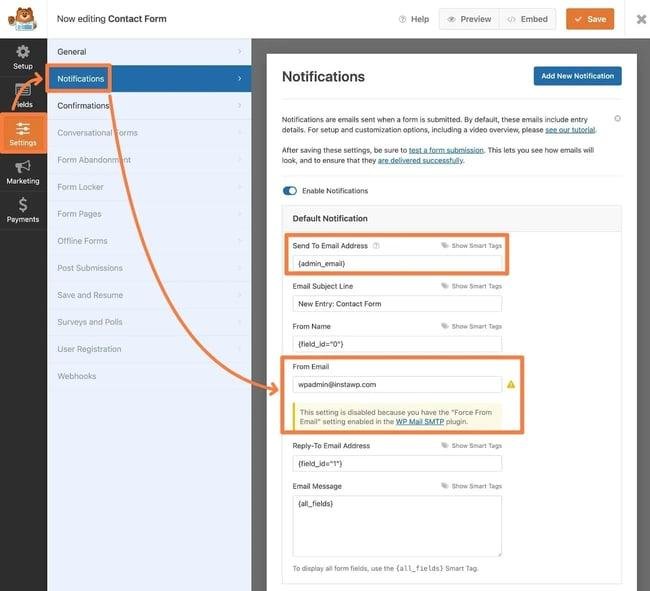
You can begin by examining your WordPress contact form.
Look for the notification settings on Elementor Forms, WPForms, Gravity Forms, or Contact Form 7.
Be sure to use the right email address for the recipient.
Check the sender address and reply to settings also.
One of the most common errors is to use the visitor’s email address as the sender. Rather, include an address that has been approved for your domain and the address of the person who is visiting in the reply-to field.
2. Set up SMTP or an Email Delivery Service
SMTP is a protocol (Simple Mail Transfer Protocol).
It offers a defined method for applications to send out emails via the mail server.
You can use a plugin for WordPress like WP Mail SMTP or FluentSMTP to link your web site to supported email service providers.
This can be done using SMTP credentials or an API connection, depending on the provider.
User always must use the provider’s recommended authentication method.
3. Check SPF, DKIM and DMARC Records
Email authentication helps in verifying that a message is authorized to use your domain.
SPF is used to identify which sending services are allowed.
DKIM offers a cryptographic signature which may verify the integrity of messages and sender authenticity.
DMARC specifies what to do when a message doesn’t align.
Normally these settings are set in your domain’s DNS records.
Email delivery issues can be caused by incorrect or conflicting records.
4. Test Your WordPress Emails
Update your email settings and send a Test email.
Verify that it gets to the right inbox.
Look in your spam folder and read any problems you may have with the email delivery plugin.
While a successful test e-mail is nice to have, it is not a guarantee that all contact form notifications will be successful.
Send your real site forms and verify that you receive site notices.
5. Monitor Delivery Problems
You can find sending logs, bounce reports or delivery diagnostics from your email provider.
These can be used to detect for the rejected messages and authentication issues.
Reviewing the logs can help save time when an important form no longer sends notifications when compared to changing random plugin settings.
If it’s a business-critical enquiry, you can securely store form data in WordPress or another CRM, depending on your privacy and retention needs.
That will be another method to check enquiries if an email notification is not received.