
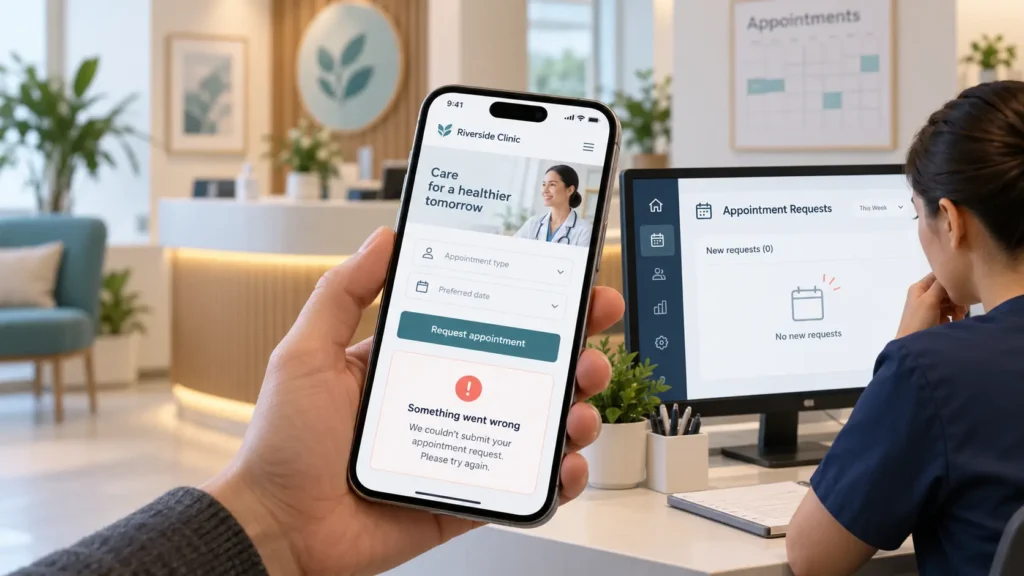
People visit your clinic website, but few ask for an appointment. It is easy to think you need more visitors. First, make sure the visitors you already have can reach you.
A booking button may lead to the wrong page. A form may appear to submit but never reach your team. A patient may open the site on a phone and struggle to find your hours or location. Small problems like these can quietly cost your clinic appointments.
Here is what to check, in an order that makes sense for a busy clinic owner.
Start with a five-minute appointment test
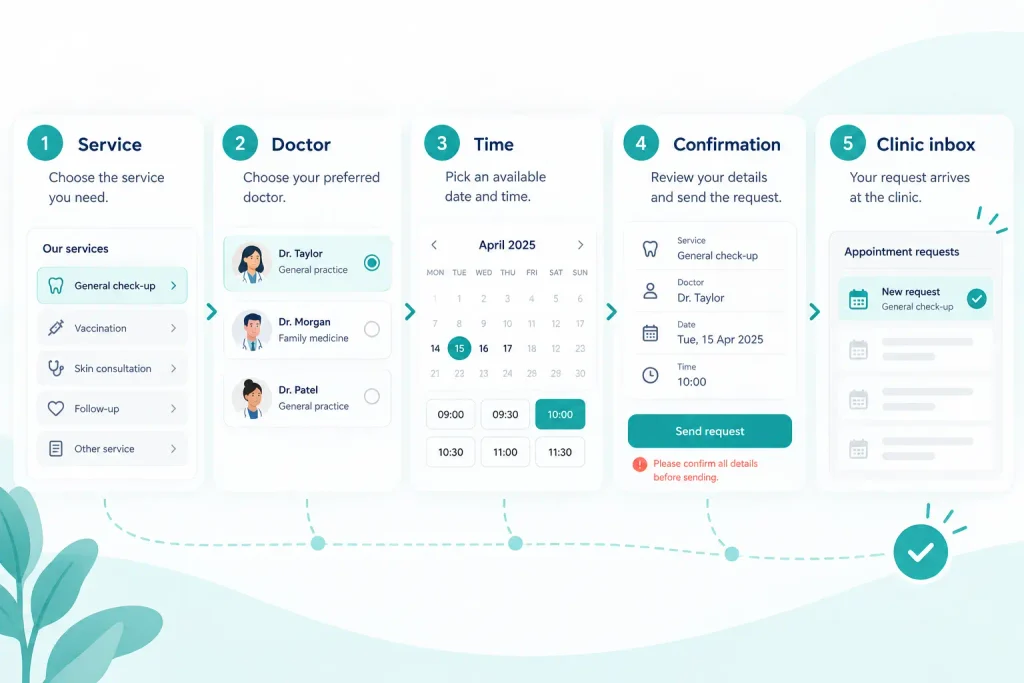
Open your website on a phone as if you were a new patient. Do not use your WordPress admin account. Try these steps:
- Find the right service or doctor.
- Find the appointment button.
- Choose a date and time, or complete the request form.
- Send a test request using an email address you can check.
- Look for a clear success message and a confirmation email.
- Check the inbox or booking system your staff uses. Did the request actually arrive?
Then repeat the test on a computer. If your clinic has more than one doctor, location, or service, test one example of each. If anything fails, fix that before spending money on more traffic.
Note: Use a clearly labeled test request and remove it from your real appointment schedule afterward. Avoid entering real patient details while testing.
1. Check every “Book Appointment” button
Your main button should be easy to see near the top of the page. It should take people to the correct booking page, not a general contact page with no next step.
Check the button on your homepage, service pages, doctor profiles, mobile menu, and footer. If you have several locations, make sure patients know which location they are booking. If you offer online booking and phone booking, give both options without making the page crowded.
Simple fix: Use clear words such as Book an Appointment or Request an Appointment. Use “Book” only when the patient can actually choose or confirm a slot. Use “Request” when your team must call back to arrange one.
2. Make sure your form really works
A form can look fine and still fail behind the scenes. Test whether it sends a notification to the right address, saves the request where staff can find it, and shows the patient what happens next.
Look for these common problems:
- The submit button keeps spinning or shows an error.
- The success message appears, but your clinic receives nothing.
- Emails land in spam or go to an old staff member.
- The form asks for too much information before an initial request.
- A required field is hard to complete on a phone.
- The form does not say when the clinic will reply.
Ask your developer or form provider to check delivery and records if requests are missing. A test email from the website is useful, but a full form submission is the real test. Keep the first request form short. For sensitive medical information, use a process suited to your clinic’s privacy requirements rather than a general contact form.
Clear field labels and specific error messages also help people complete forms. The W3C form guidance explains how labels, instructions, and feedback make forms easier to use.
3. Test the calendar and available times
If patients can select a slot, check the calendar itself. Does it show real availability? Does it use the right time zone? Can patients choose the correct doctor, service, and location? Does a booked slot disappear from the calendar?
Some clinics have separate systems for the website and reception desk. If they do not stay in sync, patients may request a time that is no longer open. That creates extra calls and disappointment.
Simple fix: Confirm the calendar settings with the person who manages appointments. Make one test booking, check it in the staff calendar, and verify any patient confirmation or reminder. Cancel the test slot afterward.
4. Check the mobile version first
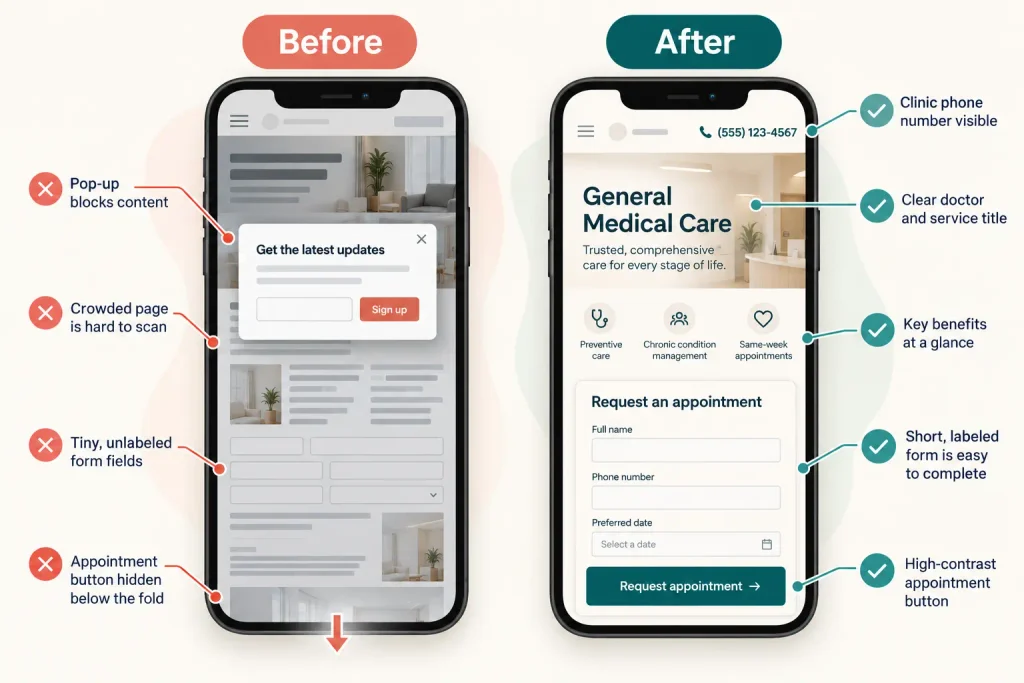
Many patients will open your website on a phone. A small button, a pop-up covering the form, or a doctor list that is hard to scroll can stop them.
On a phone, check whether you can:
- Read the service and doctor names without zooming.
- Tap the appointment and phone buttons easily.
- See the full form and calendar without horizontal scrolling.
- Find the address, opening hours, and parking details.
- Finish a request on a slow connection.
Try a real phone, not only your website editor’s preview. Google also uses the mobile version of a site for indexing, so the key information should be present and usable there. See Google’s mobile site guidance.
5. Answer the questions patients have before they book
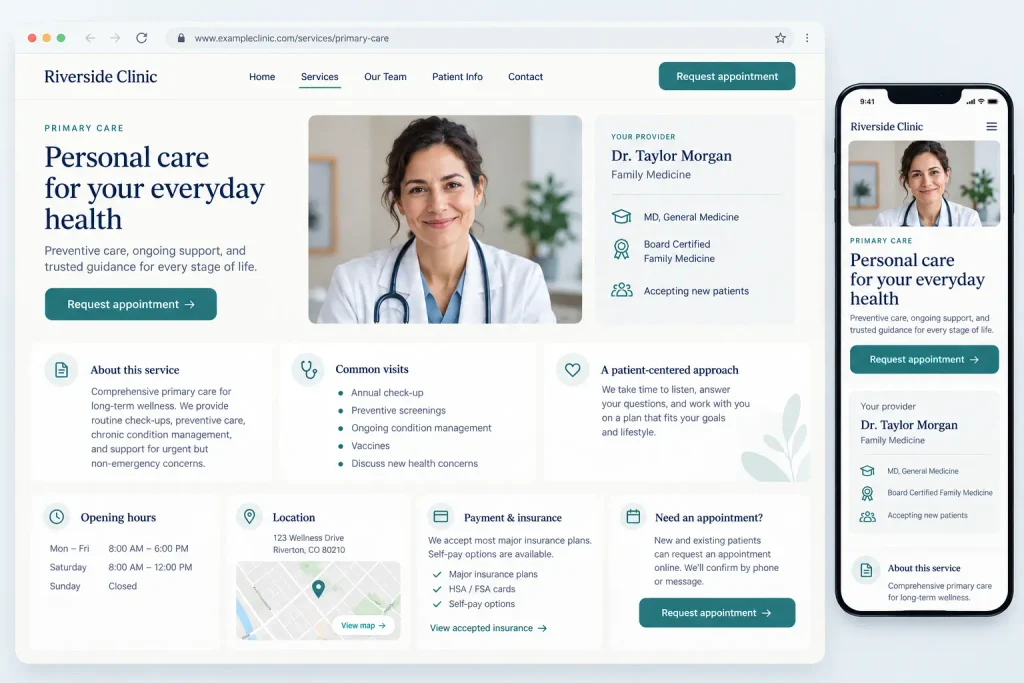
Some visitors are ready to book. Others first want to know if your clinic is right for them. If basic answers are missing, they may leave to compare another clinic.
Make it easy to find:
- Which conditions or services you handle.
- Which doctors provide each service, with accurate qualifications.
- Where you are and when you are open.
- Whether you accept new patients.
- The cost of a visit or how to ask about pricing, if you can share it.
- Insurance or payment information, where relevant.
- What happens after an appointment request.
Use plain language. A patient should not need to understand medical jargon to choose the right service. If pricing or availability changes often, keep the information current and provide a clear way to ask.
6. Give each important service a clear page
A single page that lists every service in one long paragraph is hard to use. People looking for a dental implant consultation, a physiotherapy session, or a skin check have different questions.
For each main service, explain who it is for, what the visit involves in general terms, which clinician provides it, and how to request an appointment. Add a relevant booking button on the page. Review any health claims with a qualified member of your clinical team before publishing.
You do not need dozens of thin pages. Start with the services patients actually ask about.
7. Make your clinic feel real and trustworthy
Patients may hesitate to send a request if they cannot tell who will see them or where they will go. Add real photos of the clinic, accurate doctor profiles, a working phone number, your address, and clear hours. If you display reviews, use genuine reviews and follow the rules that apply in your location.
Check that your site uses HTTPS and that old dates, broken images, and placeholder text have been removed. These details cannot replace good care, but they help people understand your clinic before they contact you.
8. Check where visitors come from
If your booking path works but very few people visit the site, look at how patients find you. Search for your clinic name and key services in your area. Check that your website and booking links on your Google Business Profile point to the right pages. Google allows eligible business profiles to add local business links for actions such as booking an appointment. Google Business Profile help explains how those links work.
If you use analytics, compare the pages people visit with the pages that get appointment requests. A page with visitors and no requests deserves a closer look. Numbers alone do not tell you why; test the page yourself and ask reception what questions callers keep asking.
How to tell where the problem is
| What you see | What to check first |
|---|---|
| Visitors click “Book” but no requests arrive | Button link, form delivery, calendar, and inbox |
| Requests arrive but patients do not complete bookings | Availability, response time, and what happens after submission |
| Mobile visitors leave quickly | Mobile buttons, form fields, speed, and pop-ups |
| People call to ask basic questions | Service details, doctor profiles, hours, location, and pricing information |
| Almost nobody visits the site | Search visibility and links from your business profile |
This table helps you choose a starting point. It is not a diagnosis. One clinic may have several issues at the same time.
When to ask for help
Ask a website specialist for help if test requests do not reach your staff, bookings appear under the wrong doctor, the mobile form is hard to use, or the site and staff calendar disagree. Get help sooner if patients are receiving incorrect confirmations or if your current forms collect sensitive information without an approved process.
Explain exactly what happened: the page URL, device, time of the test, and what your team did or did not receive. Screenshots and a test request ID, if available, make the problem easier to trace. Do not email patient medical details to a website agency.
A simple plan for this week
Day 1: Test the full booking path on phone and computer. Fix broken links and missing notifications.
Day 2: Review your most visited service and doctor pages. Make the next step clear.
Day 3: Check mobile layout, hours, location, and your Google Business Profile links.
Day 4: Ask reception what patients struggle to find. Update the relevant pages.
Day 5: Run another test request and record whether it reaches the right person.
You do not need to redesign your whole website to start getting answers. Find the point where people get stuck, fix it, and test again.
Frequently asked questions
Why does my clinic website get traffic but no appointment requests?
The booking link may be unclear or broken, the form may not deliver messages, or visitors may need more information before booking. Start with a full test request and then review the pages people use most.
Should patients book instantly or request a callback?
Choose the process your clinic can manage well. Instant booking works when slots are accurate and synced with your calendar. A request form can work well when staff must check the right doctor or appointment type. Explain the process honestly on the button and confirmation screen.
How many fields should an appointment form have?
Ask only for what your team needs to respond and route the request. The exact fields depend on your service and privacy requirements. Keep sensitive medical intake in a suitable, approved system.
Do I need a new website to get more bookings?
Maybe not. First check the booking path, mobile experience, and service information. If the site structure makes those fixes difficult or the design repeatedly confuses patients, a larger rebuild may make sense.
Need help fixing your clinic website?
Elementor Team builds WordPress websites for clinics, including service pages, doctor profiles, and appointment booking flows. If your site gets visitors but few requests, contact Elementor Team with your website link and a short description of what you have tested. We can review where patients may be getting stuck and suggest the next fix. Please do not send patient information through the contact form.