
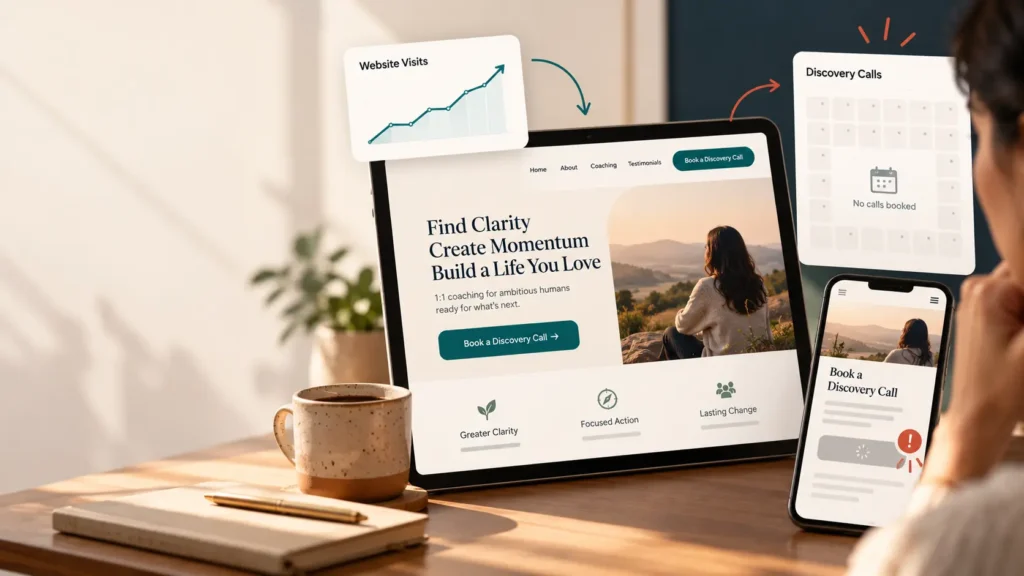
People visit your coaching website. Some read your About page or look at your services. Then they leave without booking a call.
That can feel confusing. You may think you need more traffic, but first check what happens to the visitors you already have. Can they tell who you help? Do they know what a discovery call is for? Can they actually find and complete your calendar booking?
Here are eight things you can fix, starting with a real booking test. You do not need to change all eight at once. Find the first place a visitor gets stuck and start there.
First: try booking your own discovery call
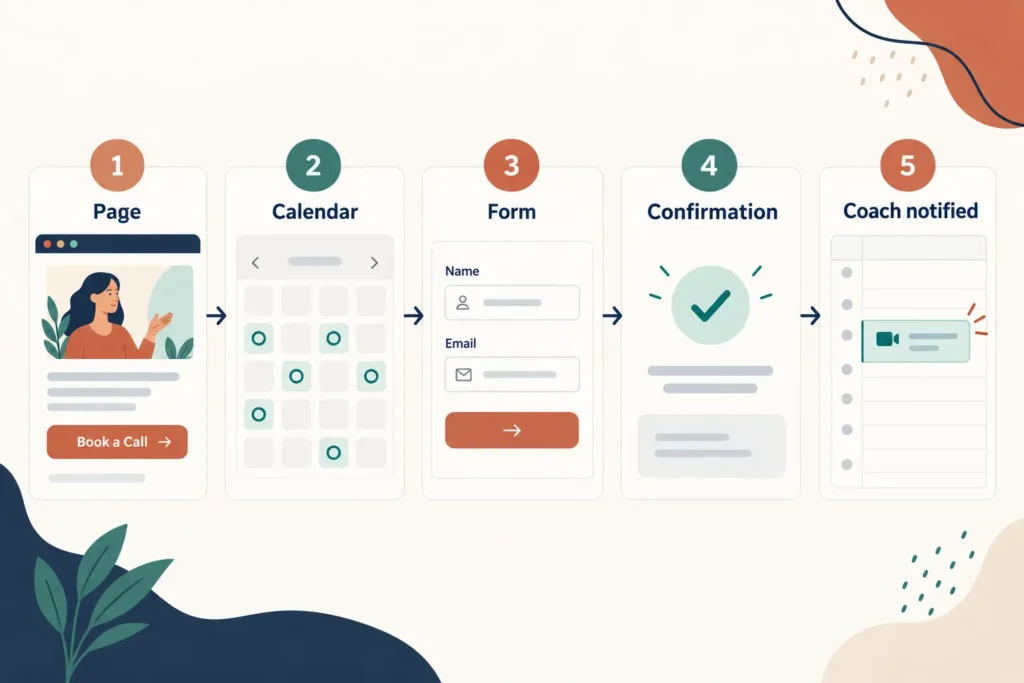
Open your site on a phone in a private browser window. Pretend you have never met yourself or heard of your coaching program. Start on the page most visitors see first.
- Find the Book a Discovery Call button.
- Follow it to the calendar or form.
- Check whether there are sensible times available over the next week or two.
- Select a slot using a test email address.
- Check the confirmation page and email.
- Check your own calendar and notification. Did the booking appear with the right time zone and meeting link?
Cancel the test booking afterward. If you cannot complete these steps, fix that problem before changing your headlines or running ads.
1. Make the booking button easy to find
A visitor should not have to search through several pages to take the next step. Look at your homepage, coaching service page, About page, and mobile menu. Is there a clear button? Does it work on every page?
Some sites use five different phrases: “Let’s Talk,” “Apply,” “Get Started,” “Contact,” and “Book Now.” A new visitor may not know if these all lead to the same thing.
Try this: Use one main action across the site, such as Book a Free Discovery Call if the call is free. Put it near the top of important pages and again after you explain the offer. If the call requires an application first, say Apply for a Discovery Call and explain the process.
2. Say who you help in the first screen
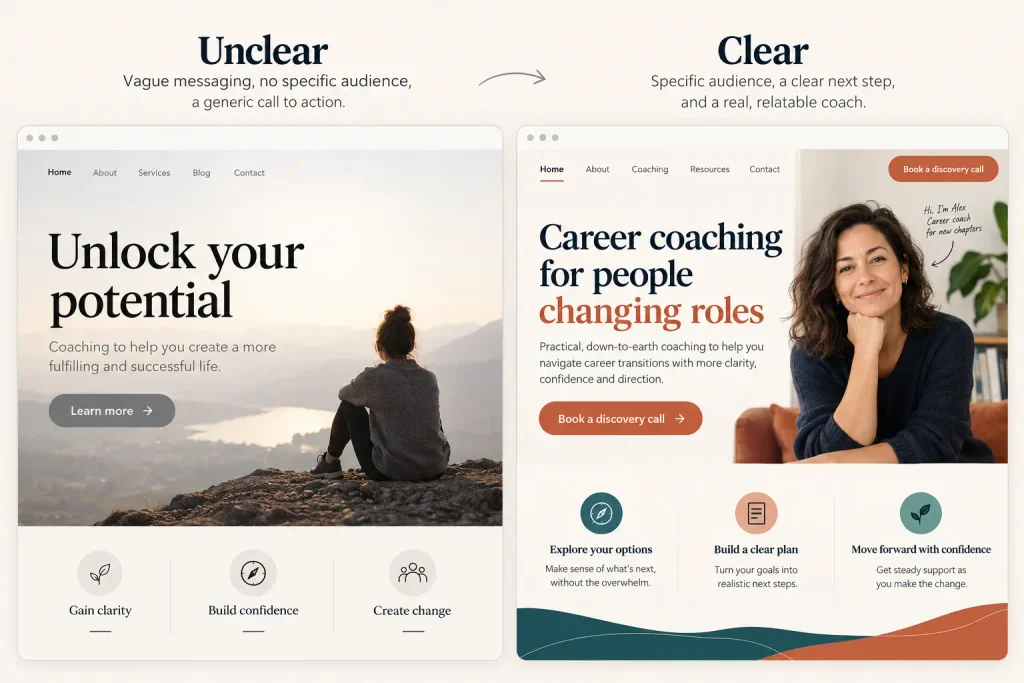
“Helping you unlock your potential” sounds positive, but it does not tell a visitor whether your coaching is for them.
Your first screen should answer three simple questions:
- Who do you work with?
- What problem do you help them work on?
- What is the next step?
For example: “Career coaching for mid-career professionals who want to change roles with a clear plan. Book a free 20-minute call to see if we are a good fit.” This is only an example; use the words that match your actual service. Avoid promising a result you cannot support.
Try this: Ask someone outside your business to read the first screen for five seconds, then tell you what you do and who it is for. If they cannot, rewrite it in simpler words. Put the same clear message near the booking button so visitors know what they are booking.
3. Explain what your coaching includes
People may like your message but still wonder what they would buy. “Transform your life” gives them very little to compare or discuss on a call.
On your coaching page, explain the format: one-to-one or group, session length, online or in person, and what a typical engagement covers. Tell readers who the program is for and who it may not suit. If you can share a starting price or a price range, it can help visitors decide whether a call makes sense. If pricing is custom, explain what affects it.
You do not need to describe every minute of every session. Give enough detail for a person to say, “This sounds like the kind of help I need.” Add a short section with the format, length, main topics, and next step. Read it as a new visitor and remove any terms that need an explanation.
4. Explain what happens on the discovery call
The booking page should explain what happens during the call. How long is it? Will it be by video or phone? Should the visitor prepare anything? Will you discuss their situation and whether your service fits? Is there any cost?
If those answers are missing, someone may avoid booking even when they like your work.
Try this short explanation: “In this 20-minute call, we’ll talk about your goals, what feels stuck, and whether my coaching is a good fit. You can ask questions. There is no charge for the call.” Change the details to reflect your real process.
Keep the booking form short. Name, email, and one or two useful questions may be enough for an initial call. If a question is required, label it clearly and show helpful errors. The W3C forms guidance explains why clear labels matter.
5. Open useful times on your calendar
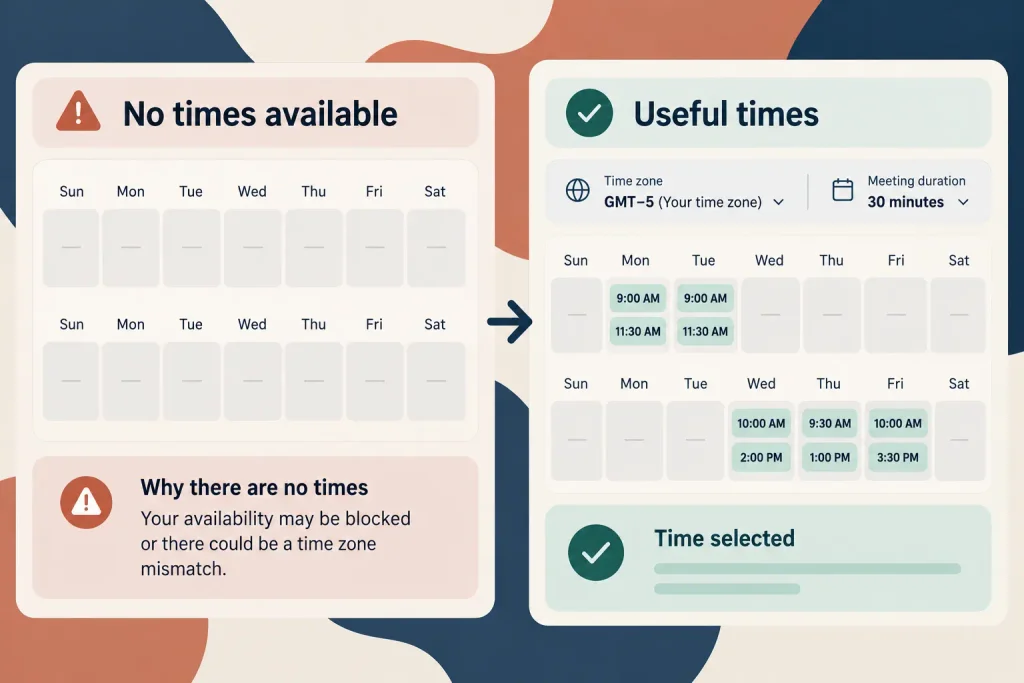
Open your booking link like a visitor. Are there any times this week or next? Does the calendar accidentally show a month with no availability? Is a connected calendar marking all your time as busy? Are you offering calls at times your target clients cannot attend?
If you work with people in other countries, test what a visitor sees in their time zone. Check the meeting length, booking notice, buffers, and limits. Scheduling tools such as Calendly calculate availability from your schedule and connected calendars, so a setting can hide times you expected to offer. See Calendly’s availability overview and time zone overview if that is the tool you use.
Try this: Leave a few real, convenient slots open. Do not display times you cannot honor. After a test booking, make sure both people receive the correct time and meeting details.
6. Show who you are and how you work
A visitor may understand your offer and still need to know more about the person behind it. Add a real photo, a clear bio, relevant experience, and your approach. Explain what working with you feels like in everyday language.
If you share client stories or testimonials, get permission, keep them accurate, and explain the context. A specific account of what the client worked on is more useful than an anonymous “Amazing coach!” Do not make every visitor expect the same outcome.
If you are new and do not have testimonials, you can still describe your process, values, credentials where relevant, and a sample of your advice. Trust can grow from clarity and honesty.
7. Make the whole booking path work on a phone
Your page may look polished on a desktop but be hard to use on a phone. Check whether the booking button is visible, text is readable, the calendar fits, and form fields are easy to tap. A pop-up should not block the calendar or the final confirmation button.
Try the whole path on a real phone, including the email confirmation. If your scheduler opens in an embed, make sure it scrolls and loads properly. If the embed causes problems, a direct booking page may be easier for visitors.
Try this: Give the booking button enough space, keep the first screen clear, and test on both Wi-Fi and a mobile connection. Do not assume an editor preview reflects the real experience.
8. Measure completed bookings, not just clicks
“The site gets traffic” does not tell you whether visitors reach your coaching page, click the booking button, start the calendar, or complete a call booking.
Review the basic journey:
| Step | What to check |
|---|---|
| Visit | Which page do people land on? |
| Interest | Do they open your coaching offer or About page? |
| Intent | Do they click the booking button? |
| Booking | Does the calendar record a completed appointment? |
| Follow-up | Do confirmations arrive and do people attend? |
If you use Google Analytics, set up a meaningful event for the completed form or booking, rather than counting every button click as a call. Google Analytics guidance explains measuring a specific form submission as a key event. For an external scheduler, check its own completed bookings too. A click to the scheduler is not a confirmed call.
If you get bookings but few people attend, review the confirmation, reminders, time zone, and meeting link. That is a different problem from getting no bookings.
What to fix first
| What you notice | First action |
|---|---|
| Booking link fails or sends no confirmation | Repair the booking path and test it again |
| Calendar shows no times | Check availability, connected calendars, and time zone |
| People visit but do not click | Clarify who you help and make the CTA visible |
| People open the calendar but do not finish | Review slot choices, questions, and mobile layout |
| Calls are booked but missed | Check reminders, time zone, and meeting details |
Change one important thing at a time. Test the booking path again after each change so you know whether the fix works.
When to ask a website specialist for help
Get help if the scheduler embed breaks on mobile, bookings never reach your calendar, form emails disappear, or you cannot tell which page sends people to the booking flow. A specialist can inspect the full path and fix the technical issue while you focus on the wording and the coaching offer.
Share your website URL, booking URL, a screenshot of the problem, the device used, and the time of a test. Do not send account passwords by email. Give temporary access through a secure method if needed.
Frequently asked questions
Why am I getting website visitors but no coaching calls?
First test whether a visitor can actually book. Then check the clarity of your offer, how visible your CTA is, trust information, available times, and the mobile experience. Traffic alone does not show where people get stuck.
Should I put my price on my coaching website?
If your packages have a set price, showing it can help people decide whether to book. If the work varies, a starting price or a short explanation of how pricing works may help. Choose an approach that matches the way you sell and deliver the service.
How long should a discovery call be?
Use enough time to understand the person’s situation and answer basic questions without rushing. The right length depends on your service. Be clear about the duration on the booking page and respect it.
Do I need a new website to get more calls?
Maybe not. Fix broken booking links, unclear wording, and mobile problems first. If the site structure makes it hard to explain your offers or guide visitors to a call, a redesign may be useful.
Need help turning website visits into discovery calls?
Elementor Team builds WordPress and Elementor websites for coaches, with clear offer pages, booking flows, and mobile layouts. Contact Elementor Team with your site and booking link. Tell us where people seem to get stuck, and we can help identify the next fix.