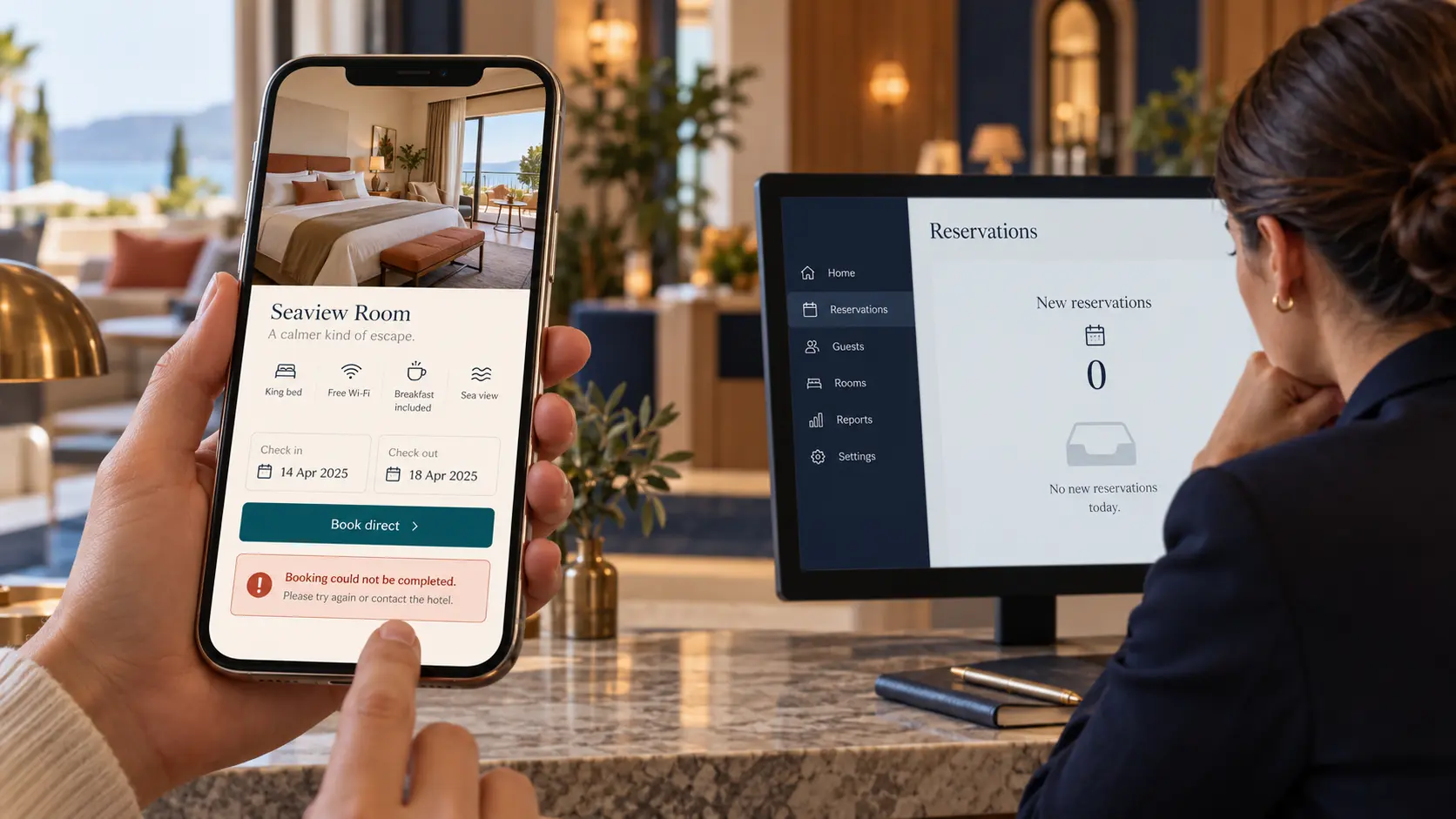
People look at your hotel website, browse the rooms, and check the photos. Then the booking never arrives. Some guests may go to another booking site. Others may give up completely.
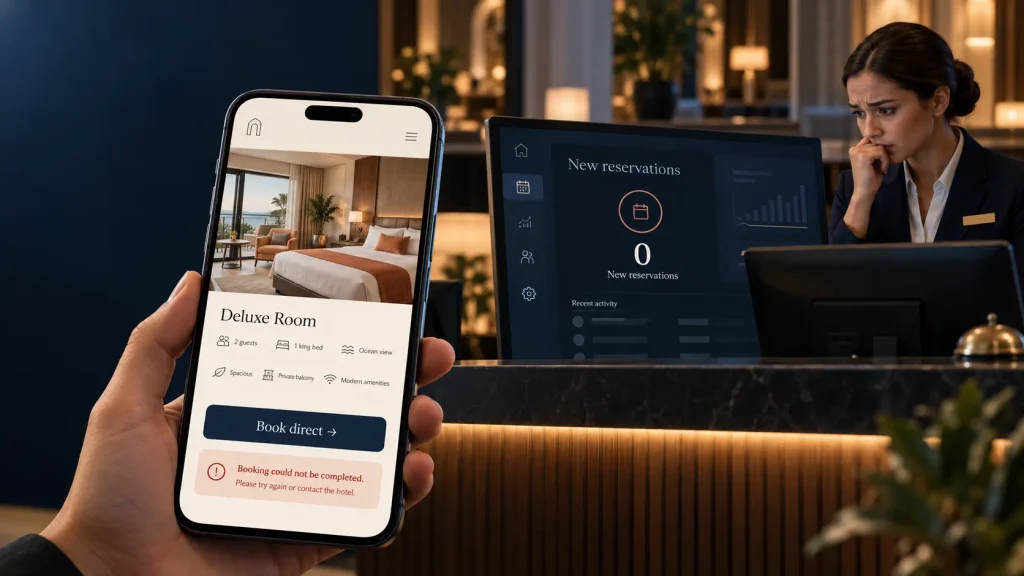
It is tempting to redesign the homepage first. Start with a simpler question: Can a guest choose a room, see the real total, and finish a booking without getting stuck?
This guide helps you test that path and find where guests may be leaving.
First, make a test booking from start to finish
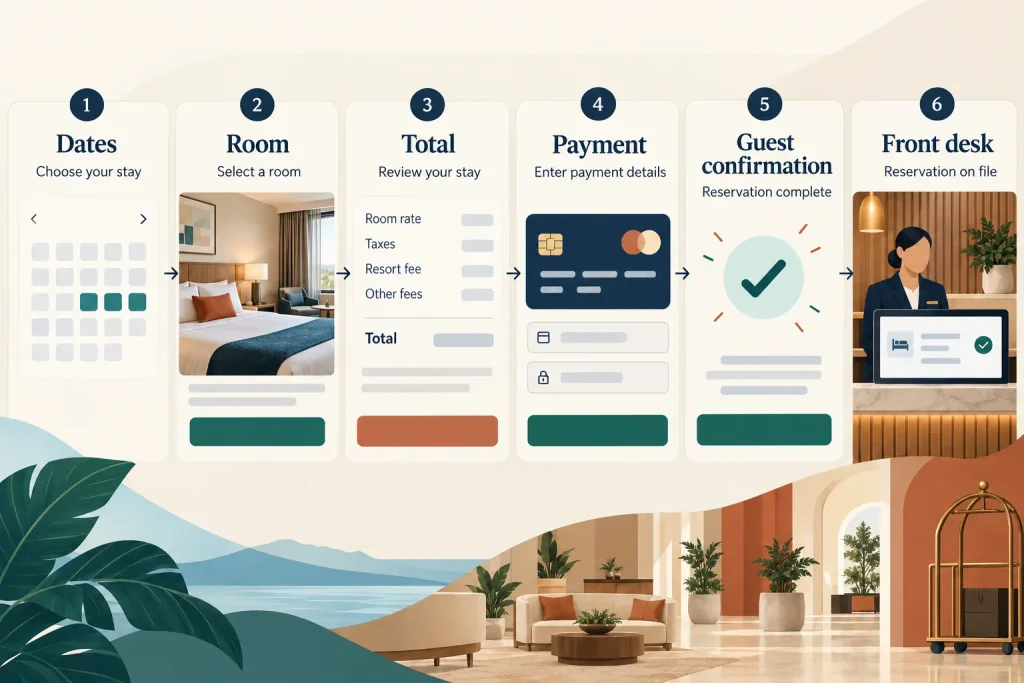
Open your website on a phone in a private browser window. Choose dates when you know a room is available. Act like a first-time guest.
- Find the Book Now button.
- Enter check-in and check-out dates, number of guests, and any children if relevant.
- Select a room and rate.
- Check the total, taxes, fees, and cancellation terms.
- Complete a booking using a safe test method or a small real reservation you can cancel under your own rules.
- Check the guest confirmation and the reservation in your hotel’s property management or booking system.
Tell your reservations team it is a test. If the booking requires payment, confirm the payment status before cancelling or refunding it. Then repeat the path on a computer. Try one more room type and one date near a busy period.
Important: A success screen on the website does not prove the reservation reached your front desk. Check both sides.
1. The booking button sends guests to the wrong place
Click Book Now on your homepage, room pages, mobile menu, and footer. Do they all open the correct booking engine for your hotel? Does the link work on a phone?
An old booking link may point to a previous system, an error page, or a third-party listing when you intend to take direct reservations. If you manage more than one property, a button can even send a guest to the wrong hotel.
What to fix: Use one clear booking action and test every location where it appears. If a button opens another domain for your booking engine, make the transition feel trustworthy and keep the hotel name and room details clear.
2. Available rooms do not appear for the dates guests choose
Try dates you know should have availability. If your website shows “No rooms available,” compare it with your property management system and any channel manager you use.
Check room inventory, minimum stays, closed arrival days, occupancy rules, child settings, and whether a rate plan is active for those dates. A room may be physically empty but unavailable online because a rule is blocking it.
What to fix: Ask the person who manages room inventory to check the booking engine and channel manager together. Do not add a room manually until you know why it was hidden; that can create an overbooking risk.
3. Guests cannot understand the room options
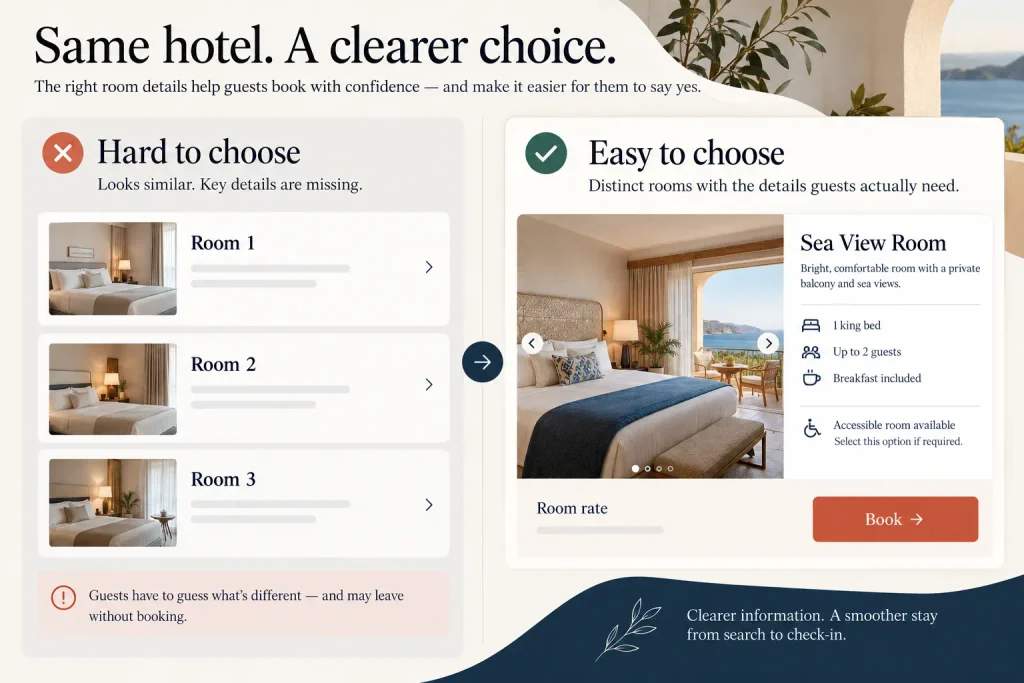
Can a visitor quickly tell the difference between your Standard Room, Deluxe Room, and Suite? Do the photos match the room type? Are the bed size, maximum guests, breakfast option, and key amenities easy to find?
When room names and photos look almost the same, a guest may return to a comparison site for clarity. A long gallery of beautiful lobby photos cannot answer whether a particular room sleeps three people.
What to fix: Give every room type its own clear description and real photos. Show the details guests use to choose: size, beds, occupancy, view, accessibility information where applicable, and what is included. Avoid saying an amenity is included if only some rates offer it.
4. The final price is a surprise
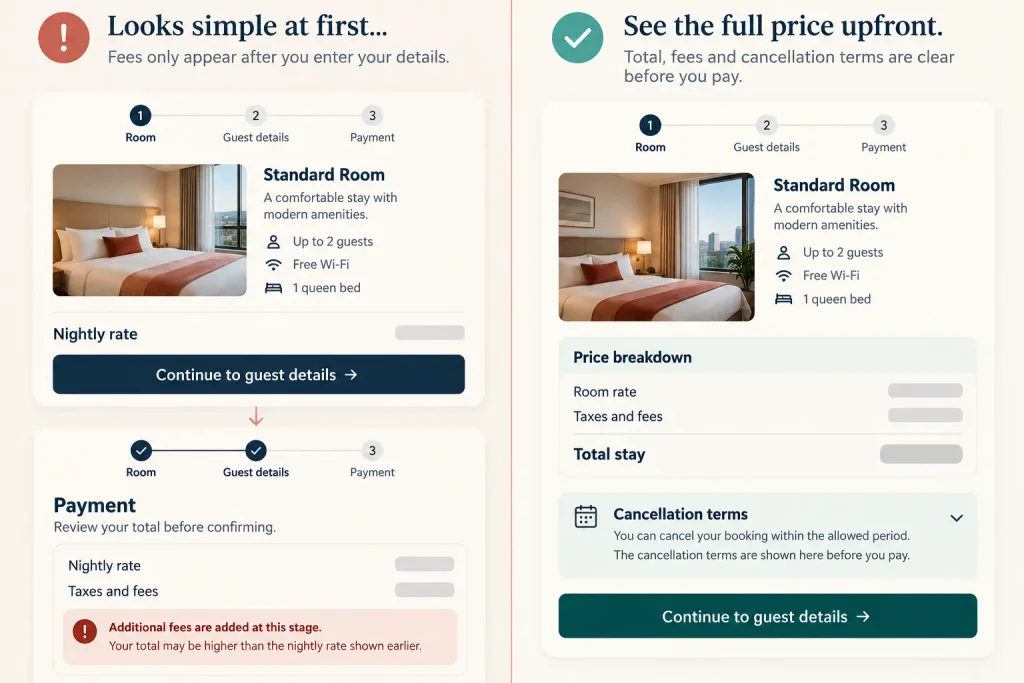
A guest may like the first nightly rate but leave when taxes, resort fees, breakfast, parking, or another charge appears at the last step. Compare the total shown on the room page, the rate selection, and final payment page.
Also test any price or availability you send to Google through your booking partner. Google’s hotel booking guidance says prices in its feed should match the landing page and that guests should be able to see final room availability and rates before entering personal information. See Google’s price accuracy best practices and hotel policy guidance.
What to fix: Show the total and what it includes as early as your system allows. Use clear labels for taxes and fees. If you advertise a direct-booking benefit, make sure it is real and shown at the right point in the journey.
5. The cancellation policy is hard to find
Guests often want to know whether they can change their plans. A rate may be cheaper because it is non-refundable, while another includes flexible cancellation. If that difference is hidden, a guest may hesitate.
What to fix: Show the cancellation and payment terms next to each rate and again before the guest confirms. Use plain language and include the important deadline and time zone. Keep those terms consistent with the confirmation email and the policies your staff follows.
6. The booking form is difficult on mobile
Open the booking engine on a real phone. Can you select dates without fighting the calendar? Is the room information visible? Does the final button stay within reach? Try entering a name, email, phone number, and payment details.
Watch for a pop-up covering the date picker, tiny fields, a page that reloads and forgets the selected room, or error messages that do not say what to fix.
What to fix: Keep required fields to what is needed for the reservation. Label fields clearly and show useful error messages. W3C’s forms guidance covers labels, instructions, and feedback that help people finish forms.
7. Payment fails or the booking status is unclear
A payment error can stop direct bookings. A more confusing case is when the card is charged but the website does not show a confirmed reservation.
Test the payment methods you offer and compare the payment provider, booking engine, and hotel reservation system. Record the error, time, booking reference, and payment status. Do not ask the guest to try paying again until you know whether the first charge went through.
What to fix: Have your booking provider and payment provider trace the same test reservation. Avoid changing settings on a busy live site without a plan and a safe way to retest.
8. The guest or front desk never gets a confirmation
After a successful booking, the guest should receive the dates, room, number of guests, total, payment terms, cancellation policy, property address, and a way to contact you. Your hotel team should receive the same reservation in the system they actually use.
Check spam folders and old email addresses, but do not rely on email alone. A booking may be in the system even if an email fails, or an email may be sent before a reservation is fully confirmed.
What to fix: Test the full handoff: guest message, booking engine, property management system, and front-desk workflow. If any record differs, pause and investigate before inviting more traffic.
9. Your Google booking link or advertised rate leads to a bad page
Some travelers arrive through a hotel result on Google rather than your homepage. If you participate in hotel booking links, click your own link as a guest. Does it open the right property, selected dates, and a working booking page? Is the rate close to what they just saw?
Google says hotel booking links lead to a landing page where the traveler can book the selected hotel. Showing direct rates and links may require a connectivity partner or another supported setup. Do not assume changing a normal Business Profile website link automatically creates a hotel booking link. See Google’s hotel booking link explanation and getting started guide.
What to fix: Work with your booking engine or connectivity partner to check feed prices, availability, and landing URLs. Keep the website’s normal contact and location information accurate too.
A quick way to find the weak point
| What you notice | Check first |
|---|---|
| Visitors reach room pages but do not click Book | Room details, rate clarity, button visibility, trust |
| Guests click Book but see no rooms | Inventory, date rules, occupancy, rate plans |
| Guests pick a room but leave at checkout | Total price, policies, mobile form, payment |
| Payment succeeds but no reservation appears | Provider records, booking engine, property system |
| Guests book through other sites instead | Direct link, room comparison, price and benefit clarity |
This table gives you a place to start. Test the actual path before deciding which issue matters most.
When to ask for help
Get help promptly if guests are charged without confirmed reservations, available rooms show as sold out, your direct link points to the wrong property, or bookings fail to reach the front desk. These issues may involve your website, booking engine, channel manager, payment provider, or property system. The right person to fix them depends on where the handoff fails.
Send the support team the date searched, room and rate selected, device, time, screenshots, and test booking reference. Do not send full payment card information or guest passwords.
A simple weekly booking check
Once a week, search for an available room on a phone. Check the room details, total, terms, checkout, guest confirmation, and front-desk record. Repeat after changing rates, room inventory, payment settings, or the website design. A few minutes of testing can reveal a broken path before a guest reports it.
Frequently asked questions
Why does my hotel website get visitors but few direct bookings?
The booking path may fail, show no rooms, hide important room information, or surprise guests with a new total. Start with a complete test reservation before changing the marketing pages.
Do I need a new hotel website to get more direct bookings?
Maybe not. A broken link, rate rule, or mobile form can be fixed without replacing the whole site. If the site cannot explain rooms clearly or connect smoothly to the booking engine, a larger redesign may be useful.
Why does my website show no availability when I have rooms open?
The online inventory or rules may differ from the actual room count. Check rate plans, minimum stays, closed dates, occupancy, and your booking engine or channel manager. Avoid changing live inventory blindly.
Can I put a direct booking link on Google?
Hotels can participate in Google’s hotel booking links through supported rate and availability connections. The setup is different from adding a normal website URL to a Business Profile. Ask your booking engine or connectivity partner what it supports.
Need help finding where guests get stuck?
Elementor Team builds WordPress hotel websites and can help improve room pages, mobile layouts, and the connection to your booking flow. Contact Elementor Team with your website URL and a short description of what happens when you test a booking. We can help identify the next fix and coordinate with your booking provider where needed.