Most slow WooCommerce stores have a few fixable causes, such as underpowered hosting, missing or incorrect caching, oversized images, too many scripts, or heavy templates, and the cart and checkout need different treatment from product pages.
These 12 WooCommerce speed optimization fixes start with measurement and work through the pages shoppers use to buy. Use the priority table if you already know where the store slows down. If you want help with the checks, see our WordPress speed optimization service.
WooCommerce store slow? Is it the server or the page? A quick diagnosis
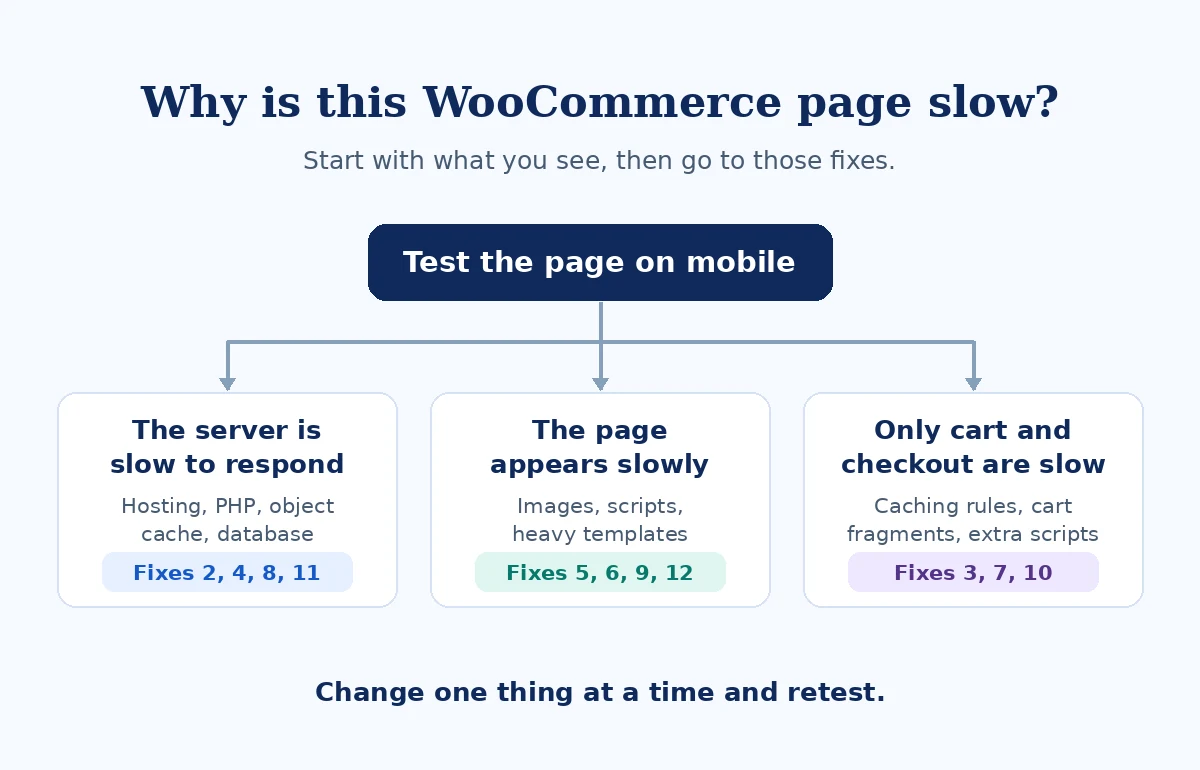
What makes a WooCommerce store slow depends on where the wait happens. Time to First Byte (TTFB) tells you how long the browser waits for the start of the response. If the first byte comes back quickly but the main content takes time to appear, check Largest Contentful Paint (LCP), which measures when the largest visible image or text block is rendered. Google Search Central: Core Web Vitals
A cart with an item in it and a checkout with shipping details do more work for each shopper. Compare them with a product page in the same browser session. If only the buying screens lag, look at their cache rules, cart updates and third-party requests first.
| Symptom | Likely cause | Go to fix |
|---|---|---|
| Slow first byte | Hosting, PHP, repeated queries or order storage | 2, 4, 8, 11 |
| Quick response, slow display | Product images, extra scripts or a heavy template | 5, 6, 9, 10 |
| Only cart and checkout are slow | Cache rules, cart fragments, order storage or third-party scripts | 3, 7, 8, 10 |
How to test the speed of a WooCommerce store
I begin with a best seller product, a cart containing the best seller product, and the checkout. I start PageSpeed Insights on the mobile browser to see the field data from real users. If the report only contains lab data, then I use the controlled test and record the server response time.
Typically, a public speed test will open the cart or checkout link without a shopper’s session. I use my own phone or the Network panel in the browser having an item in the cart, if the page is empty or takes me back. I note the page I am on and the time that I wait for, e.g., after I select shipping, or click on Continue to payment.
I have a copy, make the changes on staging and repeat the process before deploying to live store. Same product, same device and same delivery area are used for comparisons. The examples given in this guide illustrate a sample store.
1. Measuring the right pages, first.
Google’s good Core Web Vitals thresholds are: LCP 2.5 seconds or less, INP 200 milliseconds or less, and CLS 0.1 or less. LCP is related to when the main content is visible, INP is related to how responsive the site is to interaction, and CLS is related to unexpected layout movement. PageSpeed Insights can be used to test mobile and desktop. The Core Web Vitals are available directly from Google Search Central: PageSpeed Insights.
Take a baseline of product, cart and checkout before making any changes. Indicate if the report covers the exact page or the entire site and document session based checkout observations in conjunction with the URL tests. That will help you decide whether or not the part shoppers were waiting on were helped by a change, and if so, what the change was.
Fix first. Test the PageSpeed Insights on your top product page and checkout and record the results. If checkout redirects, do a mobile browser trace with an item in the shopping cart.
2. Ensure that your hosting is compatible with PHP 4.5 and above, and that you are using PHP 4.5 and above.
Low cost shared hosting may have trouble if multiple customers hit uncached pages simultaneously. While waiting for PHP to calculate totals and apply shipping rules, a cached product page might load quickly and the checkout process will take the extra time to operate payment extensions. When this occurs, check with your host whether your plan is exceeding their resources.
WooCommerce suggests PHP 8.3 or higher, MySQL 8.0 or superior or MariaDB 10.6 or greater, WordPress memory limit of 256 MB or more, and HTTPS support. Check with your host for versions and restrictions! Implement any change in PHP from staging with your theme, payment and shipping plugins in place before changing the live store. WooCommerce: Server requirements
Fix first. To view your PHP version and memory limit, go to Open Tools → Site Health → info.
3. Cache product pages, but not cart, checkout or account pages.
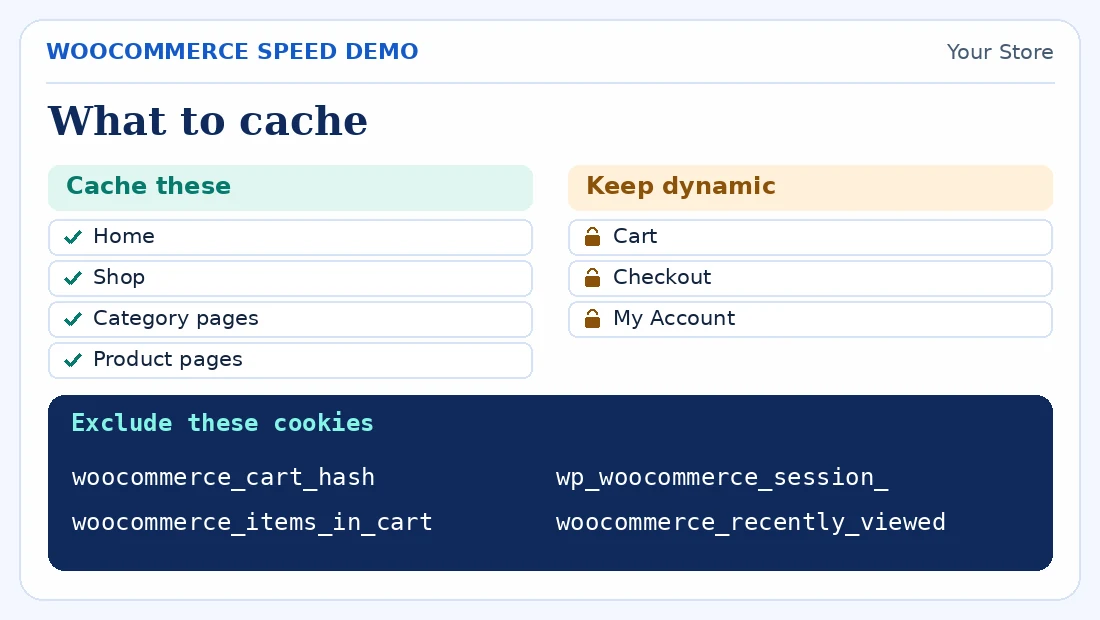
When a page is created, a copy is stored in page cache, so that it can be used again by the server. Public product and category pages work well if they exhibit the same content to the shoppers. However Cart, Checkout and My Account should remain dynamic, as a cached copy may display the wrong cart or it could cause ordering problems.
Cache public pages
Home and shop pages
Category and product pages that are frequented by shoppers
Make shopper pages dynamic.
Cart and Checkout
The other views that are personalized are found in My Account.
Check the cache plugin, host and CDN. WooCommerce lists woocommerce_cart_hash, woocommerce_items_in_cart, wp_woocommerce_session_, woocommerce_recently_viewed and store_notice[notice id] to account for in the exclusions. Check how your provider handles cookie prefixes and custom cart or checkout URLs. WooCommerce Developer Docs: Configuring caching plugins
Fix first. Confirm that Cart, Checkout and My Account and the WooCommerce cookies are excluded. Use two separate browser sessions to verify each cart keeps its own contents.
4. Add an object cache for the pages you can’t page-cache
Cart, checkout and logged-in pages need database lookups to build a response. A persistent object cache lets WordPress reuse eligible results from memory across requests. Redis and Memcached are common options when your host already supports them.
Ask your host how WordPress connects to the cache on your plan. Use the host’s supported setup on staging, then check the same product, cart and checkout again. If you’re on shared hosting, ask the provider to handle any server software it needs.
Fix first. Ask your host if Redis or Memcached object caching is available on your plan.
5. Fix product images (the usual LCP culprit)
Check the size of the main image your template actually displays and export a WebP or AVIF suited to that slot, with an appropriate larger variant if shoppers can zoom. Classic themes may expose sizing under Appearance → Customize → WooCommerce → Product Images. If the same full-size file downloads on every screen, check the image markup in your single product template.
Keep the main image above the fold out of lazy loading. Lazy-load offscreen gallery thumbnails and related products, and use your host’s image CDN if available. See our guide to fixing LCP and CLS on Elementor sites for the Elementor checks.
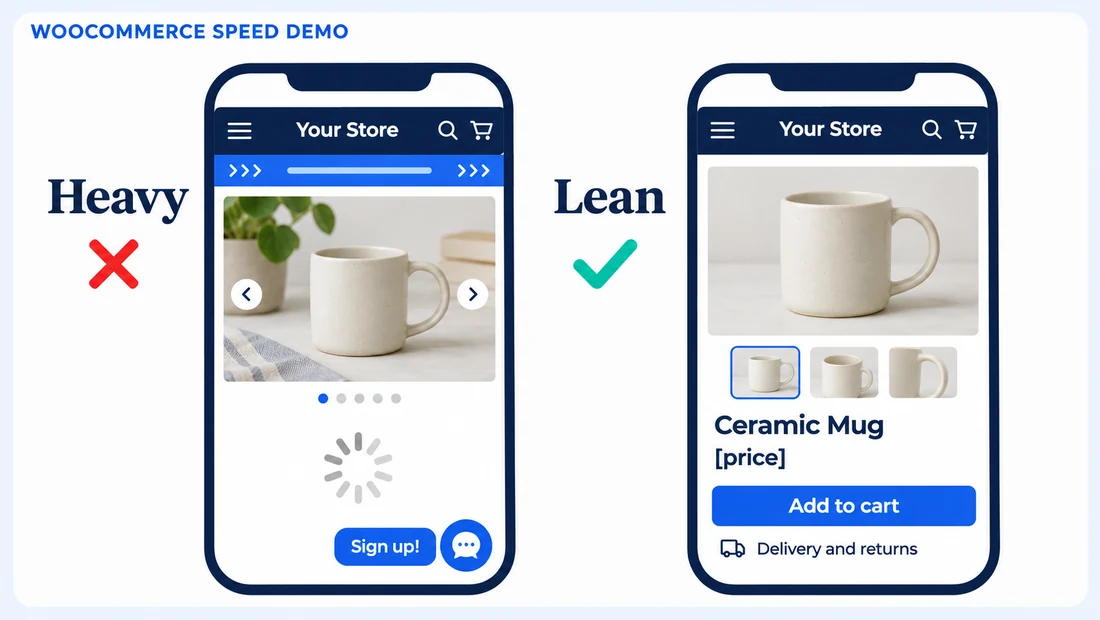
Fix first. Re-export your top 20 product images as WebP at the size shoppers see them. Replace a few on staging and check sharpness on a phone before applying the change across the catalog.
6. Cut plugins and scripts that load on every page
A contact form plugin may send its styles and scripts to product and checkout pages even when the form only lives on the contact page. List the plugins you use and open the Network panel to see what their pages download. Use a script manager or your optimization plugin to limit those files to the pages that need them.
Defer or delay noncritical JavaScript one group at a time. Try adding a product, switching a variation, applying a coupon and loading checkout after each change. That helps uncover scripts a theme or another plugin expects to be available sooner.
Fix first. Deactivate plugins you no longer use on staging, then test a product page and checkout.
7. Deal with cart fragments and the mini-cart
Cart fragments update parts of the page, such as the cart count, without a full reload. The legacy script uses WordPress admin-ajax. Since WooCommerce 7.8 it loads where the legacy Mini-Cart widget or a third-party script needs it, and some header builders put that widget on every page. WooCommerce recommends the Mini-Cart block, which updates the cart without the legacy fragments API. WooCommerce Developer Blog: Best practices for the use of the cart fragments API
If you need to keep the legacy widget, WooCommerce’s example filter limits where its refresh code executes. The JavaScript file can still download. Back up first and use a code snippets plugin or child theme on staging.
add_filter( 'woocommerce_get_script_data', function( $script_data, $handle ) {
    if ( 'wc-cart-fragments' === $handle ) {
        if ( is_woocommerce() || is_cart() || is_checkout() ) {
            return $script_data;
        }
        return null;
    }
    return $script_data;
}, 10, 2 );
Custom landing pages with add-to-cart buttons may fall outside these conditions. Their mini-cart can stop updating after you apply the filter, so check how shoppers add products on those pages before enabling it live.
Fix first. Check whether your header triggers get_refreshed_fragments requests across the site. Switch to the Mini-Cart block on staging if your theme allows it.
8. Run the RCE Suite’s health check and install any updates.10. Use the RCE Suite health check to run the health check and install any updates.
HPOS stores orders in separate tables having separate indexes. In October 2023, WooCommerce 8.2 was the default version for new installations. The storage setting can be checked for an existing store in WooCommerce → Settings → Advanced → Features. To achieve optimal performance in WooCommerce, the order storage needs to be optimized.Optimizing order storage is essential for high performance in WooCommerce.
Make backup and test on staging. Enable extensions that are related to the order, such as subscription and booking extensions, and check for compatibility. Enable compatibility mode and allow orders to complete sync; choose HPOS on staging. Test a purchase and order screen and refund and integrations. If you switch again in the live store, don’t switch out of compatibility mode during the switch. Organize orders in WooCommerce so they perform well.Organize orders in WooCommerce to work well.
Fix first. To see which storage mode your store is using: WooCommerce → Settings → Advanced → Features.
9. Get rid of complex product page templates
One Elementor single product template can impact the entire catalog. A gallery, price, Add to cart button, key buying details, and key reviews are all included. Check to see if duplicate galleries, nested containers, animation widgets, or tabs load libraries which the page does not need.
Use the prebuilt performance options in Elementor on staging and verify performance of your template whenever you make changes. When opening a product on a mobile device ensure that the features, price and cart button remain accessible. A simpler template must also demonstrate what information shoppers rely on to make a decision.
Fix first. Take one of the unneeded sliders/popups/animations from the single product template and retest on staging.
10. Do not use third party scripts on checkout
Scripts that take payment can be out competed by chat widgets, heat maps, social pixels, review carousels and popups. Open an active checkout and print the requests by domain. Maintain scripts required for payment, order validation and necessary analytics with permission.
If the payment script is loading on all pages, then verify if the gateway has a way to limit when the payment script appears. Some stores will provide the express payment option, and if this is the case, double-check where this button is to be found in the product page before changing the rule. If the checkout doesn’t work at all, refer to our WooCommerce checkout trouble shooting guide.
Fix first. List loads on checkout and remove unused third-party scripts from that page. Run a test purchase following the rule change.
11. tidy up the database (wikilyously)
Data gets appended over time from expired transients, old customer sessions, Action Scheduler logs and post revisions. Back it up and play it on staging. Look at the options for transients in WooCommerce → Status → Tools and begin with expired transients to prevent deleting active carts.
At the very least, Open WooCommerce → Status → Scheduled Actions and check for any recurring failures or a sizable list of jobs completed. Before changing retention and/or deleting, determine the extension owning the jobs. If there are post revisions that are causing the database to grow, limit it to a reasonable amount. If the cache is a database-based cache, you can exclude _wc_session_ from the cache, as suggested by WooCommerce. The WooCommerce Developer Docs on Configuring caching plugins.
Fix first. Back up the database, then remove expired transients WooCommerce → Status → Tools staging, and test the cart before doing so live.
12. Describe how to use the variable products, filters and search.
If a product offers a lot of options, and you load all of its images at the beginning, then your product can be slow. Don’t eliminate the options consumers want and load up the selected option’s image if available. Test selection of an option and the addition of the item and initial page load.
Filter it broadly, then again, and then do a common search and see if there is any success. If the catalog doesn’t cope well with those requests, search for either a well-maintained filter or a search solution designed for your catalog. Ask the host to provide slow query logs to determine which query to fix.
Fix first. Use PageSpeed Insights to test your slowest variable product, use shop filters, and if applicable, check your host’s slow-query logs.
What to fix first
Use these priorities once you have a baseline. Effort and risk are our estimates. If the diagnosis points to one problem, start there and keep measuring as you go.
| Fix | Effort | Risk if done wrong | Who usually does it | Pages it helps |
|---|---|---|---|---|
| 3. Cache rules | Medium | High | Store manager or developer | Product, cart, checkout |
| 5. Product images | Low | Low | Store manager | Product |
| 2. Hosting and PHP | Medium | High | Host or developer | Product, cart, checkout |
| 6. Plugins and scripts | Medium | Medium | Developer | Product, cart, checkout |
| 10. Checkout scripts | Medium | High | Developer | Checkout |
| 7. Cart fragments | Medium | Medium | Developer | Product, cart, checkout |
| 9. Product templates | Medium | Medium | Elementor designer | Product |
| 4. Object cache | Medium | Medium | Host or developer | Product, cart, checkout |
| 8. Order storage | High | High | Developer | Cart, checkout |
| 11. Database cleanup | Medium | High | Developer | Product, cart, checkout |
| 12. Variations, filters and search | High | Medium | Store manager or developer | Product |
| 1. Measure and retest | Low | Low | Store manager or developer | Product, cart, checkout |
Frequently asked questions
Why is my WooCommerce site so slow?
Hosting limits, missing cache rules, large product images and extra scripts are common reasons for a slow WooCommerce store. First, compare a popular product page with a cart that contains an item and a checkout with a delivery location. A long wait before the page starts suggests checking the server. A page that starts quickly and fills in slowly points to images, scripts or the template.
Why is WooCommerce checkout slow when the rest of the site is fast?
WooCommerce checkout does live work for each shopper. It uses the current cart and address to calculate shipping and taxes and loads any payment tools that apply. Check where the wait happens with an item in the cart. Remove scripts that checkout does not need and confirm your cache excludes checkout at every layer.
Should I cache the WooCommerce cart and checkout pages?
Keep WooCommerce cart and checkout pages out of full-page caching. Those pages need to show the current shopper’s cart and totals, and My Account needs the same treatment. Cache public pages shoppers see the same way. Test your exclusions in separate browser sessions to verify that each one keeps its own cart.
What are WooCommerce cart fragments and should I disable them?
Cart fragments update pieces of the page, such as the mini-cart count, without a reload. Keep them if your legacy mini-cart still depends on them. WooCommerce recommends moving to the Mini-Cart block where possible. If you restrict the legacy script, test category, product and custom landing pages where shoppers can add items.
Does HPOS make WooCommerce faster?
HPOS is designed to improve how WooCommerce stores and queries orders. It moves order data into dedicated tables and indexes. Its effect on your store depends on the work your slow pages are doing. Check extension compatibility, back up, sync order data in compatibility mode and test on staging before switching an existing store.
What PHP version should WooCommerce use?
WooCommerce recommends PHP 8.3 or later. Ask the host which recommended PHP version it supports, then check that your theme and extensions support it too. Make a backup and validate the change on staging before updating the live store. Test a variable product, a cart with items and an order through checkout.
Which caching plugin is best for WooCommerce?
Choose a WooCommerce-aware cache plugin that works with your host and respects the cart, checkout and My Account exclusions. Check how it handles WooCommerce cookies alongside any server or CDN rules. Test the cart across two independent sessions and confirm that a guest and a logged-in shopper can each complete checkout.
Final word
Start with the pages where people buy. Get the product page loading cleanly, then check the cart and checkout with a real shopping session. Each step has its own job and needs its own test.
Measure, change one thing and retest. For related checks, see how to fix Elementor LCP and CLS and what to do when WooCommerce checkout stops working.