Moving a WordPress site can mean changing hosting providers, switching domains or rebuilding the design on a new installation. Each move has different risks. A hosting transfer that keeps every URL intact is not the same as moving a site to a new domain.
Search visibility can change during a migration, even when the new design looks better. The safest approach is to document what exists, prepare the destination, test everything and monitor the result after launch.
Understand what is changing
Before planning redirects, write down the scope of the move:
- Hosting migration: The website moves to another server, but domain names and URLs stay the same.
- Domain migration: The domain changes, so old URLs need to point to the relevant new URLs.
- Redesign: The layout and content change, potentially affecting internal links and page relevance.
- Structural migration: Page paths, categories or language structures change.
You can combine these projects, but doing so increases the number of variables to test. Avoid changing URLs unnecessarily during a simple hosting migration.
1. Create a baseline before the move
Record your most important pages, current URL paths, organic landing pages, search queries and indexing status. Export relevant data from Google Search Console and your analytics platform.
Make a list of high-value URLs, including service pages, product categories, popular blog posts and pages receiving leads. Save current title tags, meta descriptions and canonical URLs for comparison.
This baseline makes it easier to tell whether a later traffic change is related to the migration or something else.
2. Back up files, database and configuration
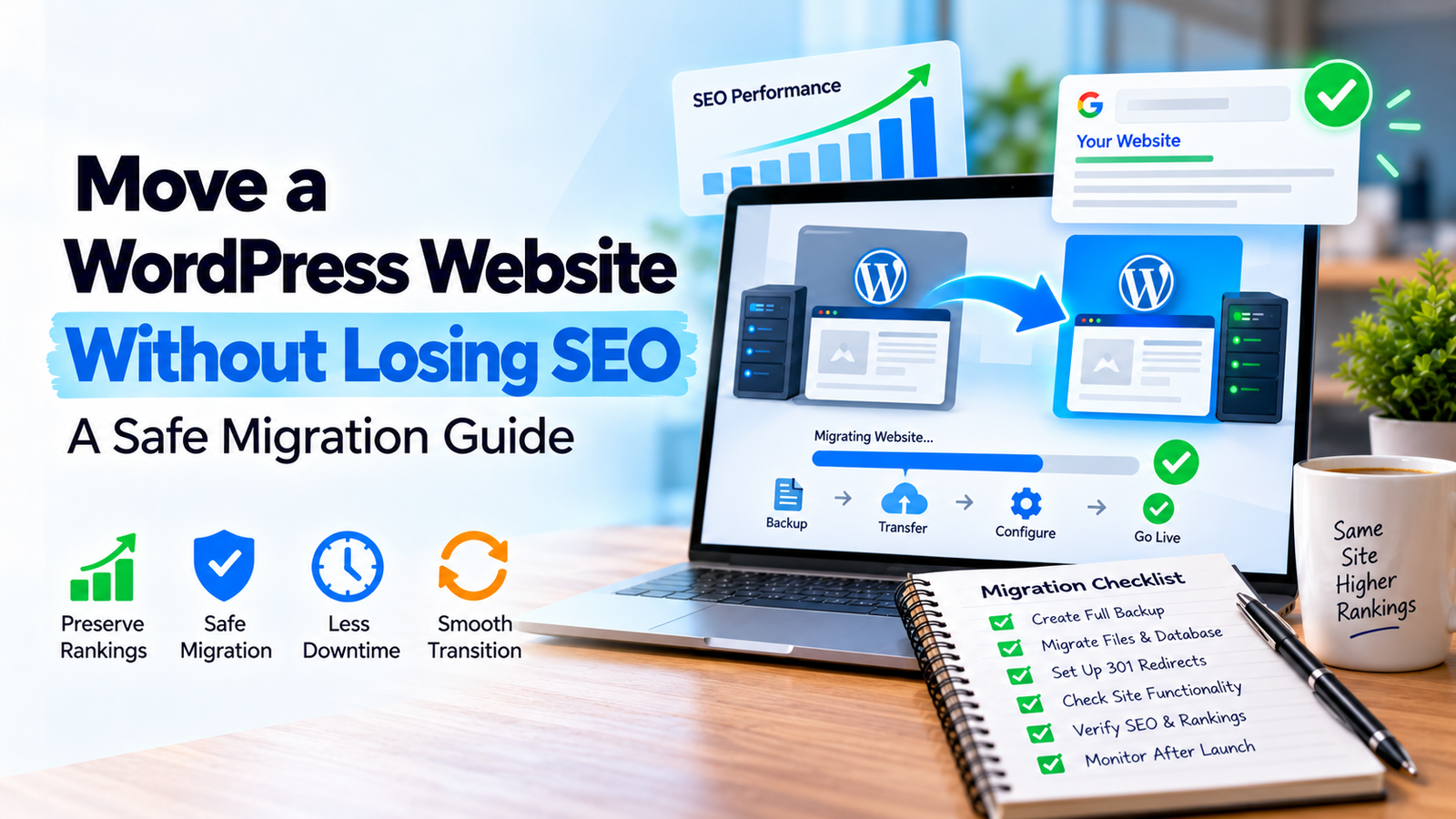
Take a complete backup before making changes. Preserve site files, the database, essential configuration and any relevant integration settings.
Check whether the destination hosting environment supports the required PHP version, database, image processing, email sending and scheduled tasks. For an online store, schedule the cutover carefully so new orders are not lost between database copies.
3. Build and test the destination privately
Use a staging environment or other controlled setup. Prevent test copies from being treated as public duplicates. Check the staging site’s indexing settings and access controls, then plan to remove temporary restrictions from the production site at launch.
Inspect navigation, mobile layouts, forms, payments, booking tools and custom functionality. In Elementor, check global styles, fonts, templates and responsive behavior after the move.
4. Map old URLs to new URLs
When URLs change, create a spreadsheet with the old address, new destination and expected status. Redirect each important old URL to the most relevant replacement using a permanent redirect when the move is permanent.
Do not redirect every deleted page to the homepage. If a page has no equivalent, evaluate whether it should remain available, be consolidated with a genuinely relevant page or return an appropriate unavailable status.
Avoid redirect chains where URL A goes to B and then C. Update internal links to point directly to the new canonical destination.
5. Preserve on-page SEO signals
Review page titles, headings, useful copy, image alt text, structured data and canonical tags. A design migration should not accidentally remove the content that helps users and search engines understand a page.
If a redesign changes the content substantially, search performance may change for reasons beyond technical migration. Retain useful page information and make intentional editorial changes rather than deleting sections simply to shorten the design.
6. Verify production settings at launch
Check that the production website is accessible, uses HTTPS correctly, has the intended canonical URLs and is not accidentally marked noindex. Review robots.txt and the XML sitemap.
Make sure analytics and conversion tracking still work, and verify the correct Search Console properties. If the domain changes, follow Google’s current site-move guidance, including the Change of Address tool where applicable.
Check that major pages return the right HTTP status and that the old domain remains under your control for redirects.
7. Monitor the migration after launch
Test old URLs, inspect redirects and watch Search Console for crawling or indexing problems. Compare organic landing-page performance with your baseline, accounting for seasonality and normal variation.
Check the practical business outcomes too: calls, form enquiries, orders, bookings and email delivery. A migration can preserve rankings and still fail customers if forms or payment integrations stop working.
Common migration mistakes
| Mistake | Why it matters |
|---|---|
| Changing URL paths without a map | Existing links may break or point to irrelevant pages |
Leaving production noindex enabled | Important pages may be excluded from search |
| Redirecting all pages to the homepage | Users lose the content they expected |
| Forgetting forms and transactional emails | Leads and order updates may disappear |
| Removing useful content during redesign | Search intent may no longer be satisfied |
Frequently asked questions
Will changing WordPress hosting hurt SEO?
Not necessarily. A well-managed move that preserves URLs, availability and performance may have little impact. Downtime, broken pages or configuration errors create avoidable risks.
Do I need redirects if my URLs are unchanged?
Usually not for a straightforward hosting transfer. You do need to check protocol, hostname and trailing-slash consistency.
How long does SEO recovery take after a domain move?
There is no universal timeline. Search engines need to process the changes, and the result depends on site size, redirects and other factors.
Should I redesign and change domains at the same time?
It is possible, but separating major changes can make testing and diagnosis easier when your project allows it.