
You’ve installed Rank Math on a new Elementor site and the setup wizard is full of toggles. Which ones should stay on once the site goes live? Here’s our Rank Math setup for Elementor, from the first wizard screen to the checks we make on individual pages.
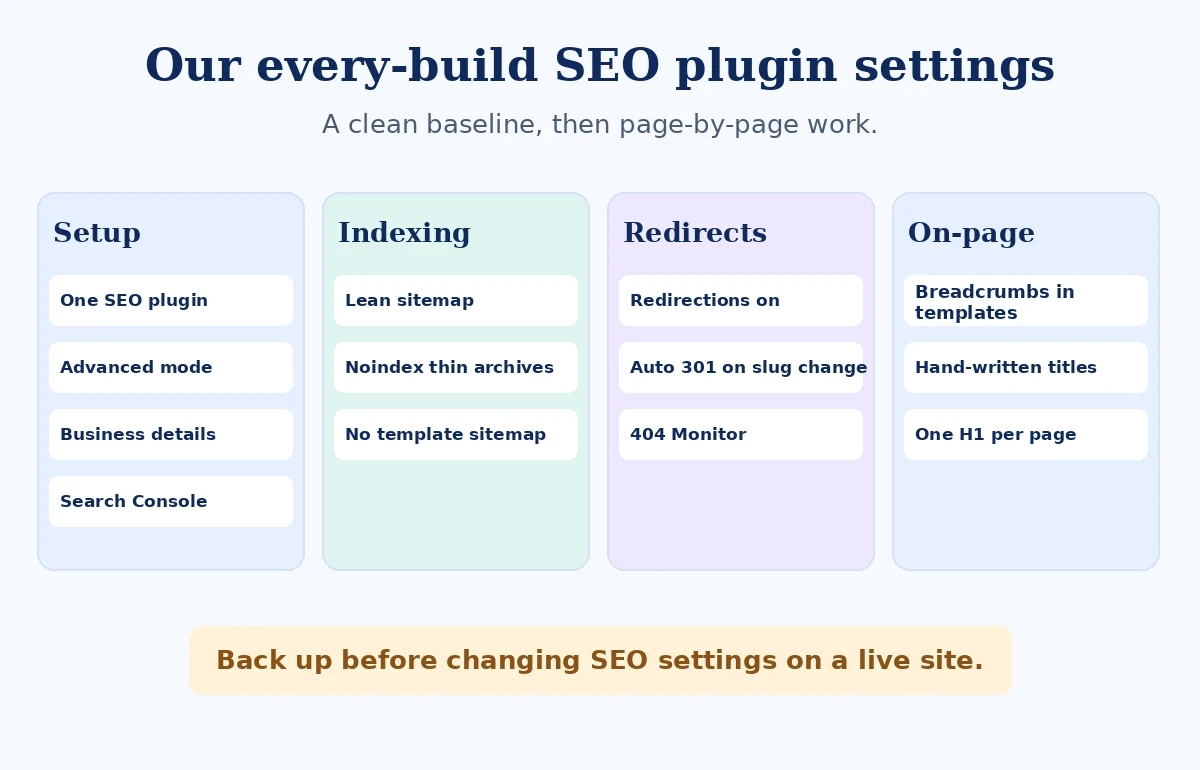
We use one SEO plugin, run Rank Math in Advanced mode, connect Search Console, keep the sitemap lean, noindex thin archives, enable Redirections, 404 Monitor and Schema, add breadcrumbs in Theme Builder, and write each page’s title and description in Elementor’s SEO tab.
These are our defaults for business sites. We adjust them for stores, publishers and sites with archives people actually use. For hands-on help, see our WordPress SEO optimization service.
Before you start: one SEO plugin and a backup
On a live site, the first thing I do is take a backup. Rank Math’s wizard checks for conflicting plugins and can import SEO data from Yoast SEO or All in One SEO. Verify a few migrated titles and descriptions, then make sure a single SEO plugin is active when you finish. If you’re still choosing, see our WordPress SEO plugin comparison. Rank Math KB: How to set up Rank Math
1. Run the setup wizard in Advanced mode
Rank Math SEO → Dashboard → Setup Wizard
The wizard offers Easy, Advanced and Custom Mode. Custom Mode requires PRO and accepts a saved settings file. We choose Advanced and continue through the advanced setup screens for Role Manager, 404 and Redirections, and Schema Markup. Rank Math lets you switch modes later. Rank Math KB: How to set up Rank Math
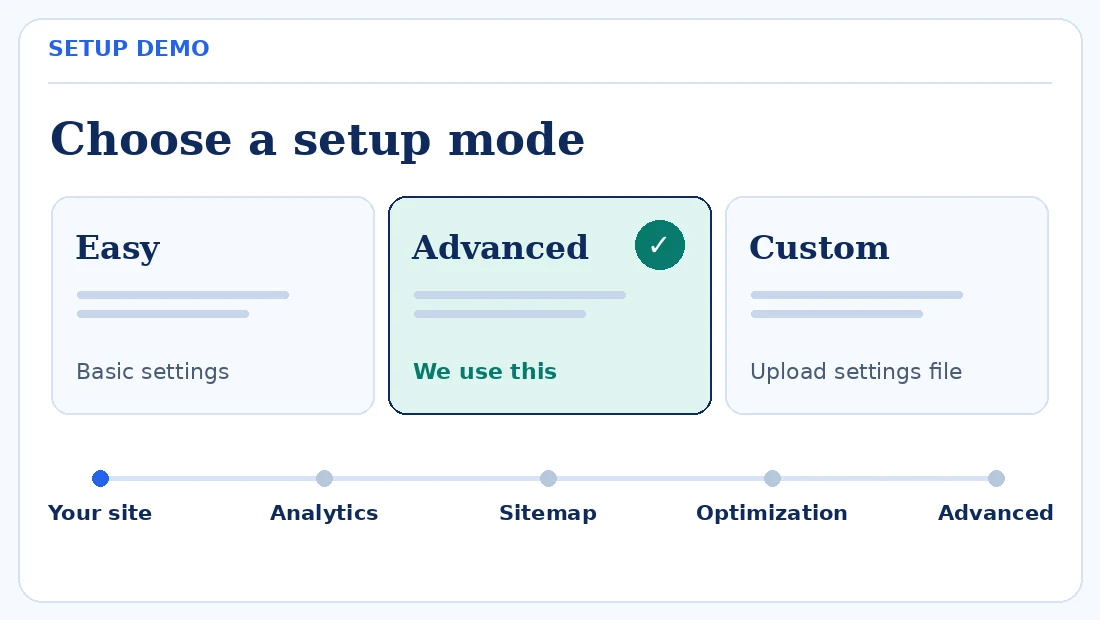
Why we do it. Advanced mode puts the controls we routinely use on business sites within reach during setup.
2. Tell Rank Math who the site belongs to
Setup Wizard → Your Site
Use Your Website is to select the site category and choose a business type where applicable. Enter the website name, the person or organization name, a logo for Google and a default social share image. We use the business name as listed on its Google Business Profile, a square logo and a 1200 × 630 share image. Rank Math KB: How to set up Rank Math
We revisit business details under Rank Math SEO → Titles & Meta → Local SEO and check the address and hours against the site. Our guide to LocalBusiness schema in WordPress with Rank Math covers that markup step by step.
Why we do it. The identity fields describe the business in sitewide structured data. The default image gives shared URLs a fallback when a page has no image of its own.
3. Connect Search Console and Analytics
Setup Wizard → Analytics
Connect Google and select the Search Console property for the site. Use the target-country dropdown if it’s available on your PRO plan, and select the business’s Analytics property if you use it. We connect Search Console only after the business controls the property, using access the business has granted. Rank Math KB: How to set up Rank Math
Why we do it. We can check search data and, where enabled, index status in WordPress while the business retains ownership.
4. Trim the sitemap to pages that should rank
Rank Math SEO → Sitemap Settings
A sitemap lists the URLs you want search engines to discover. The wizard lets you include images and select public content types and groups such as categories. In General, exclude individual posts or pages by ID. To exclude an entire supported type, turn off Include in Sitemap in its tab. Rank Math KB: How to set up Rank Math · Rank Math KB: Exclude content from the sitemap
| Content type | Our default | Why |
|---|---|---|
| Pages | Include | These are the business’s main public pages. |
| Posts | Include | Useful articles can be entry points. |
| Categories | Include when useful | A curated category can help readers find related work. |
| Tags | Exclude on most business sites | Tag lists often repeat existing archives. |
| Media attachments | Exclude | We want people to land on the page that uses the image. |
| Author archives | Exclude on single-author sites | A lone author archive often repeats the blog. |
| Elementor templates | Exclude if listed | These components supply the page layout. |
Check for an Elementor template sitemap. If you see an elementor_library sitemap, turn it off at its source. Saved templates are layout components, so we keep their URLs out.
Open the finished sitemap and spot-check a service page and a post. Submit it in Search Console’s Sitemaps report. Google treats submission as a hint and may choose whether to fetch or use it. Google Search Central: Build and submit a sitemap
Why we do it. A focused sitemap lists the pages we want people to find in search. It also makes accidental inclusions easier to spot before launch.
5. Noindex thin archives and review external links
Setup Wizard → Optimization
Rank Math’s wizard recommends Noindex Empty Category and Tag Archives and Nofollow External Links. We enable the empty-archive option. Noindex tells search engines to leave a URL out of search results. After the wizard, we review archive rules under Rank Math SEO → Titles & Meta and usually noindex date archives and author archives on single-author business sites. Rank Math KB: How to set up Rank Math
Our choice is to leave Nofollow External Links off. We cite official sources with ordinary links, add rel="sponsored" to paid links and use rel="nofollow" on links we choose to qualify individually. Review the site’s outbound links before using a blanket setting.
Why we do it. Thin archives often repeat the same posts without offering a useful landing page. We keep meaningful archives available and decide how to qualify links individually.
6. Turn on only the modules you’ll use
Rank Math SEO → Dashboard → Modules
Modules switch groups of features on or off. We start with the features this site needs and review the rest when the site adds a new content type or becomes a store.
We turn on
- Schema, Sitemap, Redirections and 404 Monitor.
- Analytics when we’ve connected the business’s accounts.
- Local SEO for local businesses, WooCommerce for stores, and Image SEO when useful and available on the plan.
We leave off unless needed
- News or Video sitemaps for sites without that content.
- bbPress or BuddyPress when the site uses neither.
- Content AI when the team has no use for it.
Why we do it. Every active module gives us another set of settings to check and maintain.
7. Set up Redirections and Auto Post Redirect
Rank Math SEO → General Settings → Redirections → Auto Post Redirect
Enable Redirections on the Dashboard first. WordPress can automatically redirect a changed blog post slug, the part of a URL naming the page. Rank Math documents support for posts, pages, taxonomies and custom post types in Auto Post Redirect. It uses a permanent 301. Rank Math KB: How to redirect posts after changing URLs
For manual changes, we use 301 for permanent moves and 302 or 307 for temporary ones. A 410 signals permanent removal and a 451 indicates legal unavailability. Pair redirects with 404 Monitor to find broken URLs, and test the old URL after a change. For larger moves, see our WordPress migration guide. Rank Math KB: How to create a redirection
Why we do it. Elementor redesigns can change page URLs. A tested redirect lets existing links and bookmarks reach the replacement.
8. Add breadcrumbs with Elementor’s Theme Builder
Rank Math SEO → General Settings → Breadcrumbs
Enable breadcrumbs before using the shortcode. Breadcrumbs show where a page sits in the site. In Elementor’s Theme Builder, open the Single Post template and add a Shortcode widget above the title. Repeat on your Single Page template if you use one. Rank Math KB: How to enable breadcrumbs
[rank_math_breadcrumb]Exclude the homepage from the breadcrumb layout. On WooCommerce sites, we open an actual product page and check that the trail uses the intended primary category. We also check the public template for a duplicate trail from the theme.
Why we do it. Visitors can move back up the site from a page they landed on directly. We verify the visible trail agrees with the BreadcrumbList data.
9. Use the SEO tab inside Elementor for every page
Edit with Elementor → SEO → Edit Snippet
Write the SEO title and meta description by hand, set one focus keyword and check the slug and social preview. The snippet is the title and description you propose for search results. For blog posts, we use BlogPosting or Article as appropriate. We keep one visible H1 and turn off any duplicate title from the theme. Rank Math: Elementor SEO integration
Save these settings on the page or post itself. Rank Math excludes saved Elementor templates from its SEO support by default because the templates are layout components. Rank Math KB: Enable Rank Math SEO on Elementor templates
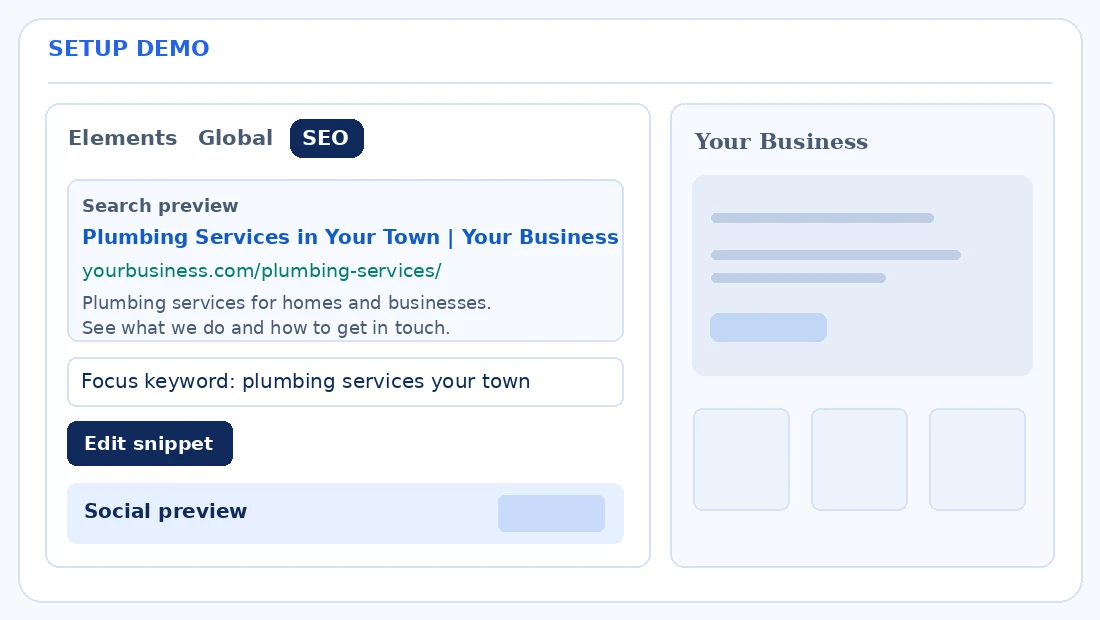
Why we do it. The plugin score helps catch omissions. We give priority to titles and descriptions that explain what each page offers.
10. Save your settings for the next build
Rank Math SEO → Dashboard → Setup Wizard → Custom Mode (PRO)
Rank Math PRO’s Custom Mode lets you upload a saved settings file. We keep a copy from a tested build and review what’s imported. Replace business details and verify the Search Console property, sitemap and archive rules for the new site. Rank Math KB: How to set up Rank Math
Why we do it. A tested baseline gives us a repeatable starting point and leaves the business-specific decisions visible.
Our Rank Math settings at a glance
| Area | Setting | What we choose |
|---|---|---|
| Setup mode | Setup Wizard | Advanced |
| SEO plugins | Other SEO plugins | Deactivated after import |
| Site info | Business name and logo | Match Google Business Profile |
| Search Console | Property | Owned by the business |
| Sitemap | Post types and taxonomies | Pages and posts, excluding attachments and usually tags |
| Archives | Empty category and tag archives | Noindex |
| External links | Nofollow External Links | Off. Qualify individual links. |
| Modules | Redirections, 404 Monitor and Schema | On |
| Redirects | Auto Post Redirect | On (301) |
| Breadcrumbs | Enabled and shortcode in Theme Builder | On |
| Each page | SEO tab in Elementor | Hand-written title and description |
Frequently asked questions
What are the best Rank Math settings for an Elementor website?
We start with one SEO plugin, Advanced mode, a focused sitemap and noindex for empty archives. We also enable redirects, add breadcrumbs in Theme Builder and write each page’s title and description by hand. Adjust these settings for the content your site has. Our Elementor SEO guide covers the rest of the page setup.
Does Rank Math work inside the Elementor editor?
Yes. With both plugins active, open the SEO tab while editing a page or post in Elementor. Use Edit Snippet to set the search title and description, then review the focus keyword, slug and social preview. Save the settings on the page or post where visitors will land.
Should I use Easy or Advanced mode in Rank Math?
We use Advanced mode when building business sites because it includes the setup screens for Role Manager, redirects and schema. Easy mode is available if those controls aren’t part of your initial setup. You can switch modes later and review the available options as the needs of the site change.
Should I enable Nofollow External Links in Rank Math?
We leave Nofollow External Links off and qualify individual links. Rank Math’s wizard recommends enabling it to add nofollow by default. Our usual approach is to link normally to sources we cite, label paid links as sponsored, and apply nofollow individually where we have reason to qualify a link.
How do I add Rank Math breadcrumbs in Elementor?
Enable breadcrumbs in Rank Math’s General Settings, then paste its breadcrumb shortcode into an Elementor Shortcode widget. We place the widget above the title in a Single Post or Single Page template and exclude the homepage. Open a public page using the template to confirm the trail appears once.
Should Elementor templates be in my sitemap?
We exclude saved Elementor templates from the sitemap. They supply layouts to pages and posts, which are the URLs people should land on. Rank Math excludes Elementor templates from SEO support by default. If a template sitemap appears, identify and disable its source, then recheck that the public pages remain listed.
Do I need Rank Math PRO for an Elementor site?
The free version covers the core setup in this guide, including the Elementor editor integration and the main sitemap, redirect and breadcrumb workflows. PRO adds options such as Custom Mode for uploading a settings file and News and Video sitemaps. Choose based on the features the site will use.
Final word
Our Rank Math setup for Elementor starts with one SEO plugin, a focused sitemap and clear archive rules. We test redirects and breadcrumbs and write a title and description for every page we want people to find.
Once that baseline is in place, check how visitors move between related pages. Our guide to internal linking for service-based WordPress sites shows how to build those connections.