A business website is never completely finished. Even when you are not publishing new pages, WordPress software, plugins, forms and hosting systems continue to change. Without a routine, minor issues can become missed enquiries, broken layouts or expensive recovery work.
You do not need to spend hours in the dashboard every day. You need a short, repeatable maintenance process, a reliable backup and a way to confirm that customers can still use the website.
This WordPress maintenance checklist is written for small business owners who depend on their sites for leads, appointments or online orders.
Start with a backup you can restore
Before major updates, make a fresh backup of the website files and database. Confirm where the backup is stored, how long copies are retained and who can restore it. A backup stored only on the same server may be unavailable if that server fails.
For active WooCommerce stores or booking websites, the backup schedule should reflect how frequently orders and appointments change. Restoring yesterday’s backup could mean losing today’s transactions. Discuss the recovery process with your host or developer before there is an emergency.
A backup is not fully useful until its restore process has been tested in a safe environment.
Check WordPress, theme and plugin updates
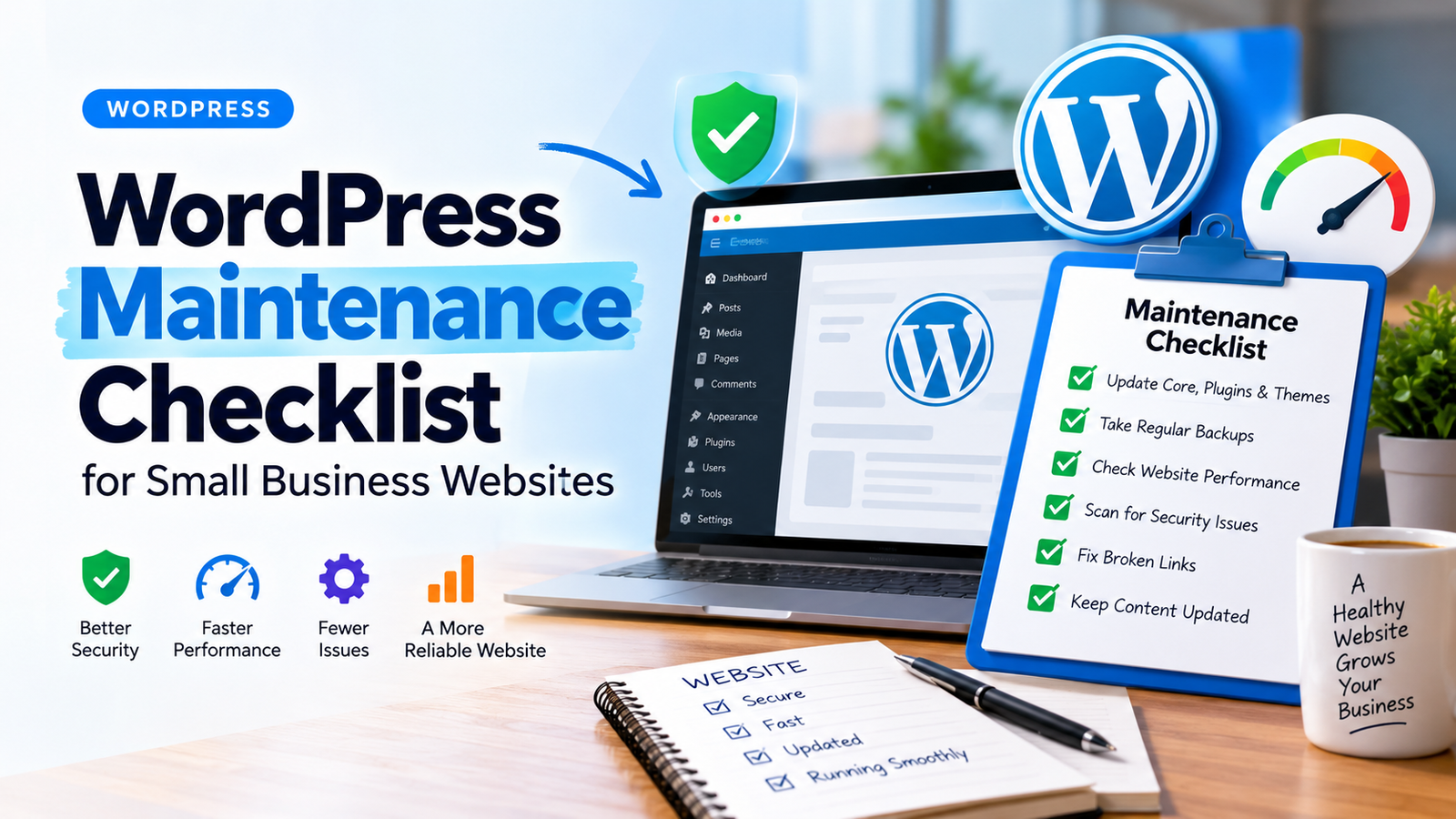
Open Dashboard → Updates and review available changes to WordPress core, the active theme and installed plugins. Read the release notes for significant upgrades. Check compatibility, particularly for Elementor, WooCommerce and plugins that control booking or payment flows.
Do not click Update All on a busy business site without a recovery plan. Make a backup first and test significant updates on staging when possible. After updating, open several public pages and test important customer actions.
Remove unused plugins and themes when it is safe to do so. Deactivated software can still create unnecessary administration and security work.
Test the customer journey, not just the homepage
A homepage that loads correctly does not prove the website works. Once a week, try the actions your visitors are supposed to take:
- Open the website on a phone and computer.
- Navigate from the homepage to a key service page.
- Submit a clearly marked test contact form.
- Check that the notification reaches the correct inbox.
- Click telephone, email and quote buttons.
- Test a booking request or a safe checkout process when relevant.
If a test enquiry never arrives, you may have a business problem even when the site looks perfect.
Review security and account access
Check administrator accounts regularly. Remove accounts that no longer need access and give users only the permissions required for their work. Use strong unique passwords and multi-factor authentication where supported.
Review security alerts and suspicious logins. Confirm that your website uses HTTPS and that the certificate remains valid. Security tools are useful, but they do not replace updates, access controls and verified backups.
If you suspect a compromise, avoid making random changes. Follow a structured recovery process and involve your host or a specialist.
Monitor speed and uptime
Use PageSpeed Insights to examine key templates such as the homepage, a service page and a product page. Pay attention to actual user-experience data when available, rather than treating a single lab score as a complete assessment.
Large images, newly installed plugins, third-party scripts and slow hosting can change performance over time. Review uptime alerts as well: a site that is down during business hours cannot collect leads.
A practical first step is to compare the same pages each month and investigate significant changes.
Inspect content, links and business details
Check contact information, opening hours, service descriptions and staff details. Review broken links and outdated offers. If you serve specific areas, make sure the relevant location pages still reflect the places you actually cover.
For search visibility, inspect Google Search Console for new indexing problems, unusual drops in clicks and important pages that are no longer indexed. Do not assume every fluctuation indicates a technical issue; compare date ranges and look for a clear pattern.
A simple maintenance schedule
| Frequency | What to check |
|---|---|
| Weekly | Backups, forms, critical pages, uptime and security alerts |
| Monthly | Updates, user accounts, speed, links and content accuracy |
| Quarterly | Restore testing, plugin audit, mobile usability and SEO review |
| After major changes | Checkout or booking workflow, forms, layouts and analytics |
The schedule is a starting point. A high-volume store may need daily monitoring, while a small informational site may need less frequent manual checks.
When should you hire WordPress maintenance support?
Consider professional support if you do not know how to restore a backup, updates frequently break your layout, you rely on complicated integrations or nobody is responsible for checking enquiries. Define the work clearly: backups, updates, testing, response times and emergency recovery should not be left vague.
For managed updates and ongoing help, see WordPress Maintenance & Support. If an existing page is broken, see WordPress Support & Fixes.
Frequently asked questions
How often should I update WordPress?
Review updates regularly and apply security fixes promptly after making an appropriate backup. Major releases and compatibility-sensitive plugins may need staging tests before production updates.
Is a backup plugin enough to protect my website?
No. You also need secure storage, sensible retention, a tested restore process, updates and appropriate user access.
Can I maintain a WordPress website myself?
Yes, particularly for a straightforward website. For stores, bookings or complex integrations, specialist help may reduce the risk of extended downtime.
What is the most important WordPress maintenance task?
There is no single answer, but recoverable backups and checking critical customer workflows should be near the top of every plan.