
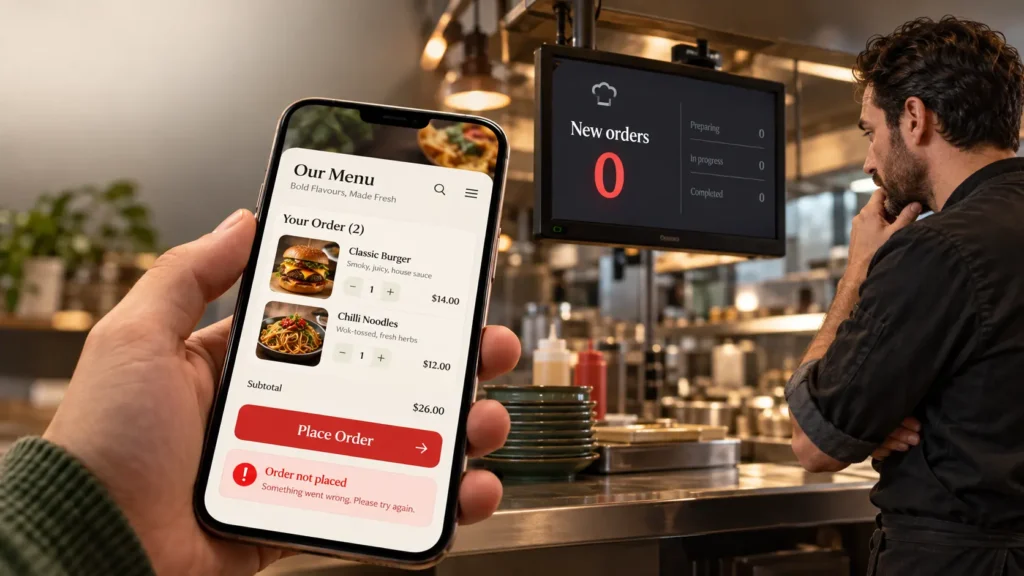
Your restaurant website looks good. The food photos are there. People visit the site. But the online orders do not come in.
Before you spend more on ads, try to place an order yourself. A small problem in the ordering path can stop a hungry customer in seconds. They may never tell you what went wrong.
This guide shows nine things to check, starting with the problems that can block an order completely.
First, place one test order
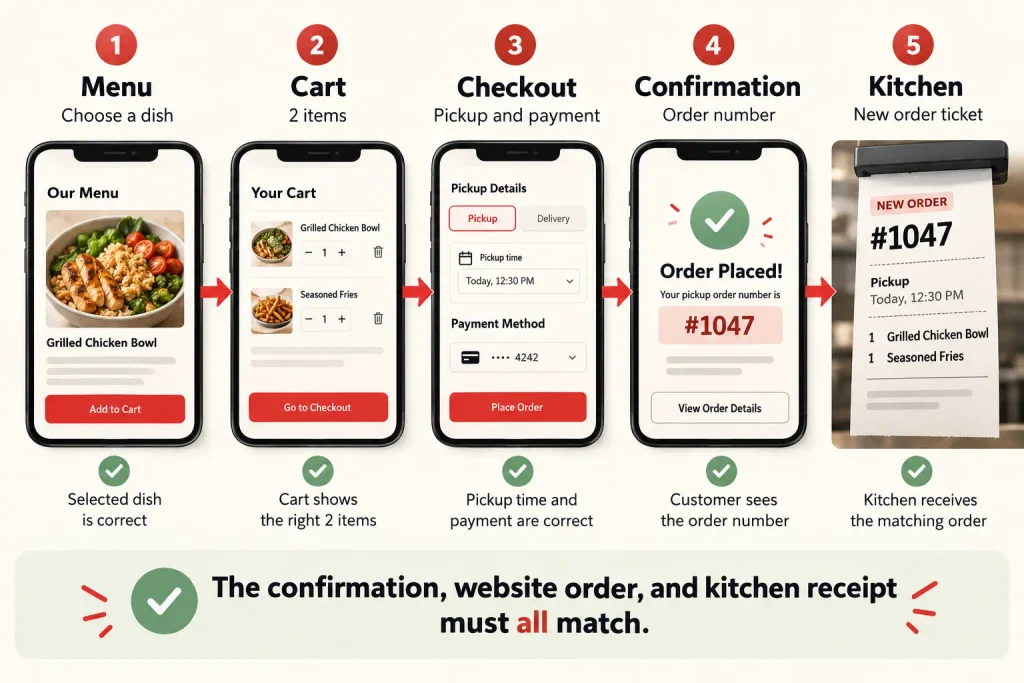
Use your phone and open the website as a customer would. Pick a popular item, add any options, choose pickup or delivery, and go through checkout. Use a safe test payment method or a small real order that you can refund according to your payment provider’s rules. Tell the kitchen it is a test.
Check all three places:
- Customer: Did you see an order number or confirmation?
- Website: Did the order appear in your order dashboard with the expected status?
- Restaurant: Did the kitchen, counter, or manager receive the order details in time?
Then test a delivery address and a pickup order separately. They can fail for different reasons. WooCommerce recommends test orders to check checkout, payment, and related integrations. WooCommerce testing orders guide.
1. Your “Order Online” button is hard to find or goes to the wrong place
Can a first-time visitor find the order button in a few seconds? Check the homepage, mobile menu, food menu, and footer. Tap every button. It should lead to your live online menu or ordering page.
A button that opens a PDF menu, a closed third-party store, or a general contact page may look like an order option but cannot complete a sale. Also check whether an old link still sends customers to an ordering service you no longer use.
What to fix: Put a clear Order Online button near the top of the page. Use the same wording throughout the site. If pickup and delivery use different systems, label them clearly.
2. Your online menu makes ordering difficult
A customer may want dinner now. They need to see what is available, what it costs, and how to add it to the cart without guessing.
Check for missing prices, blurry photos, old specials, sold-out items that still appear available, and products with no Add to cart button. Try items with size choices or extras. Can someone choose the correct spice level, side, drink, or portion? Does the cart show the right total after those choices?
What to fix: Keep names simple, prices current, and required choices obvious. Remove unavailable items or mark them clearly. Show useful food information such as ingredients or allergen details where appropriate, and have the restaurant verify it. Do not rely on a photo alone to explain the item.
3. The cart or checkout breaks on a phone
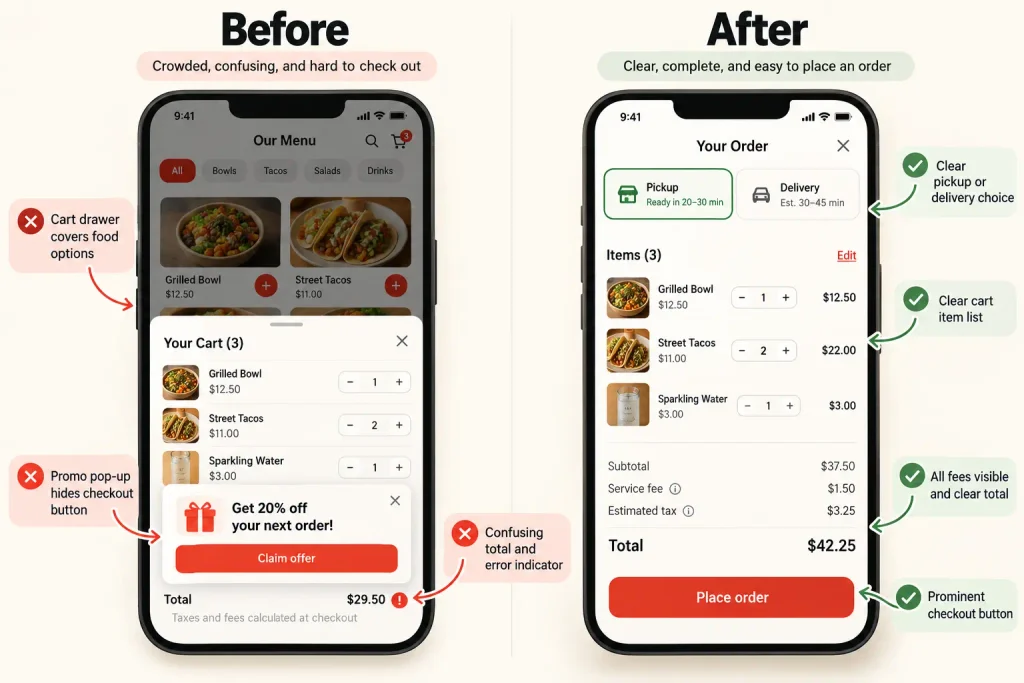
Many people order while they are out or on the way home. Test the entire flow on a real phone. Watch for buttons hidden behind a sticky bar, a cart drawer that will not open, tiny fields, pop-ups covering checkout, or a coupon field that pushes the payment button far down the page.
Try adding two items, changing the quantity, removing one, and returning to checkout. If the cart empties unexpectedly, record the device and browser and ask a developer to investigate.
What to fix: Make the cart easy to open, keep the checkout short, and show the full order total before payment. Ask only for details needed to prepare and deliver the order. If checkout itself fails, our WooCommerce checkout troubleshooting guide covers deeper checks.
4. Pickup and delivery settings do not match real service
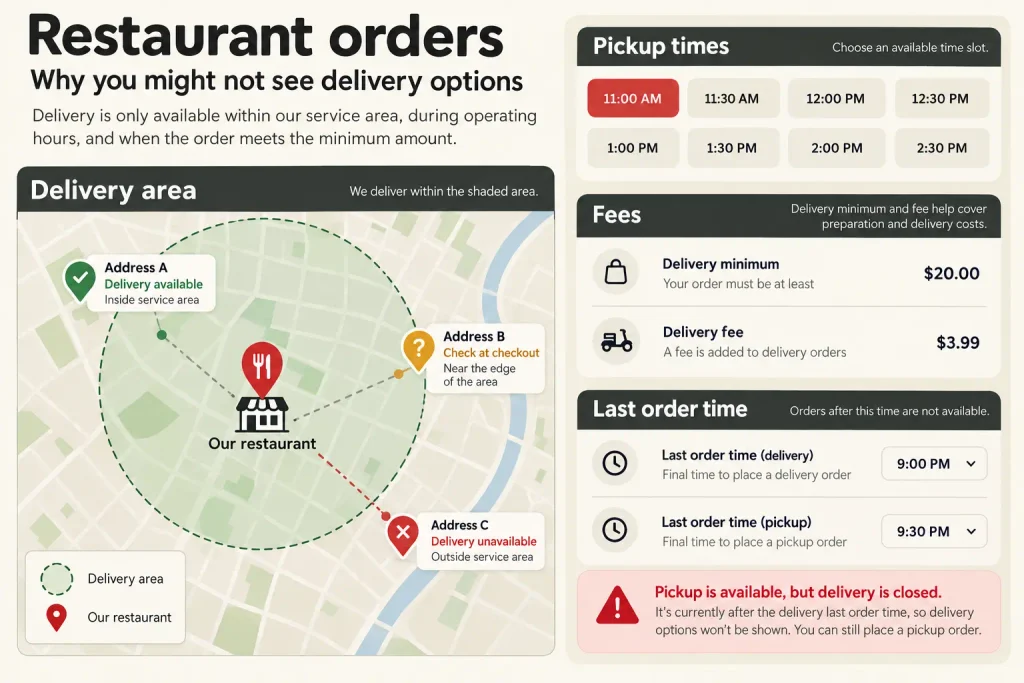
A customer may reach checkout and see “No delivery options available,” even though your restaurant delivers to their address. Another customer may place a delivery order outside your service area by mistake.
Test addresses near the restaurant, at the edge of your area, and outside it. Check opening hours, last order time, pickup lead time, delivery fee, minimum order, and scheduled orders. If your kitchen stops taking orders before closing time, say so clearly.
What to fix: Make the website’s service area and time slots match what your staff can actually fulfill. In WooCommerce, missing shipping methods can come from shipping zone and method settings; see the WooCommerce shipping troubleshooting guide. Restaurant delivery tools may have their own settings as well.
5. Customers cannot pay, or payment status is unclear
Try each payment method you offer. A card gateway may fail, while cash on delivery still works. A payment may succeed with the provider but leave the website order marked Pending payment. Customers might try again and create duplicate orders.
Check the payment provider’s dashboard and the order in WordPress before making a change. Do not assume a pending order was paid, and do not ask the kitchen to prepare it until your process confirms payment or you accept pay-on-pickup.
What to fix: Record the exact error, payment method, order number, and time. Check gateway settings and the order notes. WooCommerce explains payment and status checks in its payment troubleshooting guide and order status guide.
6. Orders arrive on the website but nobody at the restaurant sees them
This is a serious problem because the customer thinks food is on the way. Place a test order and check every place your staff expects to receive it: order screen, email, printer, tablet, or kitchen system.
Maybe the notification goes to an old email address. Maybe it lands in spam. Maybe the tablet is logged out. Maybe the website received the order but the printer did not. An order confirmation to the customer does not prove the kitchen saw it.
What to fix: Give one person responsibility for watching new orders during service. Test the notification path after any change. In WooCommerce, review WooCommerce → Orders and the email settings; its email troubleshooting guide helps when notifications are missing.
7. Customers do not know what happens after they pay
After checkout, the customer should know whether the restaurant accepted the order, whether it is for pickup or delivery, and when to expect the next update. If they see only a blank page or a vague “Thank you,” they may call to check or worry that the order failed.
What to fix: Show an order number, the order type, the selected address or pickup location, and a realistic time estimate only if your system can support it. Send a confirmation message. If staff must manually accept orders, say “We received your request and will confirm it shortly” instead of promising that food preparation has started.
8. Your Google and social “Order” links are old
Some customers never visit your homepage. They tap Order from Google Search, Maps, Instagram, or Facebook. Check those links on a phone. They should open the ordering option you actually want customers to use.
An old provider link can send people to the wrong menu or a page that no longer works. Google Business Profile lets eligible restaurants manage food ordering links and providers; availability and controls depend on the profile. See Google’s restaurant profile help and online ordering options.
What to fix: Update the website and profile links. Check every location separately if you run more than one restaurant.
9. Visitors are not ready to trust the order
If all the technical steps work, look at the information around the menu. Are the opening hours correct? Is the delivery fee shown before the last step? Can customers find your address and phone number? Do food photos look like the items you sell? Is there a clear way to ask about allergies or special requests?
Unexpected charges, unclear pickup details, and missing contact information can make someone leave before paying. Ask a person who has never used the site to order a meal and say aloud where they get confused.
What to fix: Show the full cost early, explain pickup and delivery clearly, and keep the restaurant details consistent across the website and business profiles. Use real photos when possible.
Find the problem by checking where orders stop
| What you see | Check first |
|---|---|
| People visit but rarely open the menu | Order buttons, homepage, and links from Google or social profiles |
| People view dishes but do not add them | Prices, availability, options, and Add to cart controls |
| Carts start but orders do not finish | Mobile checkout, delivery options, fees, and payment errors |
| Paid orders show as pending | Payment provider, gateway connection, and order notes |
| Orders appear in WordPress but staff misses them | Email, tablet, printer, and kitchen notifications |
If you do not have reliable analytics, start with the test order. It gives you a real path to inspect without guessing from numbers.
When to get help
Ask for help quickly if customers are charged without a clear order, the kitchen is missing paid orders, checkout fails on phones, or the problem appears only for certain addresses or payment methods. These issues need a careful look at the ordering system, not just a new homepage design.
Share the page URL, device, time, test order number, payment method, and what the customer and staff each saw. Do not send card details or customer passwords to a developer.
A short weekly test for restaurant owners
Once a week, use a phone to check the menu, a popular product, pickup, delivery, checkout, confirmation, and staff notification. Repeat after updates to the menu, delivery area, payment plugin, or website theme. Keep a note of who ran the test and what happened.
A working order path matters more than a menu that only looks good.
Frequently asked questions
Why is my restaurant website getting visitors but no online orders?
Start by testing the order path. The menu link, product choices, cart, delivery settings, payment, or confirmation may stop people. If all of those work, review whether your menu and delivery details answer customers’ questions.
How do I know if online orders are reaching my kitchen?
Place a labeled test order. Check the customer confirmation, the order dashboard, and the device or inbox your kitchen uses. All three should show the same order and details.
Can I take online orders without online payment?
Yes, if your ordering setup supports pay-on-pickup or another method your restaurant accepts. Make the payment terms clear and test the order flow just as carefully.
Do I need a new restaurant website?
Not always. A broken button or notification may be a focused repair. If the menu, cart, and mobile checkout are consistently hard to use, rebuilding the ordering experience may be the better long-term fix.
Need help with your restaurant ordering website?
Elementor Team builds and fixes WordPress restaurant websites, online menus, and ordering flows. Contact us with your website link and a short description of where orders stop. We can review the customer journey and suggest the next fix.