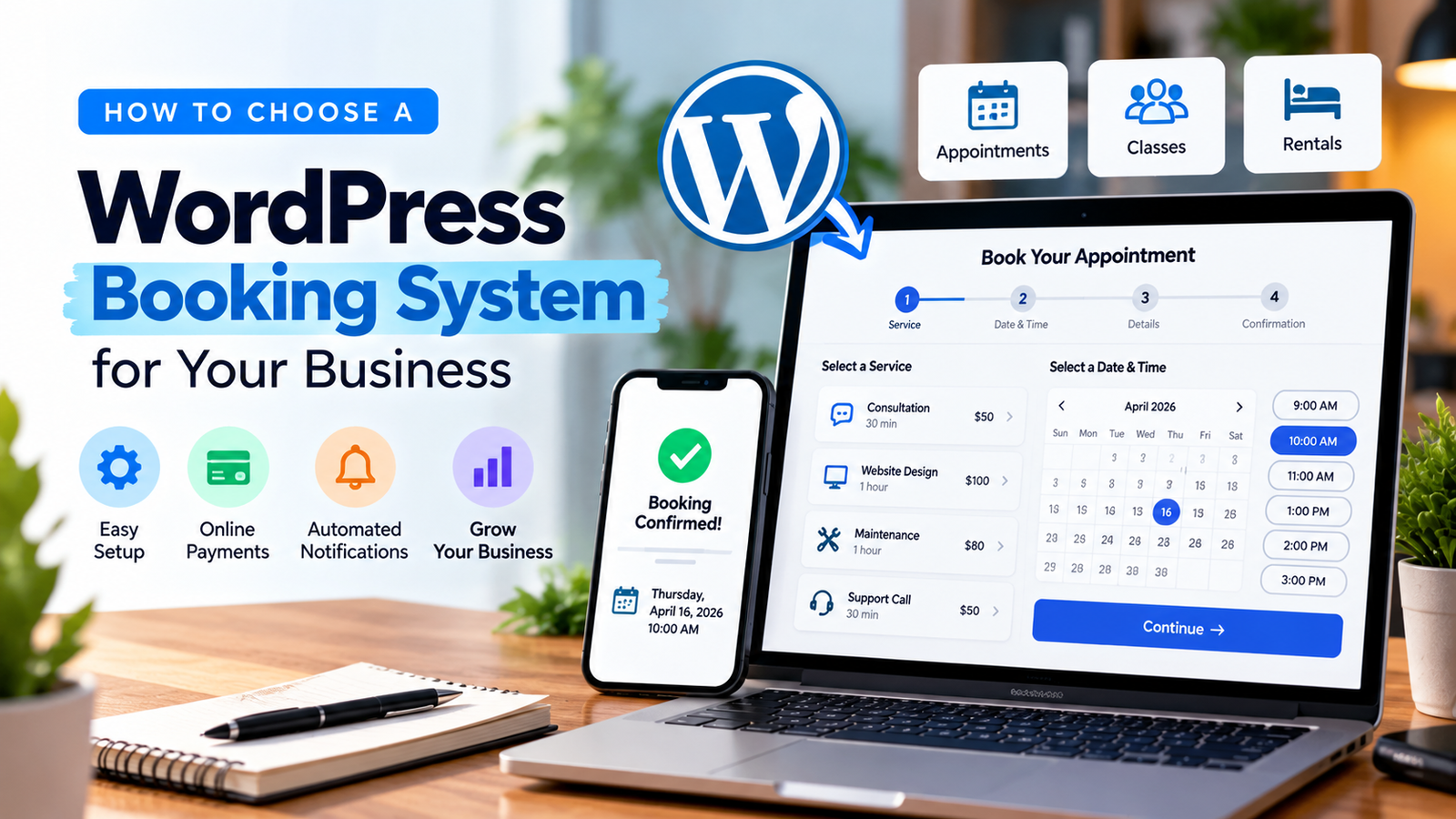
An online booking system should reduce admin work, not create another calendar that your team must constantly correct. For a salon, consultant, fitness studio or service provider, the right setup depends on how appointments are actually handled.
Before choosing a WordPress booking plugin, map the booking process on paper. That is more useful than starting with a long list of features you may never use.
Define what customers are booking
Ask whether customers book a fixed appointment, reserve a seat in a class, hire a resource or request a time that staff must confirm.
These processes are different. A coaching session may need one professional and a video-call link. A salon may need a staff member and a service duration. A group class may need a capacity limit and a waiting list. A property viewing may require approval before a time is final.
Write down the steps from the customer’s first click to the final confirmation.
- Decide between instant booking and a request form
With instant booking, a customer selects an available time and receives a confirmed reservation. This only works well when the calendar reflects real availability.
A request form is better when staff must verify availability, travel distance, job type or other details. Use button text that matches the experience: Book Now for confirmed slots, or Request an Appointment when approval is required.
2. Check staff, service and location scheduling
If your business has multiple employees, confirm the system supports individual working hours, breaks and time off. Different services may need different durations and buffer times.
Multi-location businesses also need clear location selection. A calendar that mixes branches or assigns a booking to an unavailable team member creates extra calls rather than saving them.
3. Look closely at calendar synchronization
If your team uses Google Calendar, Outlook or another scheduling tool, check what synchronization the product actually provides. Some integrations create events but do not read busy periods, while others may support two-way synchronization.
Confirm how cancellations, reschedules, time zones and daylight saving changes are handled. Test a booking at a boundary time before launch.
4. Decide how payments should work
Some businesses charge in full upfront, others take deposits and some collect payment after the appointment. Choose a workflow that matches your policy and accounting process.
Check which payment gateways, currencies, taxes and refund processes are supported. If the booking tool uses WooCommerce for payments, test how order status affects appointment confirmation.
5. Make reminders and cancellations clear
Automatic reminders can reduce forgotten appointments, but they need correct contact details, timing and consent where applicable. State the cancellation and rescheduling policy before the customer confirms.
A useful confirmation should include the service, date, time zone, location or meeting link, price when applicable and instructions for changing the booking.
6. Test the mobile booking experience
Most booking journeys involve several steps. On a phone, make sure customers can select a date, understand available slots, complete required fields and see a clear result.
Check contrast, field labels, error messages and tap targets. Avoid embedding an oversized desktop calendar that requires horizontal scrolling.
7. Evaluate maintenance and ownership
A plugin’s initial price is only part of the decision. Ask how often it is updated, whether support is available, what happens when a license expires and whether you can export booking data.
Check integration compatibility with your theme, Elementor, your email delivery setup and any CRM you use. Avoid building a critical business process around an untested combination of add-ons.
Booking-system selection checklist
Requirement Question to ask
Scheduling Can it handle staff, durations, breaks and locations?
Availability Does it prevent conflicting bookings?
Calendar What exactly syncs, in which direction?
Payments Can it collect deposits or full payment securely?
Communication Are confirmations, reminders and changes reliable?
Usability Can customers finish a booking comfortably on mobile?
Administration Can staff manage cancellations and export records?
Roll out with a real-world test
Before launch, create several test bookings with different services, employees and dates. Try a reschedule, cancellation and failed payment. Verify what the customer sees and what your team receives.
Do not treat a successful form submission as proof that the entire process works. Confirm that the appointment appears in the correct system and that no duplicate slot remains open.
Frequently asked questions
Can I add booking to an Elementor website?
Yes. Many WordPress booking tools can be placed within Elementor layouts using their supported widgets, shortcodes or embeds. Test compatibility with your specific setup.
Do I need WooCommerce for appointment bookings?
Not always. Some booking products include their own payment features, while others integrate with WooCommerce. Choose based on your workflow.
What is better: a booking calendar or a contact form?
Use a calendar when availability can be confirmed automatically. Use a request form when staff must assess and approve each appointment.
Can clients reschedule bookings themselves?
Some systems support self-service rescheduling, but capabilities and policy controls vary. Verify this before choosing a provider.