You open your store reports after a week of promotion. Visitors have arrived, some have added products to their carts, and the order list is still empty. Before spending more on ads or changing the theme, find out how far shoppers actually get.
WooCommerce traffic but no sales usually points to one of three places to investigate: the visitors arriving, the questions your product pages leave unanswered, or a checkout that surprises or blocks shoppers. These ten checks follow the path from the first visit to a confirmed order. We use that path when reviewing WooCommerce stores.
WooCommerce traffic but no sales? Find where shoppers drop off
Compare sessions, product views, add-to-carts, checkout starts, and orders over the same period. If possible, compare one traffic source or device type at a time. Each row below is a clue to investigate with a real shopping test.
| What you see | Likely leak | Go to check |
|---|---|---|
| Lots of visits, few product views | Traffic or landing page mismatch | 1. Traffic |
| Product views but few add-to-carts | Missing product details | 7. Product page |
| Carts but few checkout starts | Delivery costs or other surprises | 3. Total cost |
| Checkout starts but few orders | Broken checkout, forced accounts, or too many steps | 2. Test purchase, 4. Guest checkout, 5. Checkout fields |
| Failed payments in Orders | Payment setup or errors | 6. Payments |
| Shoppers leave quickly on phones | Slow loading or an awkward layout | 8. Mobile speed |
| You can’t tell where people leave | Missing funnel tracking | 10. Tracking |
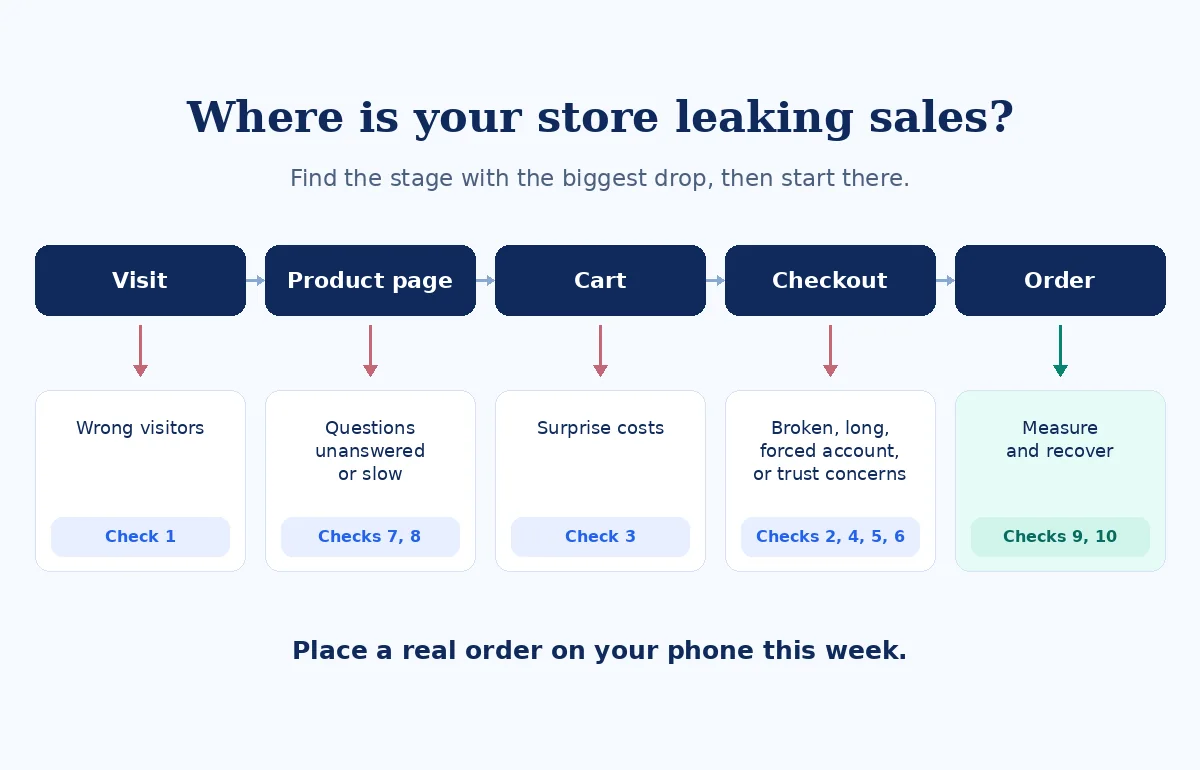
How I check a WooCommerce store
I turn off Wi-Fi and open the store on mobile data from its main traffic source. I find a product, look for delivery costs and returns before adding it to the cart, and go through checkout as a guest. I note where I had to guess or go back to find an answer.
With the owner’s approval, I place a low-value live order or use test mode on staging. I check the order status, confirmation page, and email. The mockups below use a sample store. Replace its example delivery and returns terms with your own terms on your storefront.
1. Is it the right traffic?
A busy landing page can attract people looking for a guide, a free download, or a product you don’t sell. Compare what a search, social post, or ad promises with the first page it opens. Look at visits and orders together, and investigate suspicious spikes separately before treating them as shopper interest. For example, if an ad promotes a single mug, send shoppers directly to that mug’s product page so they can check its price and delivery options.
In WooCommerce 8.5 or later, use WooCommerce → Settings → Advanced → Features to check Order Attribution. Once enabled, the Orders screen shows an Origin column. Attribution is collected for eligible orders placed while the feature is active, so enabling it today gives you new data going forward. WooCommerce: Order Attribution Tracking
Check first. Compare the Origin column on your last 30 orders with your main traffic sources. If you have fewer orders, use the ones available and look at which landing pages visitors reached.
2. Can people actually complete a purchase?
Try a normal order before assuming visitors changed their minds. Check whether a payment gateway is still in test mode, a coupon fails, or a shipping zone has no matching method. Confirm the cart keeps its contents and the confirmation email arrives. Website errors and crashes were among the reasons US shoppers gave Baymard for abandoning checkout. Baymard Institute: Cart abandonment rate statistics
If the test fails, note the device, delivery location, payment method, and last screen that worked. Check for cached checkout pages or a plugin conflict after an update. Our WooCommerce checkout troubleshooting guide explains how to isolate those errors.
Check first. With the owner’s approval, place a real low-value order on a phone and refund it after verifying payment and confirmation.
3. Do shipping, tax or fees surprise shoppers?
High extra costs were the most common checkout abandonment reason in Baymard’s US survey after excluding shoppers who were just browsing. Shoppers also reported leaving when they couldn’t see the total upfront. A person comparing two stores needs to know what the order will cost before going through a form. Baymard Institute: Cart abandonment rate statistics
Show a shipping estimate or a clear free-shipping threshold on the product page and in the cart. Explain when address-based taxes or delivery charges are calculated, and show the updated total as soon as you have the information. Leave optional add-ons unselected and make any regional exclusions visible.
Check first. Add a “Delivery from” line with your lowest shipping cost, or a shipping estimator, to your product pages. Check that the displayed estimate matches a real cart for the destinations you serve.
4. Are you forcing shoppers to create an account?
Baymard’s US respondents listed required account creation as one reason they left checkout. Let a shopper make an ordinary purchase as a guest where the product and your store’s setup allow it. Give shoppers a separate, optional path to create an account after purchase if your setup supports it. Baymard Institute: Cart abandonment rate statistics
Open WooCommerce → Settings → Accounts and Privacy and select Enable guest checkout. Older versions may say “Allow customers to place orders without an account.” WooCommerce says subscription purchases still require an account. Check any wholesale or restricted-product rules before changing those purchase flows. WooCommerce: Accounts and Privacy settings
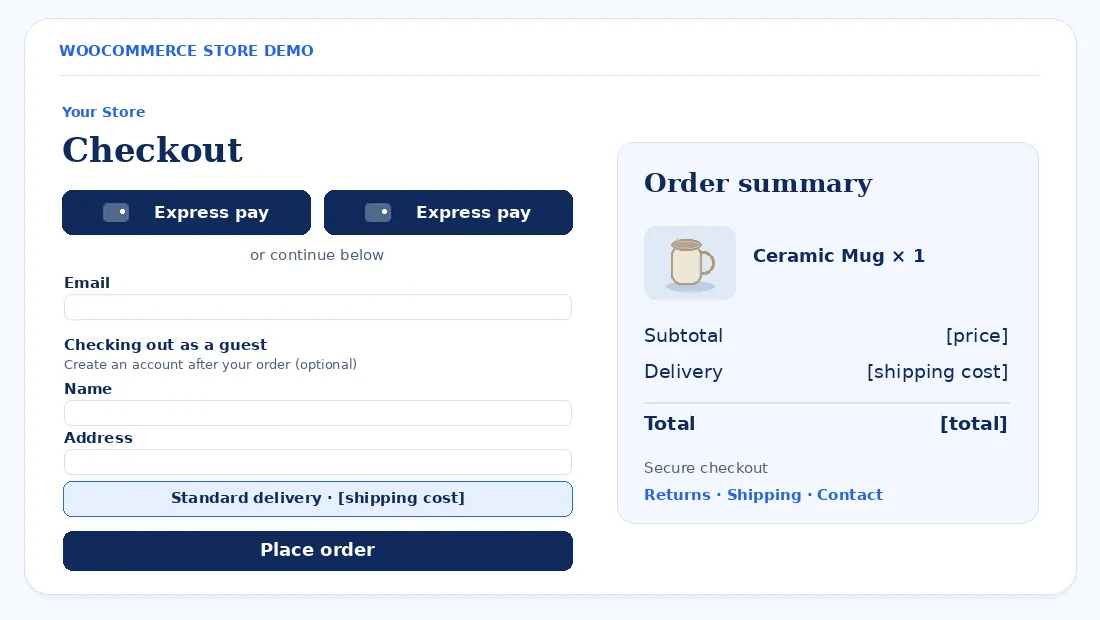
Check first. Enable guest checkout for eligible products and place a test order in a private window without logging in.
5. Is your checkout too long or cluttered?
Baymard lists complicated or lengthy checkout among abandonment reasons. Keep fields that help you take payment, deliver the order, or meet a genuine business requirement. Consider removing optional fields you never use, such as company name. Keep a second address line available where shoppers need it for a unit or usable delivery address. Baymard Institute: Cart abandonment rate statistics
Keep the order summary easy to find and remove pop-ups that interrupt payment. Cart and Checkout blocks became the default for new stores with WooCommerce 8.3. Existing stores retain their previous setup until they switch. Test payment, shipping, and checkout extensions on staging before changing your layout. WooCommerce Developer Blog: Cart and Checkout Blocks by Default
Check first. Count the fields shoppers see and identify which ones you actually use. Remove only the fields your order workflow can do without.
6. Do shoppers trust you with their card?
Some shoppers in Baymard’s US survey said they were unwilling to enter card details on a site they didn’t trust. Offer payment methods shoppers recognize and can use in the countries you serve. Check that secure HTTPS connections work throughout the buying path and that returns, refunds, and contact information are easy to find. Baymard Institute: Cart abandonment rate statistics
Check failed and pending orders against your payment provider’s dashboard. Look for messages that tell you what happened and whether the customer could retry. Keep your About and Contact pages specific about who runs the store and how you handle order questions.
Check first. Link to Returns, Shipping, and Contact from the cart and checkout, then test each link on a phone.
7. Does the product page answer buying questions?
A shopper looking at a mug may need its capacity, whether it fits under an espresso machine, and when it will arrive. Adapt those questions to each product. Baymard’s US survey lists slow delivery and an unsatisfactory returns policy among the reasons shoppers gave for abandoning checkout. Give them those details earlier, while they’re deciding. Baymard Institute: Cart abandonment rate statistics
Common gaps
- One photo with no sense of size.
- Variants with unclear prices or stock.
- Delivery estimates and returns buried in the footer.
What to add
- Useful angles, dimensions, and specifications.
- Price and stock status for the selected option.
- Delivery, returns, and genuine customer reviews.
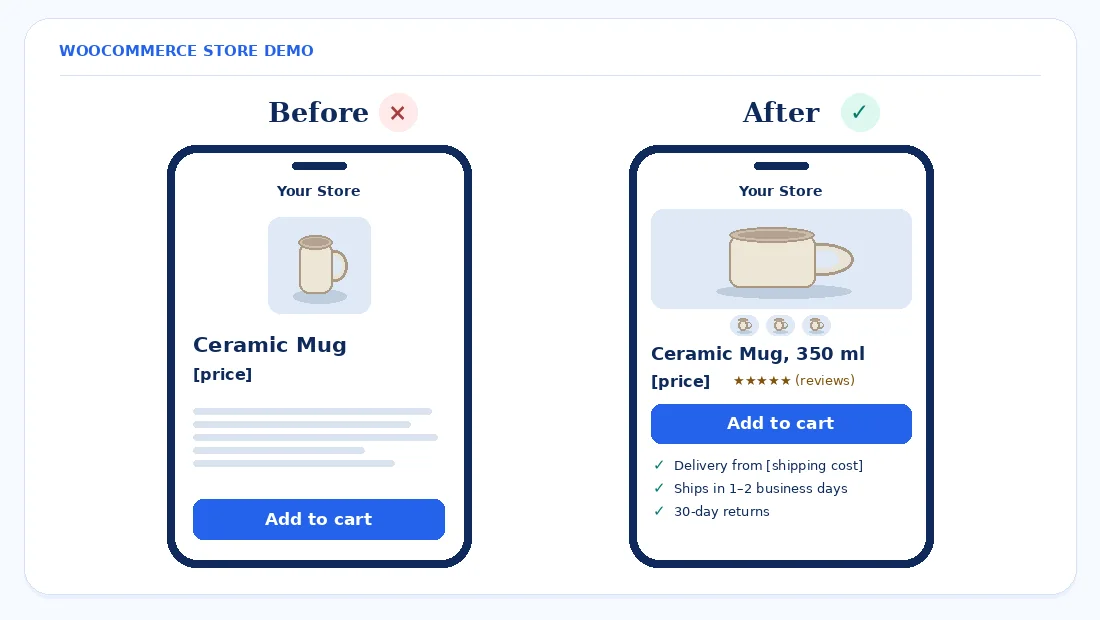
Check first. Add your delivery estimate and a short returns summary just below the Add to cart button. Link to the full policy for details.
8. Is the store slow on a phone?
Look for oversized product photos, a heavy page builder layout, unused plugins, and sliders that load before the buy button. Test a product page in the Mobile view of PageSpeed Insights. Google’s good thresholds are LCP of 2.5 seconds or less for main content loading, INP of 200 milliseconds or less for responsiveness, and CLS of 0.1 or less for layout shifts. Google Search Central: Core Web Vitals · PageSpeed Insights
Resize the main photo, compress it, and keep it loading promptly. Cache public pages where appropriate, while excluding shopper-specific cart and checkout pages from full-page caching. See our guide to fixing Core Web Vitals on Elementor or our WordPress speed optimization service.
Check first. Test your top product page in PageSpeed Insights and fix the largest image if it’s a loading bottleneck. Retest on mobile data.
9. Are your products showing properly on Google?
Eligible Merchant Center products can appear at no cost in places such as Search, Shopping, Images, Lens, Maps, YouTube, and Gemini. Product structured data, which labels details such as price and availability for search engines, can help product pages qualify for richer results. Google also supports shipping and return information. Google Merchant Center Help: Free listings for products · Google Search Central: Product structured data
Compare the live page, product feed, and markup for a product with several variants. Check price, currency, availability, and the landing URL. Make sure the shopper who clicks a listing can find the offer they saw on Google.
Check first. Connect your store to Merchant Center if you plan to use free listings. Review disapprovals and start with the affected products you actually want to promote.
10. Are you tracking the funnel and recovering abandoned carts?
Use GA4 or a similar analytics tool to track add_to_cart, begin_checkout, and purchase. Compare test events with a real order in WooCommerce and check that your integration reports each purchase once. If orders exist in the store but the events are missing, fix your tracking before interpreting the funnel. See our GA4 tracking guide for the basics.
Before sending abandoned-cart emails, check that you have the right permission and follow consent, privacy, and anti-spam rules where you sell. A short optional exit survey can ask “What stopped you from ordering today?” After purchase, ask “What nearly stopped you?” and use recurring answers to choose your next test.
Check first. Place a test order and confirm that add_to_cart, begin_checkout, and purchase appear in GA4 Realtime and correspond to the actions you took.
What to check first
Effort and impact are our estimates. Start with a blocked checkout if you find one. Once you can place an order, use the funnel to choose which change to test next.
| Check | Effort | Who usually does it | Impact on sales |
|---|---|---|---|
| 2. Test purchase | Low | Store owner or developer | High |
| 3. Total cost | Low | Store owner | High |
| 4. Guest checkout | Low | Store manager | High |
| 1. Traffic | Medium | Marketer | High |
| 10. Tracking | Medium | Marketer or developer | Medium |
| 7. Product pages | Medium | Store manager | High |
| 5. Checkout fields | Medium | Developer | Medium |
| 6. Payments and trust | Medium | Owner and developer | High |
| 8. Mobile speed | Medium | Developer | Medium |
| 9. Google listings | Medium | Store manager or marketer | Medium |
Frequently asked questions
Why is my WooCommerce store getting traffic but no sales?
Start with a test purchase and find where visitors stop in the shopping funnel. Then check whether people from your main traffic sources reach relevant product pages, see the total before checkout, and can pay. If the order goes through in WooCommerce, check whether your analytics recorded it correctly.
What is a normal cart abandonment rate?
Baymard reports an average documented cart abandonment rate of 70.22% across 50 studies. Use it as context for ecommerce overall. To understand your own store, compare similar products, devices, and traffic sources over time, and test the step where the largest share of shoppers leaves. Baymard Institute: Cart abandonment rate statistics
How do I enable guest checkout in WooCommerce?
Go to WooCommerce → Settings → Accounts and Privacy and choose Enable guest checkout. Save your settings, then place a test order without logging in. Test the products you usually sell, including any mix of product types. WooCommerce subscription purchases still require a customer account. WooCommerce: Accounts and Privacy settings
Should I switch to the WooCommerce Checkout block?
Switch if your payment, shipping, and checkout extensions support the block and the whole flow works on staging. The block has been the default for new stores since WooCommerce 8.3. Test guest orders, coupons, taxes, shipping, payment failures, and notifications before changing the live checkout. WooCommerce Developer Blog: Cart and Checkout Blocks by Default
How do I see where my WooCommerce orders come from?
Enable Order Attribution under WooCommerce → Settings → Advanced → Features, then look at the Origin column in WooCommerce → Orders. The feature records attribution on eligible new orders while it is active. Compare the order origins with your traffic and landing pages before deciding which channel to prioritize. WooCommerce: Order Attribution Tracking
Do free shipping thresholds help sales?
A clear threshold helps shoppers work out their total earlier. High extra costs were the top checkout abandonment reason in Baymard’s US survey after excluding people who were just browsing. If you offer free shipping, show the threshold and qualifying destinations on the product page and in the cart. Baymard Institute: Cart abandonment rate statistics
How fast should a WooCommerce product page load?
Aim for the main content to load within 2.5 seconds, Google’s good LCP threshold. Check a product page in PageSpeed Insights and try it on your phone. Seeing the image quickly helps, and shoppers also need to select a variant and add it to the cart without lag or shifting buttons. Google Search Central: Core Web Vitals
Final word
Find the last step people complete and test the next one yourself. Start with the total cost, the checkout, and the questions your product page leaves open before paying for more traffic.
For technical payment or order errors, see our WooCommerce checkout troubleshooting guide.