You click Update, the page reloads, and now visitors see “There has been a critical error on this website.” If you’re dealing with a critical error after Elementor update, start with the inbox for your WordPress administrator address and check whether your host has a recent backup.
The message means PHP stopped running, often because Elementor and Elementor Pro are out of step, an add-on is incompatible, or the server runs an older PHP version, and WordPress Recovery Mode can often get you into the dashboard to fix it.
Your Elementor page content lives in the WordPress database. An update error usually leaves it there even when the site can’t display it. When I troubleshoot this, I save the error details before changing anything so I can work from the actual failure.
What a critical error after Elementor update actually means
A fatal PHP error stops WordPress from completing the page request. WordPress introduced Recovery Mode in version 5.2. When it catches an eligible fatal error during a regular page load, it can show the generic error screen and send a recovery link to the site administrator. WordPress.org Documentation: Recovery Mode
Recovery Mode pauses the failing plugin or theme for your recovery session so you can reach the dashboard. Visitors can still see the error until you fix the cause or deactivate the failing extension sitewide. Before you exit Recovery Mode, verify the site in a separate private window. Make WordPress Core: Fatal error recovery mode in 5.2
| Likely cause after an Elementor update | How you’ll recognize it | Go to step |
|---|---|---|
| Elementor and Pro versions out of step | A notice says Pro needs a newer Elementor version, or the error names Pro files after only one plugin changed. | 3. Match versions |
| Problem with the new release | The error started immediately after updating, and the previously working pair can be tested on a copy. | 4. Roll back |
| Incompatible third-party add-on | The path points to an Elementor add-on’s folder. | 7. Check conflicts |
| Older PHP or low memory | The log reports memory exhaustion or a syntax error worth checking against the PHP version. | 6. Check the server |
| Theme conflict | The path points to a file in the active theme or child theme. | 7. Check conflicts |
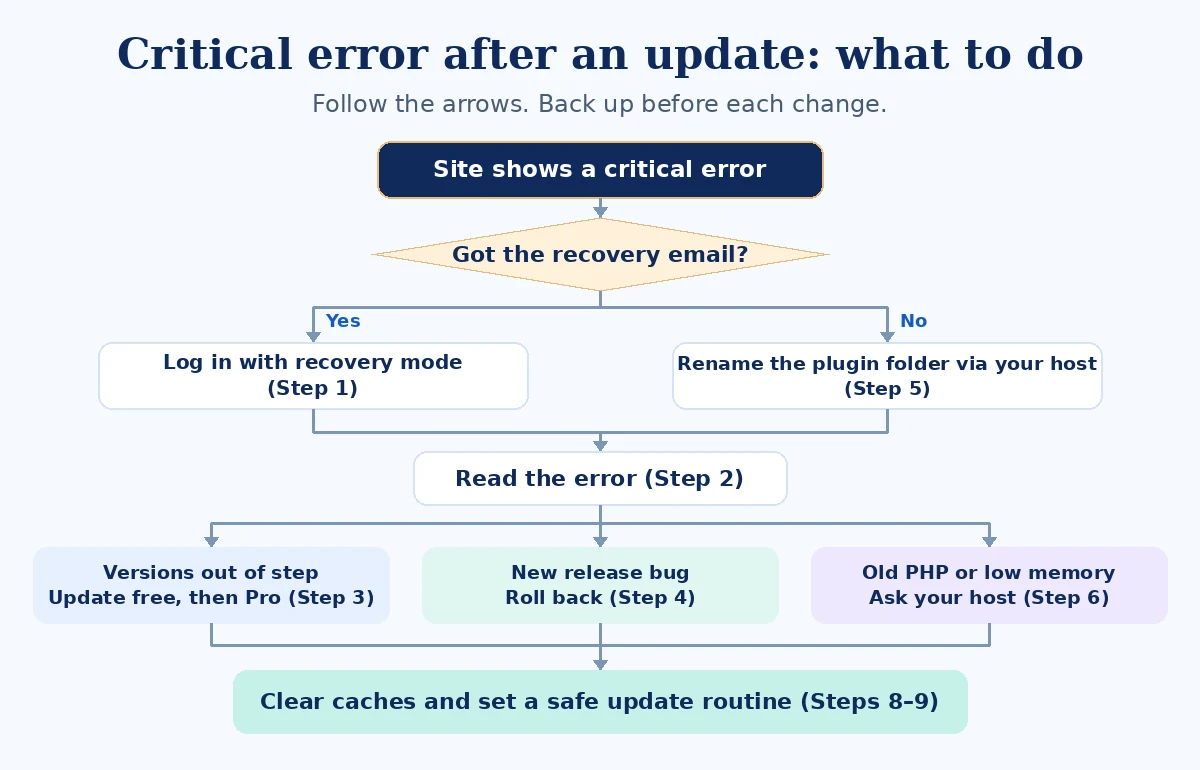
1. Get back in with recovery mode
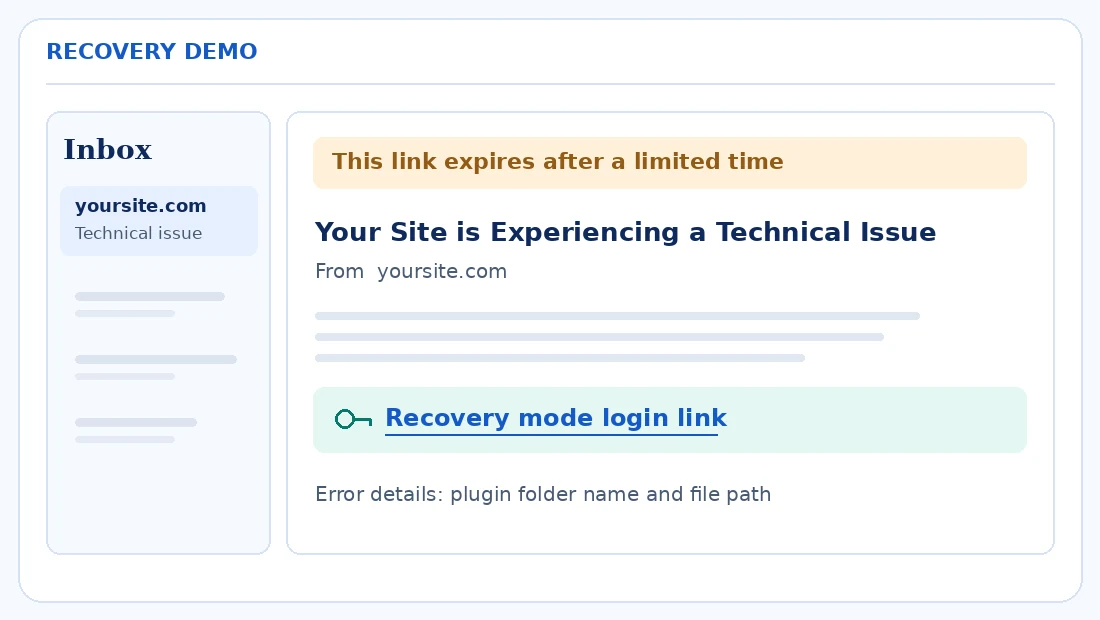
Check the inbox and spam folder for the site administration address. The subject is usually “Your Site is Experiencing a Technical Issue.” Open the time-limited recovery link, sign in with your WordPress credentials and look for the dashboard notice naming the paused plugin or theme. Liquid Web: WordPress Recovery Mode · WordPress.org Documentation: Recovery Mode
If the email didn’t arrive, GoDaddy documents trying yoursite.com/wp-login.php?action=entered_recovery_mode with your own domain when Recovery Mode has been triggered. That route can fail if you lack a valid recovery session. If it does, ask your host for the PHP error log and use Step 5 once you’ve identified the plugin. GoDaddy Help: Fix a WordPress critical error
Do this. Open the recovery email, sign in through the link and write down the plugin or theme WordPress paused.
2. Read the actual error
Look for the error details in the recovery email or ask your host for the PHP error log. Match the timestamp to the failed visit. I look for the first relevant PHP Fatal error entry and the file path next to it, then note whether it names Elementor, Pro, an add-on or the theme.
If those details are missing, use the WordPress debug log on staging where possible. Back up your site and keep a copy of wp-config.php before editing. Set these flags above the “That’s all, stop editing!” line, updating existing definitions instead of adding duplicates. WordPress Developer Resources: Debugging in WordPress
define( 'WP_DEBUG', true );
define( 'WP_DEBUG_LOG', true );
define( 'WP_DEBUG_DISPLAY', false );
This normally logs errors to wp-content/debug.log and hides them on the page. WordPress advises against routine debugging on live sites. If you must use it there, reproduce the error briefly, save the entry privately, turn debugging off and move the generated log out of the public web directory. WordPress Developer Resources: Debugging in WordPress
Do this. Find the first PHP Fatal error line around the failed visit and write down the plugin folder or theme in the file path.
3. Fix an Elementor and Elementor Pro version mismatch
If the failure started after updating just one of the pair, check the installed versions in Plugins. Elementor recommends keeping WordPress and PHP within the release’s requirements and updating free Elementor before Elementor Pro. If the update is blocked, temporarily deactivate Pro, update free Elementor, then update and reactivate Pro. Elementor Help: Elementor Pro update errors
Use versions your site supports and take a backup before proceeding. Pro updates require an active license. If the dashboard update isn’t available, download the Pro package from your Elementor account, then use the WordPress plugin upload screen. Elementor Help: Elementor Pro update errors
Do this. Once you’re in, update free Elementor to the latest supported release first, then update Pro. Reload a public page in a private window.
4. Roll back Elementor to the previous version
If the new version triggers the same error with a compatible pair, rolling back can restore the setup that worked. Back up the site first. Open Elementor’s Tools screen, go to Version Control and choose the previously working version. Elementor’s current documentation places Tools under Elementor → Editor → Home, and some dashboards show Elementor → Tools directly. Elementor Help: Rollback to a previous version of Elementor
The dropdown defaults to the previous release and lets you select an earlier one. Use the combination of Elementor and Pro that worked together, then check the public site and editor. Keep the rollback temporary and test a fixed release on staging when it’s available. Elementor Help: Rollback to a previous version of Elementor
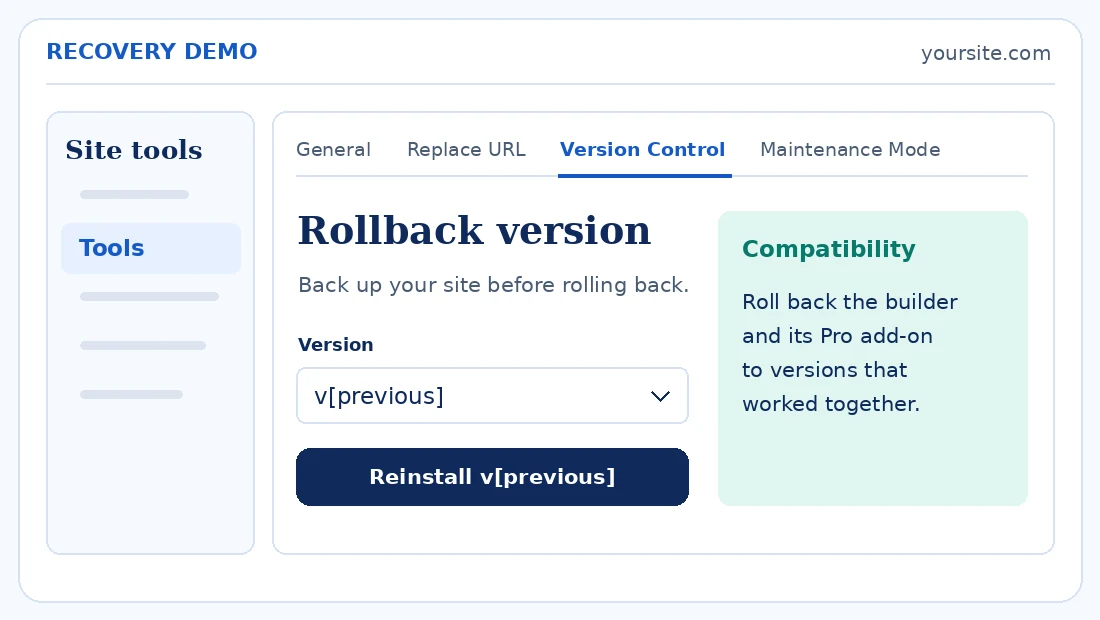
Do this. Take a backup, restore the previously working version or pair and confirm the public page loads.
5. No admin access? Disable the plugin from your host
If you can’t sign in, take a backup through your host. Open its file manager or connect over SFTP and find the plugin folder named in the error. For example, if the problem points to Elementor Pro:
wp-content/plugins/elementor-pro → wp-content/plugins/elementor-pro-disabledWordPress can no longer load the plugin from its old path. The site may come back with that plugin’s features temporarily unavailable. Open the dashboard and check that the plugin is inactive before restoring the original folder name, then repair or update it before reactivating. Elementor also documents reinstalling the affected plugin from a fresh copy for some fatal errors. Elementor Help: Fatal error after updating or installing Elementor
Do this. Back up and rename only the folder identified in the log. If the log doesn’t point to a plugin, ask your host to help isolate the cause before disabling everything on the live site.
6. Check PHP version and memory
PHP is the language WordPress runs on. An incompatible runtime or exhausted memory can stop PHP before the page is sent. In Tools → Site Health → Info, check the PHP version and memory settings, or ask your host for them if you still can’t log in.
Elementor currently lists WordPress 6.8 or later, PHP 7.4 or later with PHP 8.3+ recommended, and MySQL 5.6+ or MariaDB 10.5+. It lists a WordPress memory limit of 256 MB for Elementor and Pro alone and recommends 512 MB. Ask your host about the limits that apply to your site and back up before testing a PHP change on staging, since older plugins may need updates too. Elementor Help: System requirements
Do this. Compare your PHP version and memory limit with Elementor’s published requirements, then ask your host about any mismatch.
7. Find a conflicting add-on or theme
A third-party Elementor add-on or a theme can depend on code that changed in the update. If the log points to one of those folders, test the developer’s compatible release on staging. If there’s no update, temporarily deactivate the add-on or test a different theme on the staging copy.
If the error is unclear, test one add-on at a time. A troubleshooting plugin with a session-only mode can help you make the same checks while keeping your test separate from visitors. When you find the conflict, send the extension developer the versions in use and the relevant error entry after removing private server details.
Do this. Update the add-ons and theme on staging, then re-enable any paused add-ons one at a time and reload the failing page after each change.
8. Clear caches and regenerate Elementor’s files
Once the site loads again, cached pages and old CSS can still make it look broken. In Elementor’s Tools screen, use Clear Files & Data (called Regenerate Files & Data in some versions). Then purge the cache in your plugin, hosting panel and CDN if you use one. Elementor Help: Clear Files & Data
Check the public site while logged out. Try a page that previously failed, then check an Elementor template and a key action such as sending a test form or opening a booking page.
Do this. Clear Elementor’s files and data, purge each cache and check your top five pages in a private browser window.
9. Stop it happening again
Back up the database and files before updating. Use staging for major changes and follow the tested order when an update is due: WordPress first if needed, then free Elementor, Elementor Pro and the add-ons. Check that the public pages, editor and key forms work before repeating the changes live. Elementor Help: Elementor Pro update errors
Schedule a tested update window for the live site, keep only the add-ons you use and switch off temporary debug logging. If you’re planning a larger editor change, see our Elementor Editor V4 migration guide.
Do this. Set up a staging copy with your host and make a backup, test on staging, then update the live site.
When to call for help
Pause troubleshooting if the error points to custom code or the database, or if you notice unexpected files or redirects. Save the error and contact your host or our WordPress support team. If you suspect a compromise, see our WordPress hacked-site recovery guide. If you have an active Pro license, you can also contact Elementor support.
Frequently asked questions
What does “There has been a critical error on this website” mean?
WordPress stopped loading the page after a fatal PHP error. The public message is generic, so use the recovery email or your host’s PHP log to see which file failed. If the dashboard is available through Recovery Mode, check which plugin or theme WordPress paused before deciding what to change.
Will I lose my Elementor pages if I get a critical error?
A critical error usually leaves your Elementor pages in the WordPress database. It may stop WordPress from displaying them or opening the editor. Make a backup of the database and files before changing plugins or the server. After recovery, check that your pages can be opened and edited.
I didn’t get the recovery mode email. What now?
Check spam and confirm which address WordPress uses for site administration. If you still can’t sign in, ask your host for the PHP error log and save a backup. Once the log identifies an affected plugin, you can isolate it by renaming just that folder. GoDaddy Help: Fix a WordPress critical error
Should I roll back Elementor or wait for a fix?
Consider rolling back if the site is down and you know which version of Elementor and Pro previously worked together. Back up first and verify the public site after the rollback. If your live site is working and the error only appears on staging, wait for a compatible release and test it there.
Why does Elementor Pro cause a critical error after updating Elementor?
A mismatch can happen when one plugin expects code provided by a different release of the other. Check the error log and the two installed versions. Back up, then follow Elementor’s update order: free Elementor first, Pro second. Also check whether third-party add-ons are compatible with that pair.
Is it safe to turn on WP_DEBUG on a live site?
WordPress recommends debugging on staging. If you must debug a live site, back up first, log to a file with error display turned off and reproduce the problem briefly. Turn debugging off afterwards and remove the temporary log from the public directory. WordPress Developer Resources: Debugging in WordPress
How do I stop Elementor updates from breaking my site?
Make a backup and run updates on staging before applying them to the live site. Update WordPress if needed, then free Elementor, Pro and the add-ons. Open representative public pages, the editor and any forms or booking flows after the update. Keep the backup until those checks pass on the live site.
Final word
The critical error screen gives you a place to start. Try Recovery Mode, read the error details and check the free and Pro versions before deciding whether to roll back. Test the live site while logged out once you think it’s fixed.
Keep staging and backups in your update routine. If pages load again but their styling still looks wrong, follow our guide to fixing an Elementor site that looks broken after an update.