


Your Google Business Profile has the right phone number and hours. Your website has them too, but they’re scattered across the footer and contact page. LocalBusiness schema in WordPress gives search engines a standard way to identify those details and connect them to the right business.
In Rank Math, enable Local SEO, enter the most specific business type and your details under Titles & Meta → Local SEO, create one entry per physical location if you have branches, and check the result with Google’s Rich Results Test.
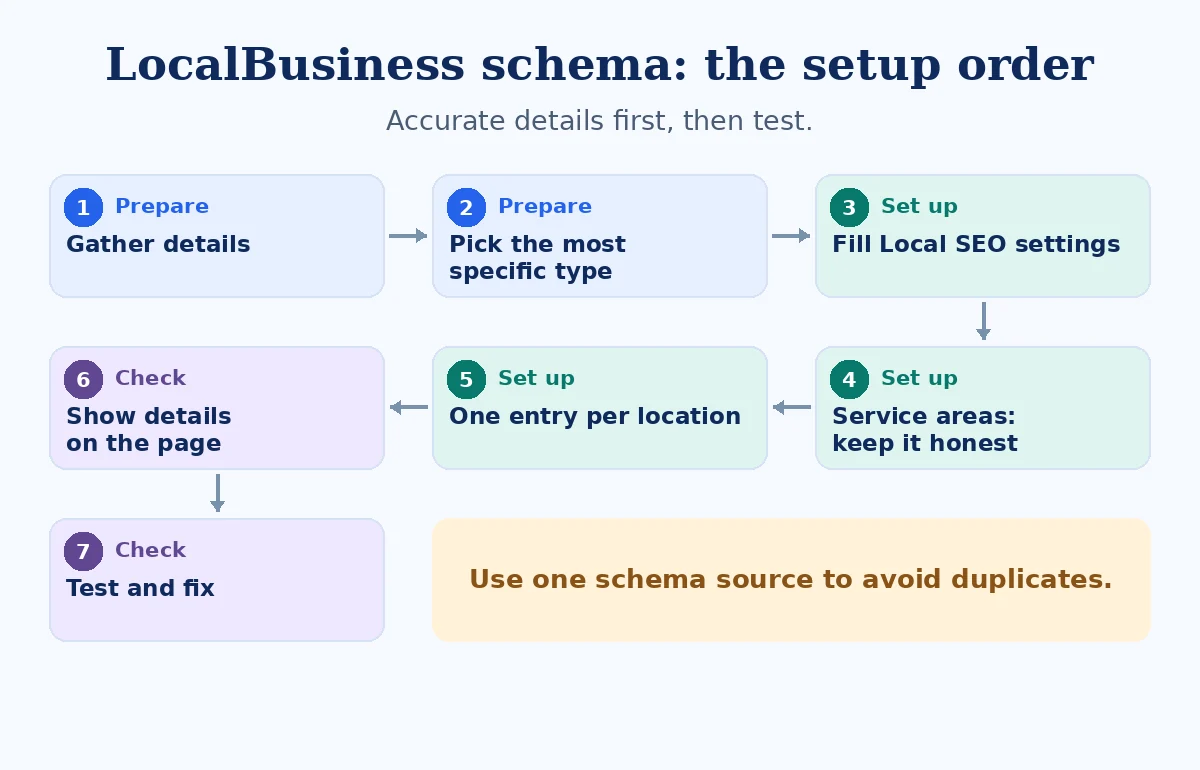
These are the seven steps we follow, from gathering the details to checking what the live page actually outputs. For hands-on help, see our WordPress SEO optimization service.
What LocalBusiness schema in WordPress does
Structured data is code that helps search engines understand what a page describes. Schema is the vocabulary that gives each piece of information a standard name, such as telephone or openingHoursSpecification. JSON-LD is a format for writing those details as a block of code, and Google generally recommends it when your setup supports it. Rank Math generates that code from your settings. Google Search Central: Introduction to structured data · Rank Math KB: Using Rank Math’s Local SEO module
Accurate markup helps Google understand the page and can make it eligible for features in Search. Google decides whether to show those features. Treat schema as a way to describe the business accurately and keep the website and Business Profile useful to customers. Google Search Central: General structured data guidelines
1. Gather your business details first
When I set up local schema, I start with the exact business name, public address and phone number on the Google Business Profile. If any of those are outdated, correct them before copying them into WordPress. Google lists name and address as required for its LocalBusiness feature and recommends the other fields below when they apply. Google Search Central: Local business structured data
| Property | Required or recommended | Where to find it | Example for Your Business |
|---|---|---|---|
name | Required | Business Profile and contact page | Your Business |
address (PostalAddress) | Required | Public location address | 1 Example Street, Your Town |
telephone | Recommended | Public contact number for that location | +1-555-0100 |
url | Recommended | Homepage or branch page URL | https://yourbusiness.com/ |
geo | Recommended | Map pin for the public location | Latitude and longitude for the actual pin |
openingHoursSpecification | Recommended | Published opening hours | Mon–Fri 08:00–17:00 |
priceRange | Recommended | Published price guidance | Your published range, if applicable |
menu | Recommended for food businesses | Public menu page | https://yourbusiness.com/menu/ |
servesCuisine | Recommended for food businesses | Menu or restaurant description | Your published cuisine type |
Check it. Find the visible information supporting each field on the relevant page. Skip recommended fields that you can’t verify or that don’t apply.
2. Choose the most specific business type
Choose the Schema.org type that best describes what the business does. Google recommends the most specific LocalBusiness subtype and supports multiple applicable types as an @type array when needed. Choose types based on the business itself and check the actual output if your plugin lets you select more than one. Google Search Central: Local business structured data
Too general when a subtype fits
LocalBusinessOrganization
Better when they describe the business
Plumber,Dentist,RestaurantBeautySalon,RealEstateAgent,AccountingService
Check it. Look up the type in Schema.org and compare it with the public description of the business.
3. Turn on Rank Math’s Local SEO module and add your details
Open Rank Math SEO → Dashboard and enable Local SEO. Then open Rank Math SEO → Titles & Meta → Local SEO. Choose Person or Organization under Person or Company according to who operates the site. For a business, select the business type and fill in the name, logo, URL, public email address, phone, address and opening hours. Rank Math KB: Using Rank Math’s Local SEO module
Set the relevant About and Contact pages and save your changes. Rank Math uses the Local SEO settings to generate markup for the site. Start by checking the homepage and the About or Contact page you selected, because the entity shown can vary by page and by whether multiple locations are enabled. If you’re comparing setups, see our WordPress SEO plugin comparison. New to Rank Math? Start with our Rank Math setup for Elementor sites. Rank Math KB: Using Rank Math’s Local SEO module
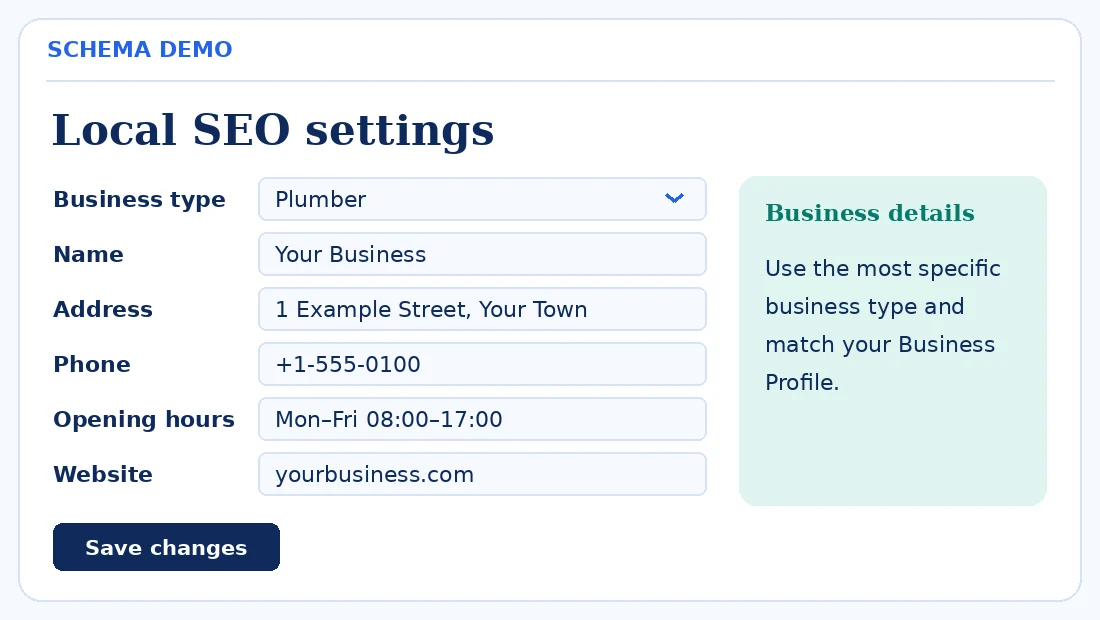
Check it. Open the homepage source or use the Rich Results Test. Look for the LocalBusiness item or its subtype and confirm it contains the details you saved.
4. Service-area businesses: use details visitors can verify
If you travel to customers, show the towns you serve and the ways people can contact you. Use the business details visitors can verify on that page. If your address is private or you have no public location, leave it out and accept that the page won’t meet Google’s address requirement for its LocalBusiness rich result. Google Search Central: General structured data guidelines · Google Search Central: Local business structured data
Don’t invent addresses for each town you serve. A town within your service area is different from a branch. See our service-area page guide for the pages themselves.
Check it. Read the page as a visitor and confirm the marked-up details reflect what the business actually publishes there.
5. Multiple locations: create one entry per physical location
Create a separate LocalBusiness item for each physical branch. Google’s department property describes a department inside one location, such as a pharmacy within a store. Separate branches belong in their own entries. Google Search Central: Local business structured data
In Rank Math PRO, turn on Use Multiple Locations in Local SEO and save. Add each branch under RM Locations, set its details and display them with the Local Business block or shortcode. Give each page information specific to that branch using our WordPress location page guide. Rank Math KB: How to create multiple locations (with schema)
Check it. Open each location page and test its URL. Compare its visible address, phone and hours with the corresponding LocalBusiness item.
6. Show the same details on the page in Elementor
Show the business name, public address, phone and hours in the contact section or footer. If you use Rank Math PRO’s location setup, copy the location’s Local Business shortcode into Elementor’s Shortcode widget to display the relevant details. Preview the page to check that the output belongs to the intended branch. Rank Math KB: How to add LocalBusiness schema in Elementor
Use Rank Math as the source for that business entity and remove any redundant LocalBusiness markup from a second plugin, theme feature or manual snippet. The fictional plumber below shows what JSON-LD can look like. Leave the example as text when Rank Math generates your markup.
<script type="application/ld+json">
{
  "@context": "https://schema.org",
  "@type": "Plumber",
  "name": "Your Business",
  "url": "https://yourbusiness.com/",
  "telephone": "+1-555-0100",
  "address": {
    "@type": "PostalAddress",
    "streetAddress": "1 Example Street",
    "addressLocality": "Your Town",
    "postalCode": "00000",
    "addressCountry": "US"
  },
  "openingHoursSpecification": [{
    "@type": "OpeningHoursSpecification",
    "dayOfWeek": ["Monday","Tuesday","Wednesday","Thursday","Friday"],
    "opens": "08:00",
    "closes": "17:00"
  }]
}
</script>
Check it. Compare the name, public address and phone on the page with the schema and Google Business Profile character for character wherever those details are published.
7. Test it and fix errors
Run the homepage and each branch URL through Google’s Rich Results Test to check what Google detects and whether it meets the feature’s requirements. Use the Schema Markup Validator to inspect the broader Schema.org output. After deployment, review any relevant rich result status reports available in Search Console. Google Search Central: Introduction to structured data
| Problem | Likely cause | Fix |
|---|---|---|
| Two items for the same business location | Another plugin or theme adds its own markup. | Keep one source for that entity. |
| Missing address | Local SEO or branch fields are empty. | Add the real public address if there is one. |
| Type is too broad | The default LocalBusiness type is still selected. | Choose the specific subtype that fits. |
| Old phone number | Settings were left unchanged after a business update. | Update Rank Math and the visible contact details. |
| Details are missing from the page | Only the markup was updated. | Show verified details on the page or remove the unsupported fields. |
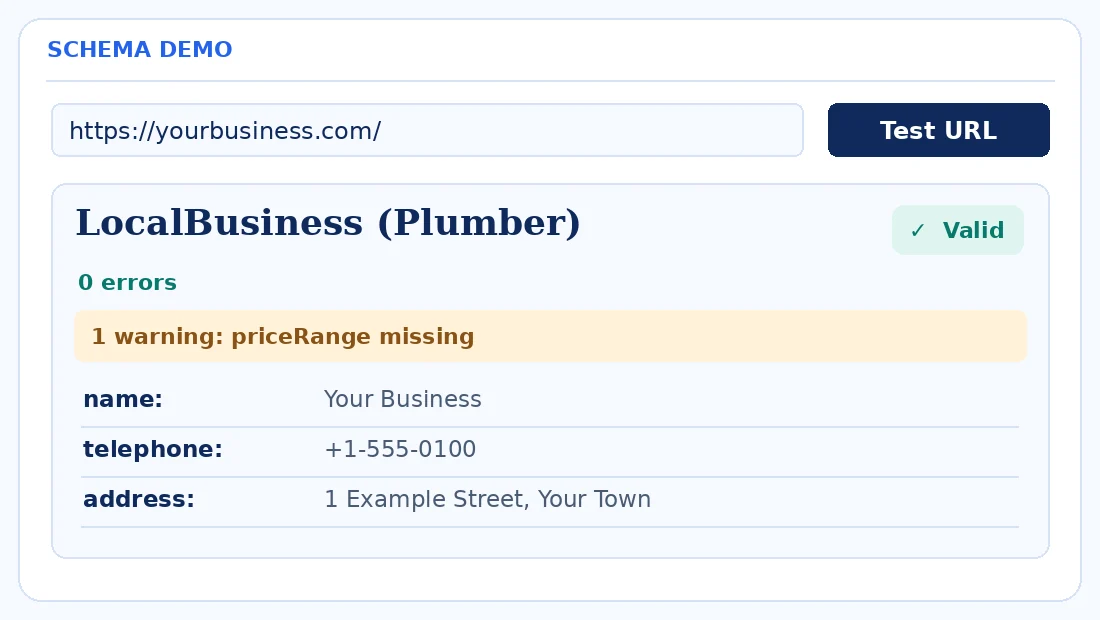
Check it. Aim for zero errors on pages intended to qualify. Review each warning and fill recommended fields only when they apply.
LocalBusiness schema checklist
| Check | Done? | Notes |
|---|---|---|
| Details match Google Business Profile | Use the correct branch profile. | |
| Most specific business type chosen | Check that the subtype fits the business. | |
| Local SEO module enabled | Confirm in Rank Math SEO → Dashboard. | |
| Required name and address filled | Use a public address when targeting eligibility. | |
| Phone, URL and hours added | Use the details for that location. | |
| Service-area details accurate and visible | Represent towns as service areas. | |
| One entry per physical location | Keep each branch’s details distinct. | |
| Details visible on the page | Compare the page and markup. | |
| One schema source | Look for duplicate entries for the same business. | |
| Rich Results Test passed | Review warnings on each eligible URL. | |
| Search Console checked after a few weeks | Check URL Inspection and reports where available. |
Frequently asked questions
Does LocalBusiness schema help local rankings?
Use LocalBusiness schema to help Google understand and interpret your business details. Valid markup can make a page eligible for search features, and Google decides whether to show them. Keep the site and Google Business Profile accurate and useful to customers, and avoid treating markup as a ranking shortcut.
Which schema type should my business use?
Choose the most specific Schema.org type that accurately describes the business. A plumbing company can use Plumber and a dental practice can use Dentist. If several types genuinely apply, Google supports listing them in an array. Compare the result with what the business says it does on the page.
Do I need Rank Math PRO for LocalBusiness schema?
Rank Math’s Local SEO module provides settings for a single business location. The built-in setup for managing multiple locations requires Rank Math PRO. Start with the Local SEO settings and check your homepage output. If you have branches, use separate location entries and test each URL after publishing.
Can I add LocalBusiness schema without a physical address?
You can describe the public details your customers can verify, but Google requires a physical address for its LocalBusiness rich result. Keep a private address out of the markup and avoid using a town or a mailing location as a substitute. Show the areas you serve on the website.
How do I add schema for multiple locations in WordPress?
Enable Use Multiple Locations in Rank Math PRO and create one entry per physical location. Give each entry its real address, phone and hours. Use the Local Business block or shortcode to display those details. Test each location URL so you can check the visible details against that branch’s markup.
How do I test my LocalBusiness schema?
Run your homepage and location URLs through Google’s Rich Results Test. Use the Schema Markup Validator to inspect the broader schema graph and look for duplicate business entities. Fix errors affecting eligibility, review warnings and retest the published page so you’re checking what visitors and Google can access.
Can I add LocalBusiness schema to an Elementor website?
Yes. Configure the business in Rank Math and show the matching details in Elementor. With the multiple-location setup, you can use Rank Math’s Local Business shortcode in an Elementor Shortcode widget to display branch information. For the rest of the page setup, see our Elementor SEO guide.
Final word
LocalBusiness schema in WordPress starts with accurate information. Choose the most specific business type, match the public details in the Business Profile and give each physical location its own entry.
Keep one source for each business entity and test the published URLs. Our Elementor SEO guide covers other checks to make on those pages.




1 thought on “How to Add LocalBusiness Schema in WordPress With Rank Math (Step by Step)”
Pingback: Rank Math Setup for Elementor: Settings We Use (2026)