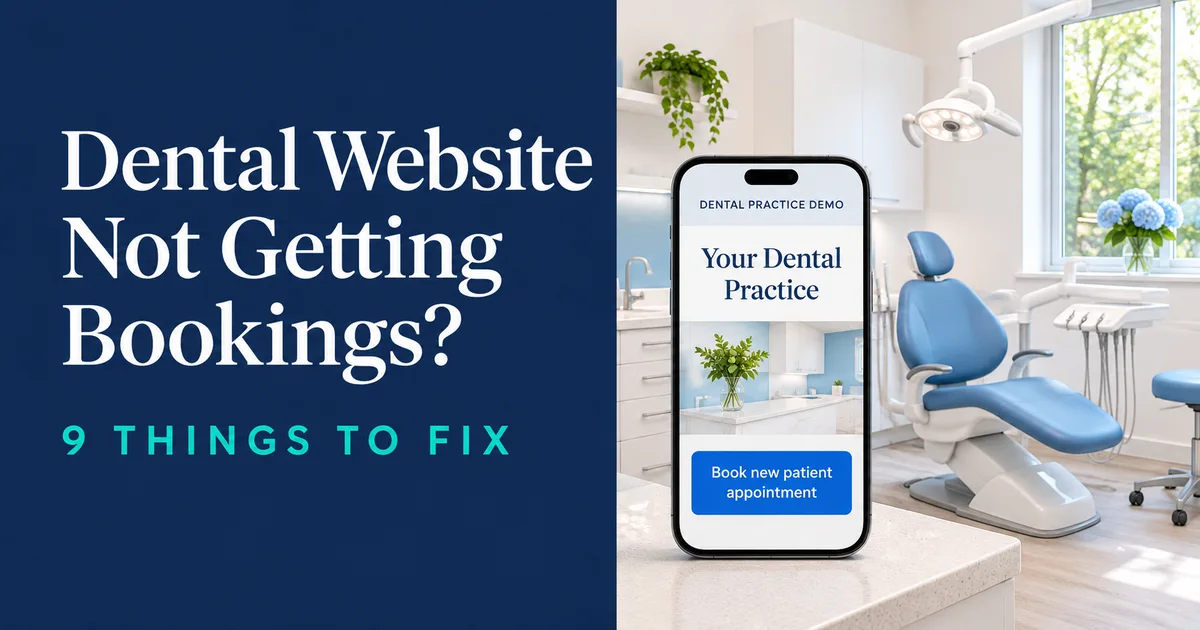
Someone chips a tooth at 9 p.m. and finds your practice on their phone. Your website looks welcoming, but the patient can’t tell whether you’re taking new patients, what an exam might cost, or whether pressing Book will actually reserve a time.
A dental website not getting new patients often leaves three things unclear: whether the practice accepts them, how to book, and what the first visit might cost. The nine fixes below follow the order in which these questions tend to come up. They’re the same kinds of details we check when working on healthcare website design.
Dental website not getting new patients? A quick drop-off check
If your dental website is not getting new patients, start with the last action you can confirm. Ask reception what callers repeatedly ask about, and compare that with what you see on a phone. The table gives you a starting point for testing each possibility.
| What you see | Likely cause | Go to fix |
|---|---|---|
| Visits but few booking clicks | Unclear first screen | 1. First screen |
| Booking clicks but few completions | Friction in the booking flow | 3. Online booking |
| Lots of calls asking about cost | Fees are hard to find | 4. Fees and coverage |
| Urgent callers can’t reach you | Emergency contact is unclear | 5. Emergency access |
| Many mobile visitors leave quickly | Slow or awkward first screen | 8. Mobile speed |
| Booking sources are unclear | Completed appointments aren’t measured | 9. Tracking |
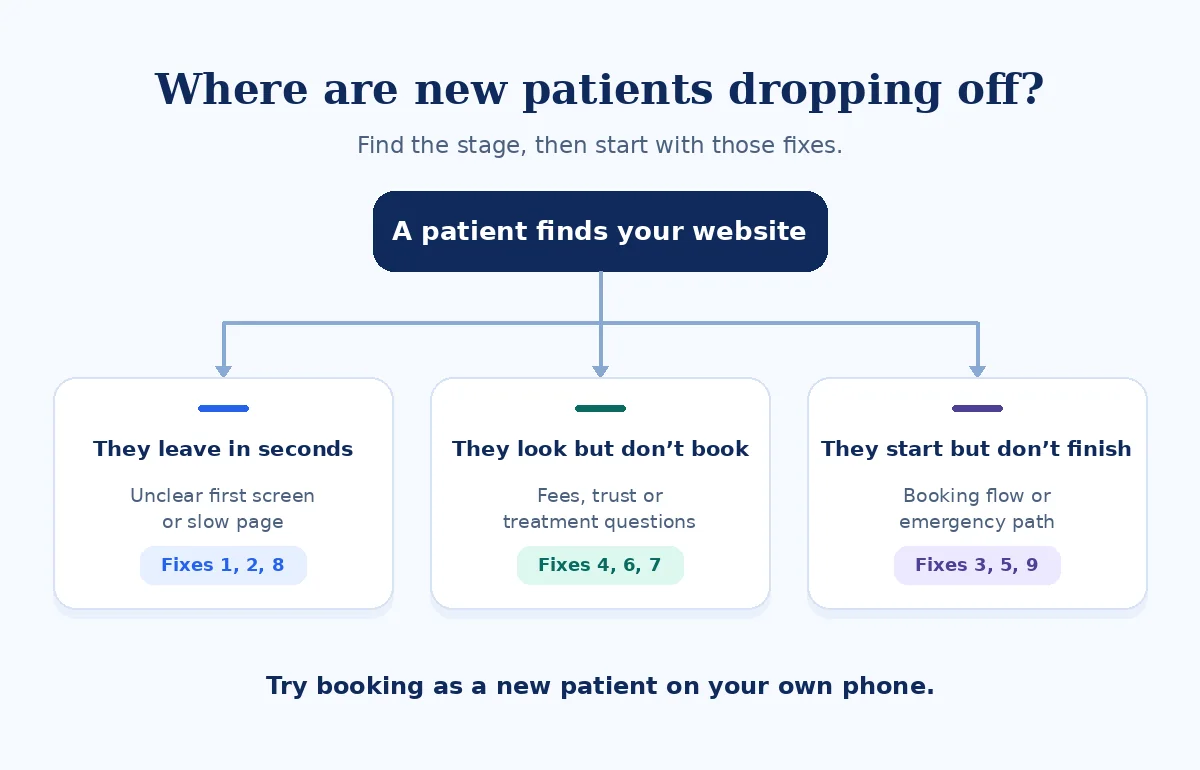
How I check a dental website
I turn off Wi-Fi and search “[treatment] [suburb]” on mobile data. I open the page a new patient would land on and time how long it takes me to reach a first-visit appointment slot. I note every question I’d have to call to answer and test the after-hours number with the practice’s permission.
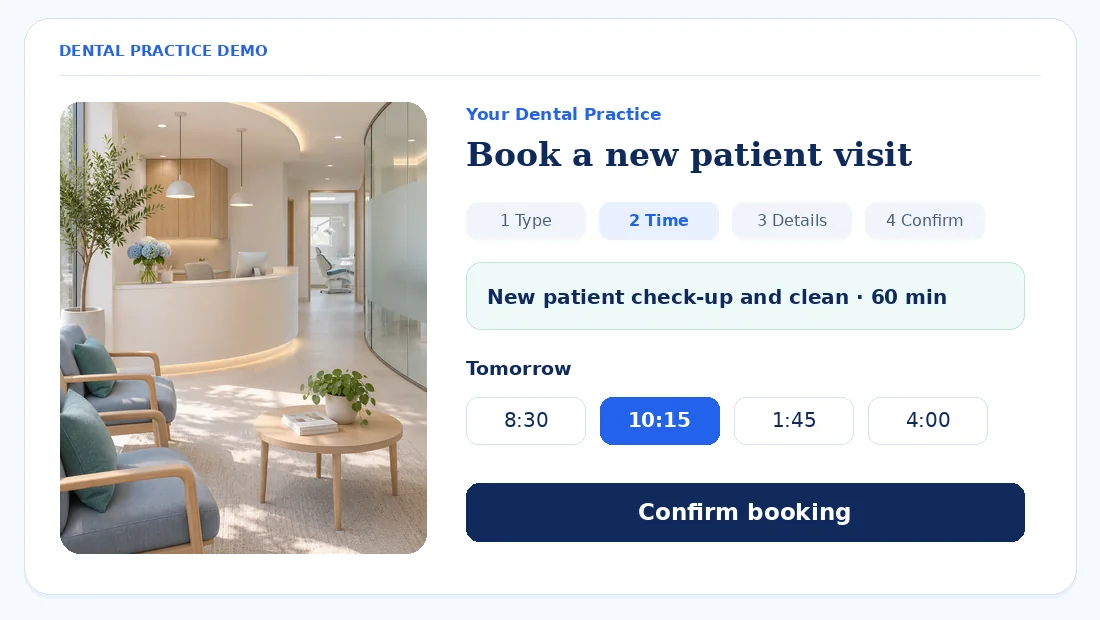
For the confirmation step, I use a demo or a test appointment agreed with reception. The mockups below show a sample practice. The names, hours, and appointment times are illustrative.
1. The first screen doesn’t say you’re taking new patients
Your homepage and main treatment pages should tell someone where you are and how to take the next step. If you have multiple locations or only certain dentists accept new patients, make that clear before the patient opens the calendar.
Common problems
- A smile gallery fills the first screen.
- The suburb is tucked into the footer.
- The booking button is hidden in the menu.
What to show instead
- “New patients welcome” when you have capacity.
- Suburb and opening hours or next availability.
- A prominent Book online button and a clear Call option.
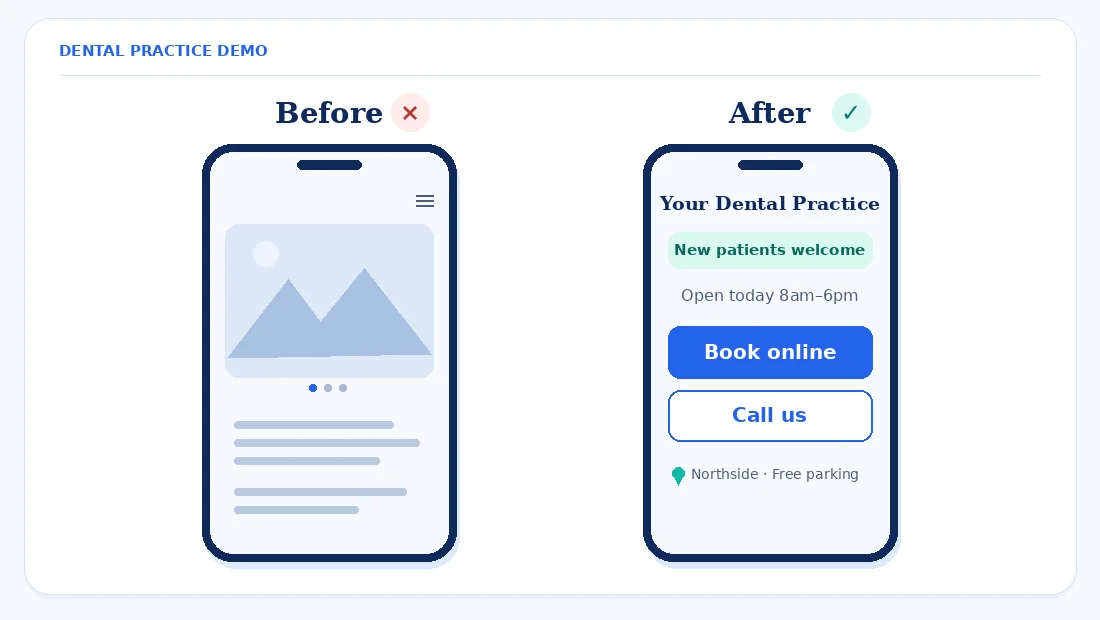
Fix first. Put “New patients welcome” and one Book button in the first screen on mobile, then test both on a live service page.
2. New patients can’t find a “New patients” page
Give first-time visitors one page that explains what happens during the first visit, how long to allow, and how fees are explained. Say whether the initial visit includes cleaning or whether that’s arranged separately when appropriate. List what to bring and give patients a secure way to complete any forms you need in advance.
Add parking, public transit, step-free access information, and what families should know about bringing children. Route returning patients to recall appointments separately. That helps reception avoid correcting a booking made under the wrong appointment type.
Fix first. Create a New patients page that answers the questions reception hears most, and link to it from the header and footer.
3. Online booking is missing, slow or a dead end
An appointment request tells the practice someone wants a visit. A real-time booking reserves a slot. Label each correctly and tell requesters when they can expect to hear back. If the scheduler opens on another site, keep the practice name and location visible during the handoff.
Give new patients their own appointment type and use four clear steps: type, time, details, and confirmation. Ask only for details needed at that stage. After submission, show whether the time is confirmed, which location it’s at, and how the patient can change it.
Where Google Business Profile offers a Booking option, add the direct appointment link and set a preferred one if you have several. When Google displays a Book Online link, test whether it sends people to the correct booking page for your practice and appointment type. Google Business Profile Help
Review how to choose a WordPress booking system or see our WordPress booking system setup.
Fix first. Test booking a new patient exam on your phone and remove steps your team can handle after the appointment is reserved.
4. Fees, insurance and payment options are hidden
Give patients enough information to decide whether to schedule. If you can publish a starting fee, state what it includes and when something may cost extra. For instance, a “new patient exam from” price needs a line explaining whether X-rays or cleaning are included. If fees depend on assessment, explain when the patient receives an estimate.
- US. List the plans you’re in-network with, how out-of-network visits are handled, and how patients can verify their benefits.
- UK. The GDC requires practice publicity to say whether the practice is NHS or equivalent, mixed, or wholly private. Explain what a new patient can book. GDC Guidance on advertising
- Australia. Say which health funds you work with and whether you offer on-the-spot claiming.
If you offer payment plans, explain where patients can read the terms or ask questions. Keep the fee and coverage information consistent across treatment pages and booking confirmations.
Fix first. Add a Fees and insurance section to your New patients page and have reception check it against what they tell callers.
5. Emergency patients can’t reach you fast enough
Build an emergency dental page with a large tap-to-call button and clear hours. Have a clinician review which urgent situations your practice handles, what you can offer during open hours, and where you direct patients when closed. Keep those instructions consistent with your voicemail.
Use wording that reflects your capacity. “Call to check today’s availability” works for a changing schedule. Reserve “24/7” for a service your practice actually answers around the clock. Put the urgent contact option near the top of the page so patients can reach someone without working through a routine form.
Fix first. Add an “Emergency? Call now” link in the mobile header that reaches the line your team uses for urgent calls.
6. Treatment pages don’t calm nervous patients
Write individual pages for the care you regularly provide, such as check-ups, implants, clear aligners, whitening, children’s dentistry, and root canal treatment. For each, explain what happens at the first appointment, how long it usually takes, what recovery or follow-up the patient should ask about, and how fees are worked out.
Describe the comfort options you actually offer and when the dentist discusses them. Add a short section for nervous patients that explains how to tell the team about their worries and how the dentist can talk them through the visit. Have a clinician review this copy and link directly to the relevant appointment or consultation type.
Fix first. Rewrite your three main treatment pages in plain language and add the right booking button at the top and bottom of each.
7. Your trust signals are thin, or break your regulator’s rules
Show real team photos, qualifications and registration details. Give readers the practice address and practical access information. If you mention years in practice, check that the wording makes clear whether it refers to a dentist or the practice.
- UK. The GDC says a dental professional named on a website as providing care must display their professional qualification, where it was obtained, and their GDC registration number. GDC Guidance on advertising
- Australia. Ahpra prohibits using testimonials about clinical aspects of a regulated health service in advertising. Comments confined to non-clinical matters such as parking or customer service fall outside that definition. Check the regulator’s guidance before sharing reviews. Ahpra advertising FAQ
- US. Check your state dental board’s advertising rules before publishing reviews or treatment claims.
Keep bought or incentivized reviews off the site and ask for honest feedback without screening for positive responses. If your rules allow it, point patients to your Google Business Profile for general practice information and reviews. Check whether linking to or prominently featuring reviews could count as using them in advertising before doing so.
Fix first. Add current team photos and registration details to your About or Team page, and have someone at the practice verify them.
8. The site is slow or awkward on a phone
Hero videos, sliders, big galleries, chat widgets, and booking embeds can delay a page or block the button. Test the homepage, a treatment page, and the booking page on mobile. Watch for layouts that shift under your finger, especially when the calendar first loads.
Google’s good Core Web Vitals thresholds are LCP of 2.5 seconds or less for main content loading, INP of 200 milliseconds or less for responsiveness, and CLS of 0.1 or less for layout stability. Use the Mobile view in PageSpeed Insights and test a real booking separately. Google Search Central: Core Web Vitals · PageSpeed Insights
Our guides cover Core Web Vitals on Elementor and mobile layout problems in Elementor.
Fix first. Replace the hero video or slider with one compressed image and run the mobile booking test again.
9. You can’t see where patients drop off
Measure three actions in systems your practice has approved: call button taps, successful new patient form submissions, and completed bookings. Compare those counts with the scheduler and reception’s missed-call and voicemail logs. A tap tells you someone tried to call. Confirmed appointments belong in a separate count. If requests don’t reach reception, troubleshoot why the WordPress contact form isn’t sending emails.
US practices should review privacy before installing third-party analytics or advertising pixels on booking, form, or patient pages. A June 20, 2024 court decision set aside part of the HHS guidance about pairing an IP address with a visit to certain public, unauthenticated pages. HIPAA obligations still apply where covered entities handle protected health information. Ask your privacy adviser which events, data, and tools your practice can use. HHS: Use of Online Tracking Technologies by HIPAA Covered Entities
For forms that your practice has cleared for analytics, see our guide to tracking WordPress form submissions. Keep patient details out of the event payload.
Fix first. Set up one approved booking-completed event or use the scheduler’s own completion count, then check it weekly.
What to fix first
Use this order as a starting point. Effort and impact are our estimates, and a failed booking or unanswered urgent line takes priority when you find one.
| Fix | Effort | Who usually does it | Impact on bookings |
|---|---|---|---|
| 1. First screen | Low | Site editor | High |
| 3. Booking flow | High | Developer and booking provider | High |
| 4. Fees and coverage | Low | Practice manager | High |
| 2. New patients page | Medium | Reception and site editor | High |
| 5. Emergency access | Low | Practice manager and site editor | High |
| 8. Mobile speed | Medium | Developer | Medium |
| 7. Trust and credentials | Low | Practice manager | Medium |
| 6. Treatment pages | Medium | Dentist and site editor | Medium |
| 9. Tracking | Medium | Practice manager and developer | Medium |
Frequently asked questions
Why is my dental website getting traffic but no new patients?
Start with the first mobile screen and the new patient calendar. Make sure a visitor can confirm you’re taking new patients, find the practice, and see whether a first visit can be booked. Ask reception what people still call to clarify, then check whether those answers are easy to find online.
Should a dental website have online booking or just a phone number?
Offer both if your team can keep the booking calendar accurate. A phone number helps patients with urgent or complicated questions. Online booking helps someone who knows what they need and wants to pick a time. If you only take requests, say when someone will contact the patient to confirm.
Should I show prices on my dental website?
Show a starting fee when you can state clearly what it includes. If pricing depends on an examination, explain when patients receive an estimate and whether X-rays, cleaning, or other services may be separate. Add practical information about insurance, health funds, NHS or private fees where those details apply.
Can I use patient reviews on my dental website?
Check the advertising rules where you practice before using reviews. In Australia, Ahpra prohibits testimonials about clinical aspects of a regulated health service in advertising. Comments limited to non-clinical matters are treated differently. Check with your regulator or adviser before quoting, embedding, or promoting reviews. Ahpra advertising FAQ
How do I add a Book button to my Google Business Profile?
Open your Business Profile and look for the Booking option. Add the URL that takes a patient to the appointment page, and set it as preferred if you have several links and that option is available. Then open your public profile on a phone and test the destination. Google Business Profile Help
How fast should a dental website load on mobile?
Aim for the main content to load within 2.5 seconds, Google’s good LCP threshold. Test the booking page too, because it may use a different system. Check how quickly the calendar responds and whether the booking button stays in place as the page finishes loading. Google Search Central: Core Web Vitals
Do I need a separate page for emergency dental care?
Yes, if your practice provides urgent dental appointments and can explain how patients should reach you. Use the page to show the correct phone number, current hours, and instructions for when the practice is closed. Have a clinician check any guidance about which situations you handle and what patients should do next.
Final word
Patients are better placed to book when they know who can see them, what the first visit involves, and how to reserve a time. Start with the first mobile screen and the booking flow, then use reception’s questions to decide what to explain next.
Related reading: Clinic website not getting appointment requests · What patients expect from a doctor’s website